
How to Use & Check Strategy Tester in MT5 (Desktop Version)
1 Open the Strategy Tester Window
– On the MT5 top menu, click View → Strategy Tester
– or press Ctrl+R.
– A panel called Strategy Tester will appear.
– On the MT5 top menu, click View → Strategy Tester
– or press Ctrl+R.
– A panel called Strategy Tester will appear.
2Choose the Type of Test
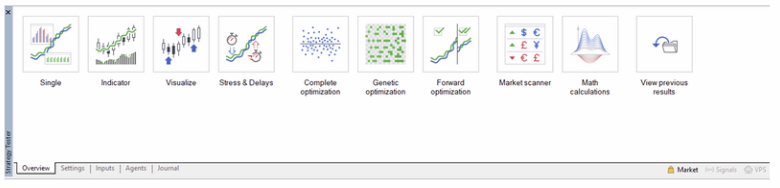
– In the Strategy Tester panel, you’ll see a drop-down menu or a list:
– Expert Advisor (EA) – test automated strategies.
– Indicator – test indicators visually.
– Script – rare, but possible.
– In the Strategy Tester panel, you’ll see a drop-down menu or a list:
– Expert Advisor (EA) – test automated strategies.
– Indicator – test indicators visually.
– Script – rare, but possible.
Pick the one you want to test.
3Select the EA or Indicator in Settings.
– In the Expert drop-down list, select the EA or custom indicator you installed.
– If it’s not there, refresh the Navigator or restart MT5.
– In the Expert drop-down list, select the EA or custom indicator you installed.
– If it’s not there, refresh the Navigator or restart MT5.

4Select the Symbol (Instrument)
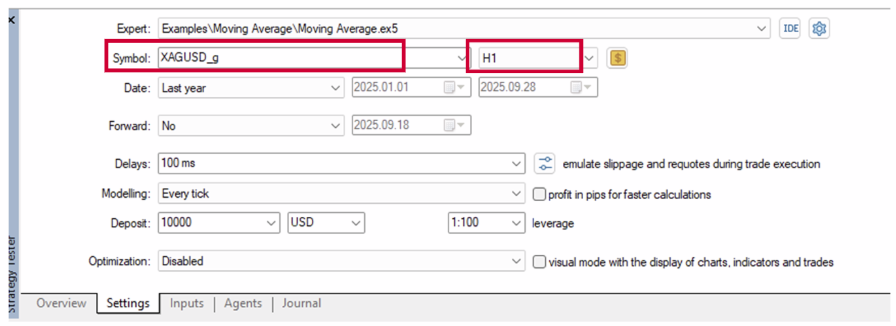
– From Symbol, choose the currency pair, gold, index, etc., you want to test.
– From Symbol, choose the currency pair, gold, index, etc., you want to test.
5Choose the Timeframe
– From Period, pick the timeframe (e.g., M1, M15, H1, D1).
– The tester will run using historical data from that timeframe.
– From Period, pick the timeframe (e.g., M1, M15, H1, D1).
– The tester will run using historical data from that timeframe.
6Set the Date Range
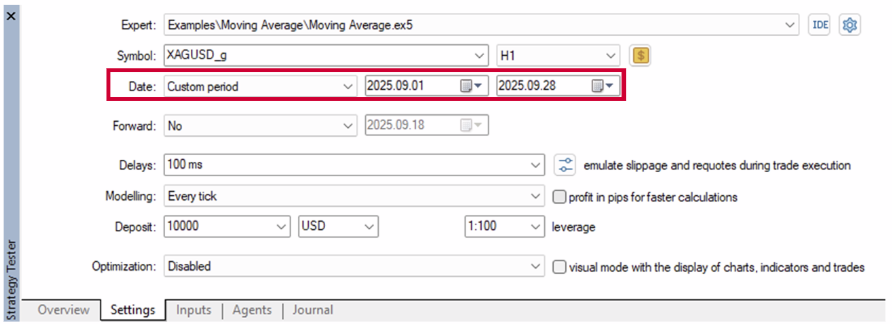
– Tick Use Date.
– Choose a Start and End date to limit the historical data tested.
– Tick Use Date.
– Choose a Start and End date to limit the historical data tested.
7Adjust Model & Execution
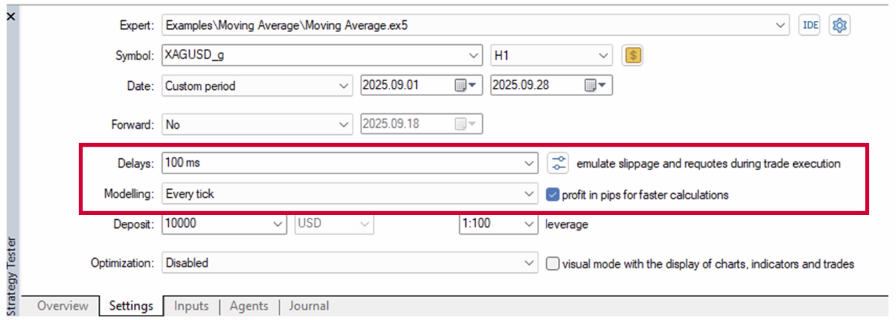
– Mode: “Every tick” (most accurate), “1 minute OHLC,” or “Open prices only” (faster).
– Delays: Choose if you want delays/slippage simulated.
– Mode: “Every tick” (most accurate), “1 minute OHLC,” or “Open prices only” (faster).
– Delays: Choose if you want delays/slippage simulated.
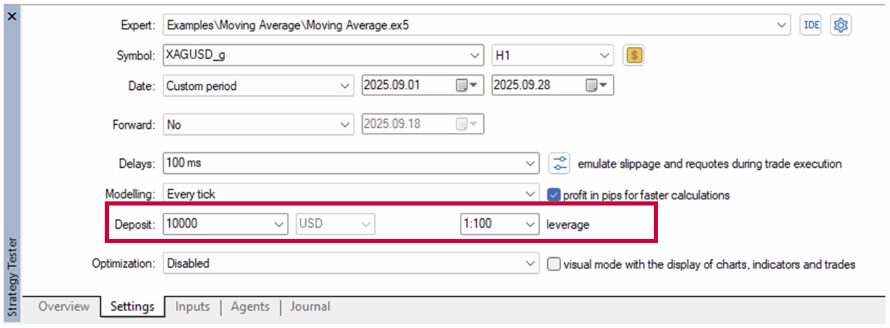
8Set Deposit & Leverage
– Click Expert Properties → Testing tab to set initial deposit, leverage, and testing currency.
– Click Inputs tab to adjust EA settings (lot size, risk, etc.).
– Click Expert Properties → Testing tab to set initial deposit, leverage, and testing currency.
– Click Inputs tab to adjust EA settings (lot size, risk, etc.).
9Enable Visual Mode (Optional)
– Tick Visual Mode to watch trades appear on a chart during the test.
– Adjust speed slider to make it faster or slower.
– Tick Visual Mode to watch trades appear on a chart during the test.
– Adjust speed slider to make it faster or slower.

10Start the Test
– Click Start at the bottom right.
– MT5 will run the backtest and show progress.
– Click Start at the bottom right.
– MT5 will run the backtest and show progress.

11Check Results
– Use tabs in the Strategy Tester window:
– Use tabs in the Strategy Tester window:
- – Results: Every trade entry/exit during the test.
- – Graph: Balance and equity curves.
- – Report: Summary statistics (profit factor, drawdown, etc.).
- – Journal: Logs, errors, and messages.
