
How to Set Up Two-Factor Authentication
with One-Time Codes in MT5
Beginning November 13, 2026, multi-factor authentication for MT5 will be mandatory across our company.
When logging in, you must enter a one-time code in addition to your login ID and password.
One-time codes can be generated using either the Google Authenticator app or the MT5 app on your smartphone.
Configuring Google Authenticator for MT5
Step 1
A QR code will appear when you log in to MT5 on your PC.
Scan the QR code using Google Authenticator on your smartphone.
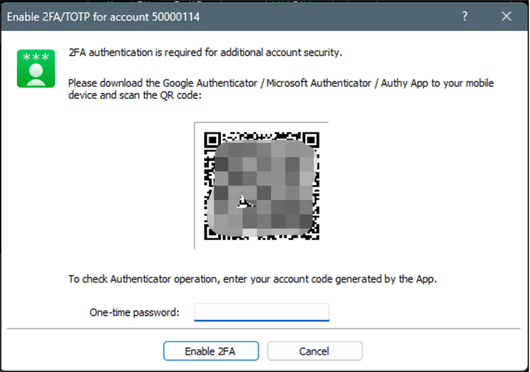
Scan the displayed QR code using Google Authenticator on your smartphone.
Please scan the QR code using an authentication app rather than your smartphone’s camera app.
Once loading is complete, a new account (account name: HiroseSolutions-Live [xxxxxxxx]) will be added to Google Authenticator.
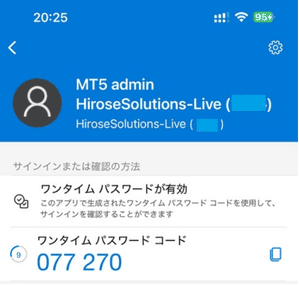
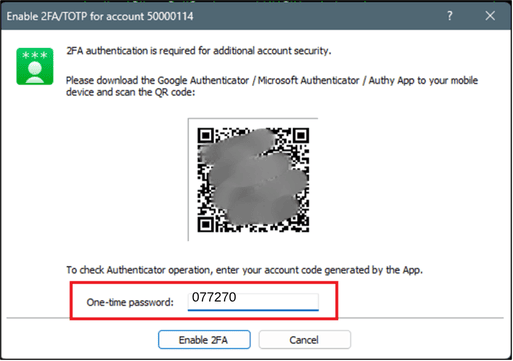
Enter the displayed six-digit password code in the “One-time password” field.
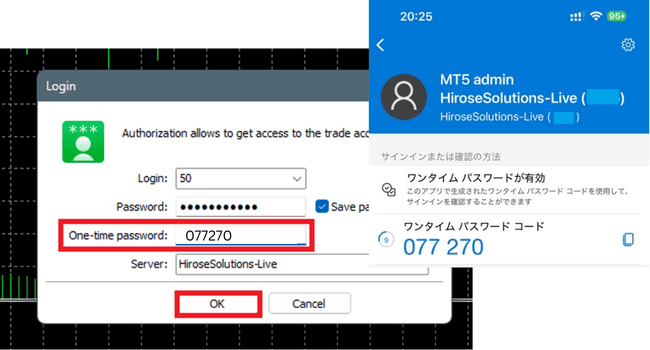
A login pop-up will appear. Reenter the six-digit code displayed in Authenticator, then click [OK].
[Important considerations when using the service]
Account-specific settings: If you have multiple subaccounts, you cannot configure them all at once for security reasons. Each account must be configured individually.
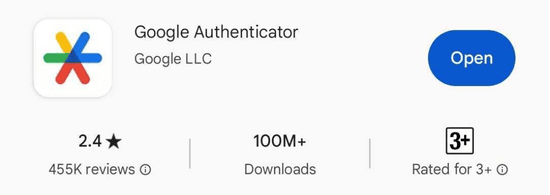
App preparation: To set up and sign in, you must have “Google Authenticator” installed on your smartphone.
Authentication through the MT5 mobile app
Authentication using one-time codes generated by the MT5 app on your smartphone is also supported.
[How to Set It Up] If you log in to the MT5 app on your smartphone before setting up Google Authenticator on your computer, the following message will appear.
▼iPhone / iPad
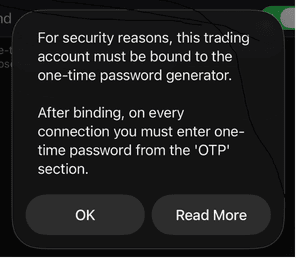
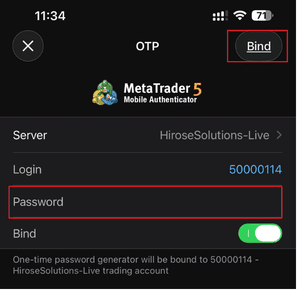
Click “OK,” enter your password, and, with [Bind] enabled, click [Bind].
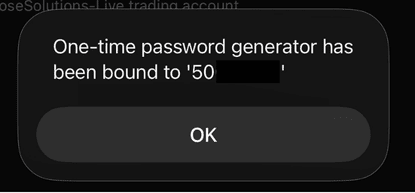
Setup complete.
▼Android
Click “Link.”
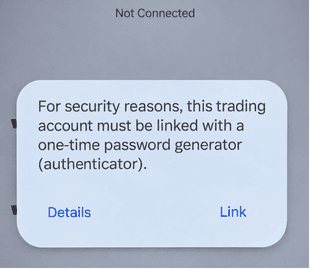
Next, enter the server name, account number, and master password associated with your trading account. Please keep “Bind” enabled.
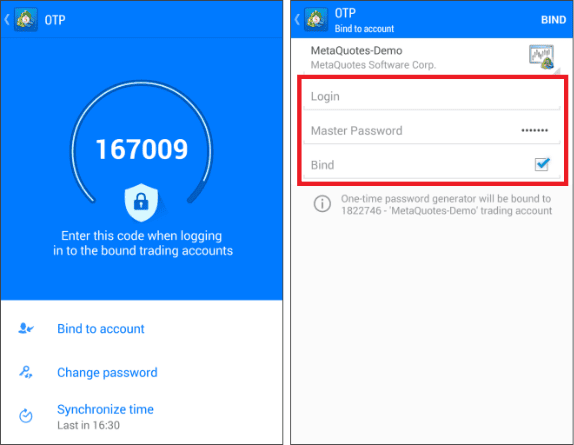
Tapping the **“Bind” button** at the top of the screen links your trading account to the one-time password generation function. Once the linking is complete, a confirmation message appears on the screen.
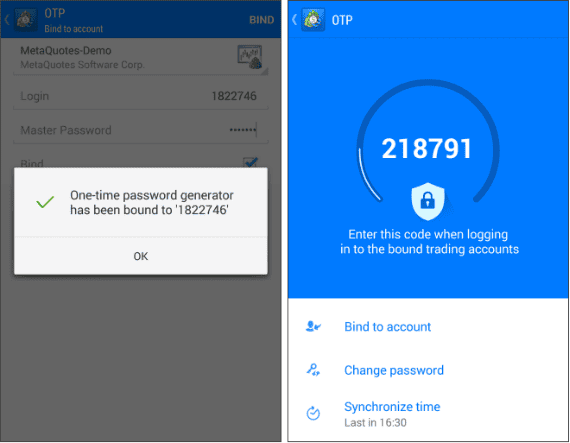
[Important considerations when using the service]
Account-specific settings: For security reasons, multiple subaccounts cannot be configured simultaneously. We apologize for the inconvenience; each account must be configured individually.
The verification code changes approximately every 30 seconds. If it expires, please enter a new code.
Each MT5 account is linked to one OTP generator. If you registered the smartphone version of MT5, use the code from that app in the PC version.
If you register Google Authenticator or a similar authenticator on the PC version first, you may be prompted to enter an OTP when using the mobile version of MT5.
If you cannot log in because you lost your smartphone, changed devices, or encountered an OTP mismatch, please contact Hirose Support.
This is not a guide to configuring two separate applications as independent OTP generators simultaneously within the same MT5 account. Please choose one method.
If you register Method B first on the PC version, you may be required to enter an OTP when reconnecting to the smartphone version of MT5.
If you lose your smartphone, switch models, or need to reset your OTP, please contact Hirose Support.
If you have already set up two-factor authentication on the PC version
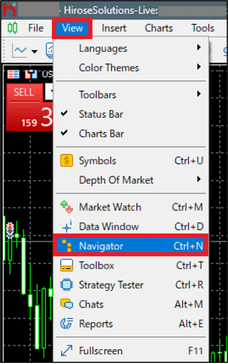
If you have deleted the QR code or are experiencing issues, such as the QR code not displaying, open the Navigator by selecting “View” → “Navigator.” Then, right-click the relevant account and delete it.
After deletion, please re-enter your login ID and password to display the QR code again.
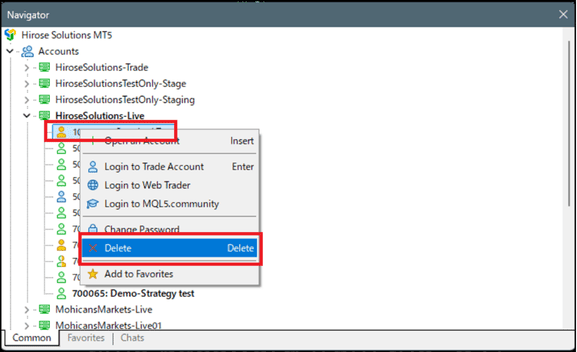
If the issue persists, please contact customer support rather than attempting it repeatedly.
Customer Support: [email protected]