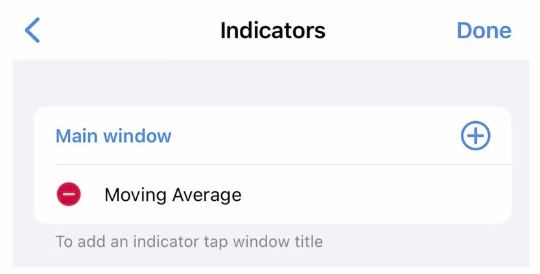
How to Insert Indicators on MT5 iOS
1. Open the MT5 App
– Launch the MT5 app.
– Log in to your trading account.
– Launch the MT5 app.
– Log in to your trading account.

2. Open a Chart
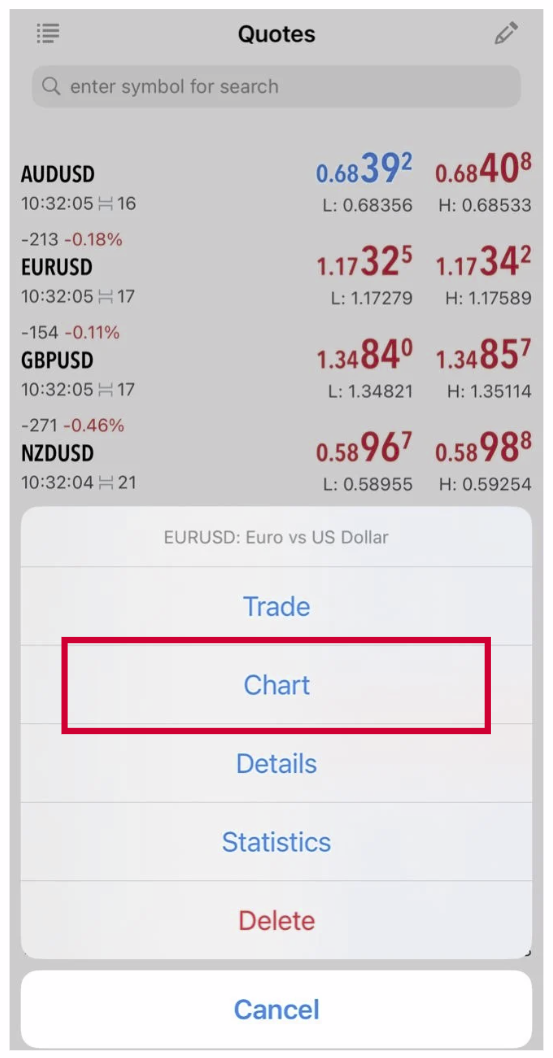
– Tap Quotes at the bottom menu.
– Select any trading symbol (e.g. EURUSD).
– Tap Chart.
– Tap Quotes at the bottom menu.
– Select any trading symbol (e.g. EURUSD).
– Tap Chart.
3. Open the Indicators Menu
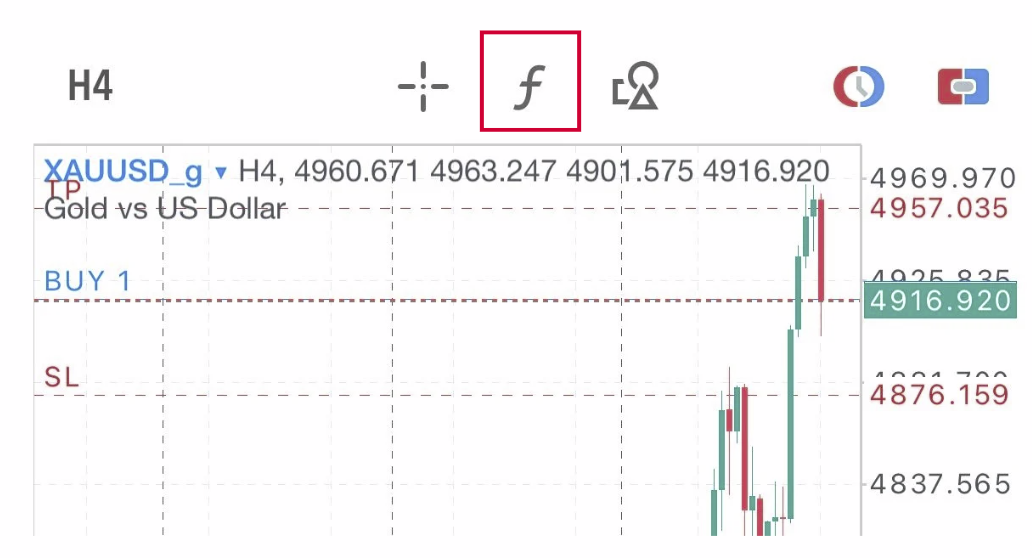
– On the chart screen, tap the ƒ (Indicator) icon at the top.
– The Indicators window will appear.
– On the chart screen, tap the ƒ (Indicator) icon at the top.
– The Indicators window will appear.
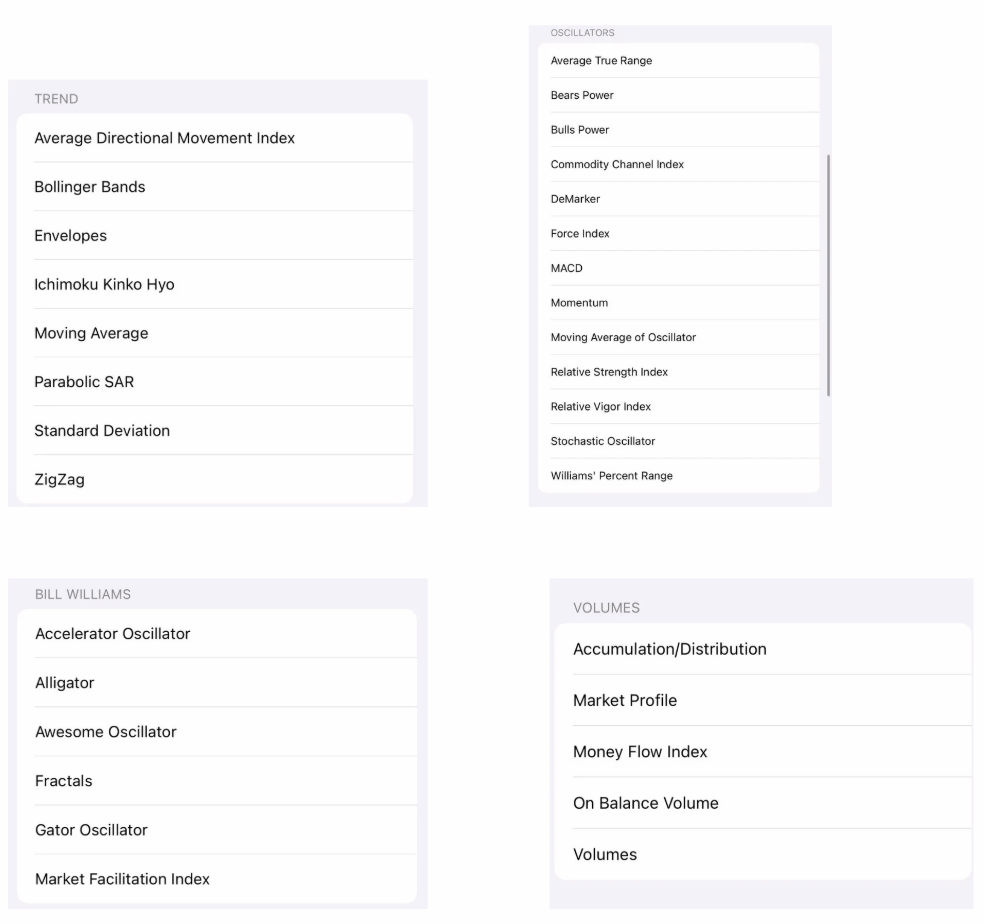
4. Choose an Indicator Indicators are grouped by category:
– Trend – Moving Average, Bollinger Bands, Ichimoku
– Oscillators – RSI, MACD, Stochastic
– Volumes – Volumes, On Balance Volume
– Bill Williams – Alligator, AO, AC
Tap the indicator you want.
– Trend – Moving Average, Bollinger Bands, Ichimoku
– Oscillators – RSI, MACD, Stochastic
– Volumes – Volumes, On Balance Volume
– Bill Williams – Alligator, AO, AC
Tap the indicator you want.
5. Adjust Indicator Settings
You can modify:
– Period
– Shift
– Method
– Apply to
– Levels
– Timeframe
– Style
Tap Done to apply.
You can modify:
– Period
– Shift
– Method
– Apply to
– Levels
– Timeframe
– Style
Tap Done to apply.
6. View on Chart
– The indicator will now appear on your chart.
– The indicator will now appear on your chart.
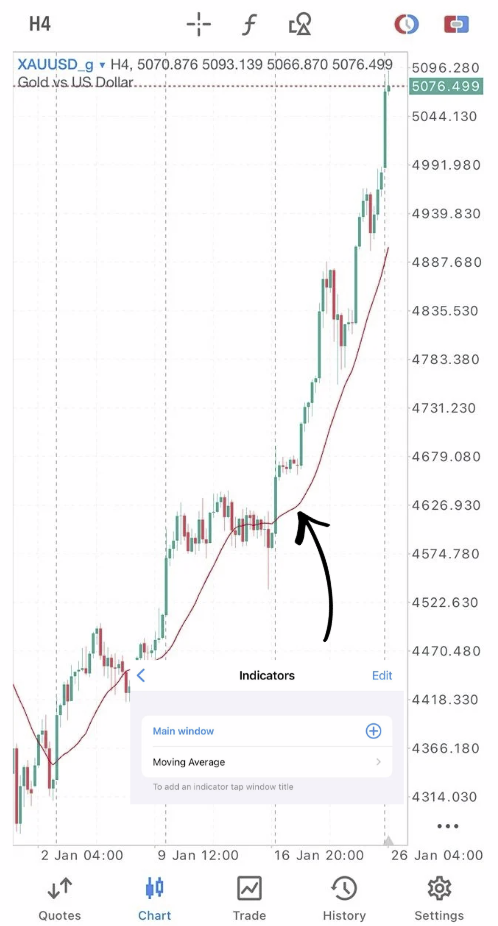
7. Edit or Remove Indicators
1. Tap the f (Indicator) icon again.
2. Tap the indicator name.
Choose:
– Edit → change settings
– Delete → remove indicator
1. Tap the f (Indicator) icon again.
2. Tap the indicator name.
Choose:
– Edit → change settings
– Delete → remove indicator