How to Use Drawing Tools on MT5 Platform
(Android Version)
Part 1 – Access the Chart Screen
- Step 1 – Open the MT5 App
- – Tap the MetaTrader 5 icon on your Android device to open the app.

Step 2 Go to the Chart
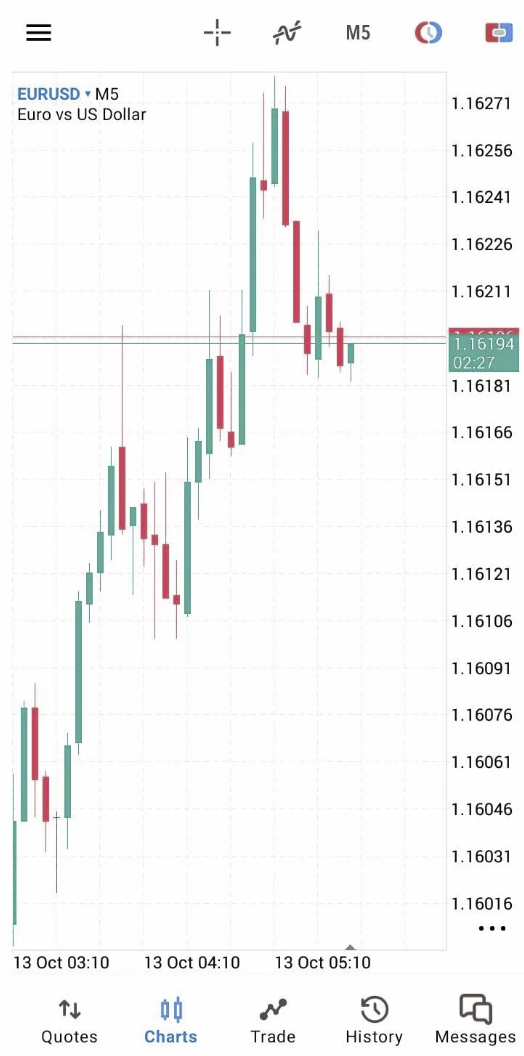
– Tap “Charts” at the bottom of the screen.
– Select the instrument (e.g., EUR/USD, XAU/USD) you want to analyze.
– Tap “Charts” at the bottom of the screen.
– Select the instrument (e.g., EUR/USD, XAU/USD) you want to analyze.
Part 2 – How to Add Drawing Tools
- Step 1 – Open the Chart Tools Menu
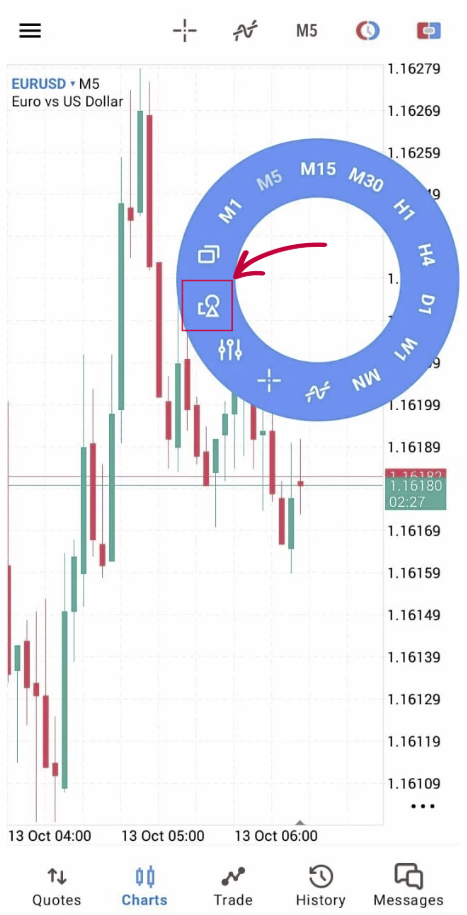
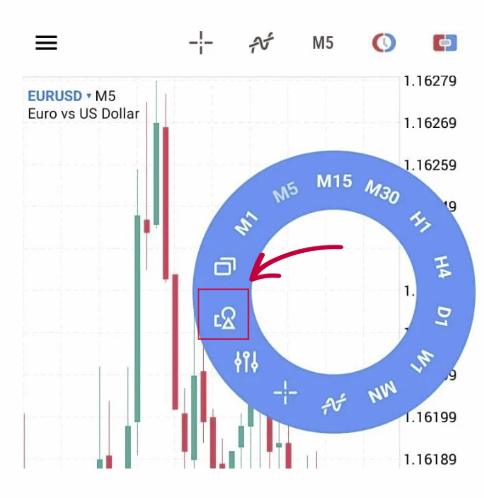
- – Tap anywhere on the chart to display the top toolbar.
- – Tap the “Tools” icon (object symbol).
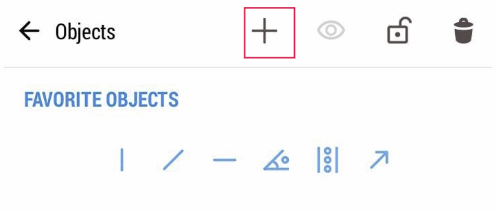
- – Tap “+”.
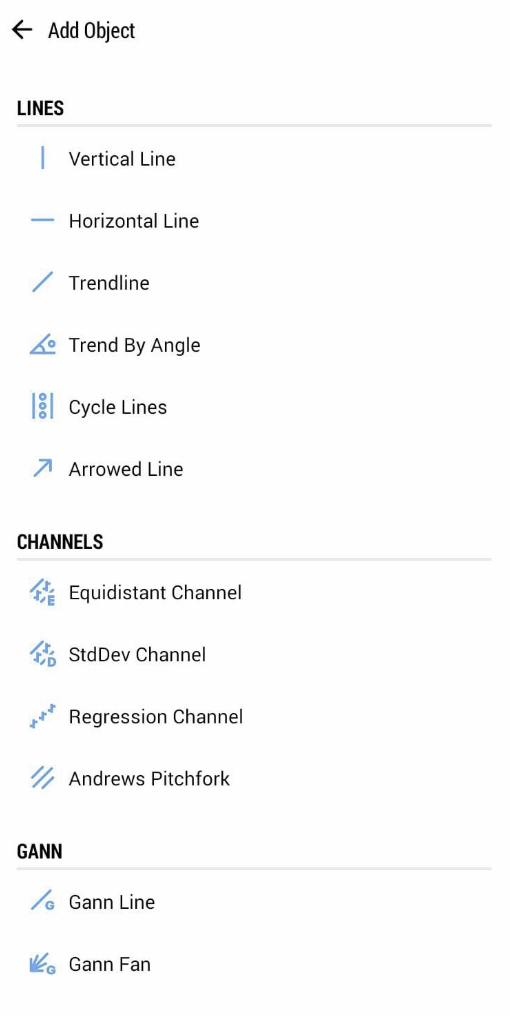
Step 2 – Choose a Drawing Tool
- Select the type of tool you want to use:
- – Vertical Line – marks a specific time on the chart.
- – Horizontal Line – marks a specific price level.
- – Trendline – draws diagonal lines to identify trends.
- – Equidistant Channel – draws two parallel trendlines.
- – Fibonacci Retracement – used to identify potential reversal levels.
- – Shapes – draw rectangles, ellipses, or text labels on the chart.
✅ Once selected, the tool will appear on your chart.
Step 3 – Adjust or Move the Drawing
- – Tap and hold the line or shape to activate edit mode.
- – Drag it to adjust its position or angle.
- – Tap again to change properties (like color, style, or width).
Part 3 – Edit or Delete Drawing Tools
- Step 1 – Open Object List
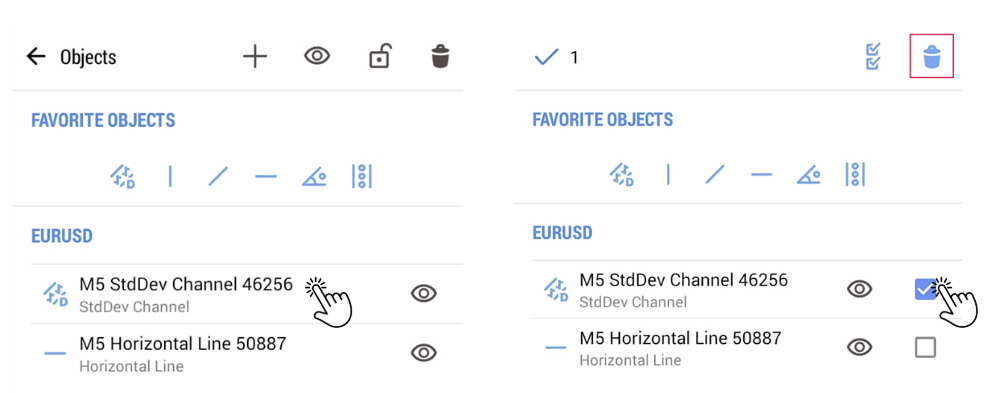
- – Tap on the chart → select “Objects.”
Step 2 – Edit or Remove
- – Select the object you want to change.
- – Tap on the object to modify properties, or “Delete” to remove it from the chart.