
Open Client account on behalf of Client
Once your IB account is approved by Hirose, your IB referral link will be automatically generated. However, the Client referral link must be created by you.
Additionally, with our new IB portal, IBs can open Client and Sub-IB accounts on behalf of their referrals. The clients and Sub-IBs only need to complete the email verification and onboarding process.
Access the IB Portal using the following link:
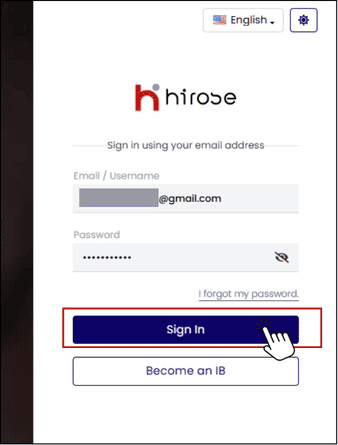
Log in by entering your Email/Username and Password, then click the [Sign In] button.
Once you have successfully logged in to the IB Portal, you will be taken to the Dashboard.
You can find Add Client feature in the Quick link section of the Dashboard.
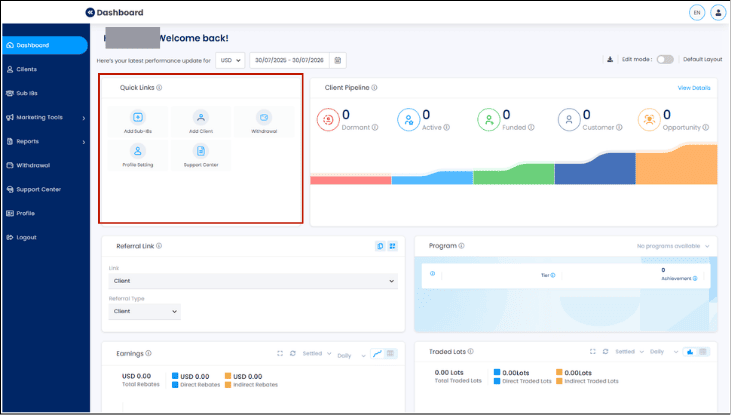
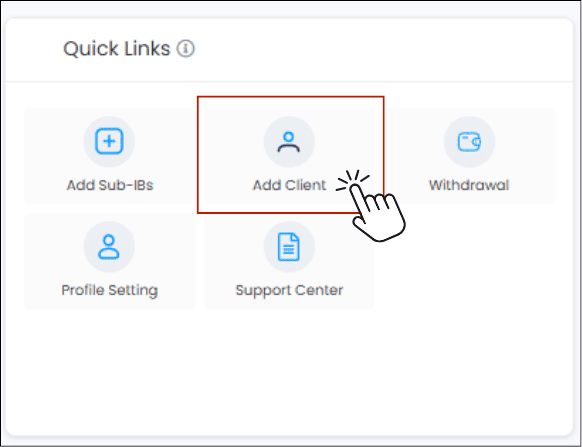
Step 3: Click [Add Client] to access Add Client Page
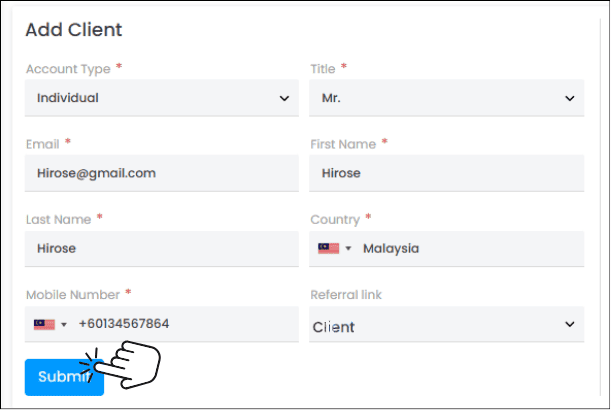
Step 4: Please fill out the necessary information to create a new Client account.
Note: The new Client must not have previously opened an Trading account with Hirose.
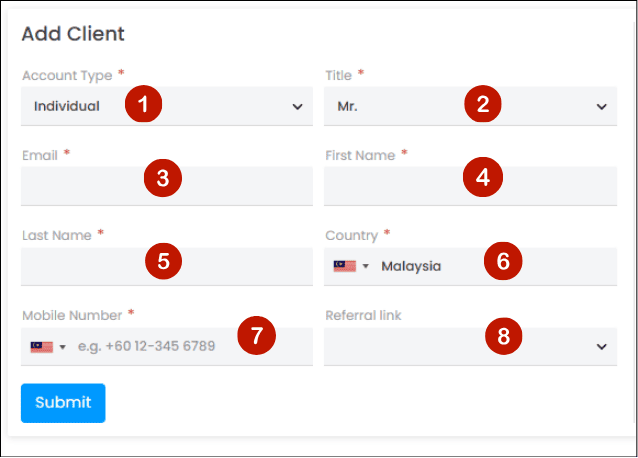
1 Account Type: Select your Client’s account type from the dropdown list (Individual or Corporate).
2 Title: Select your Client’s appropriate Title.
3 Email: Provide your Client’s valid email address, which will be used for account verification & communication.
4 First Name: Enter your Client’s given name as shown on the official ID.
5 Last Name: Enter your Client’s family name/ surname as shown on the official ID.
6 Country: Select your Client’s country of residence from the dropdown list.
7 Mobile Number: Provide your Client’s active mobile phone number (include country code).
8 Referral Link: Select the Client Referral Link that applies to this client.
Step 5: Click [Submit]
Step 6: Hirose will automatically send an email to the client’s email address.
The client must verify their email and complete the onboarding process via the Client Portal. Further details are included in the emails.

See more: How to create a Live Trading Account