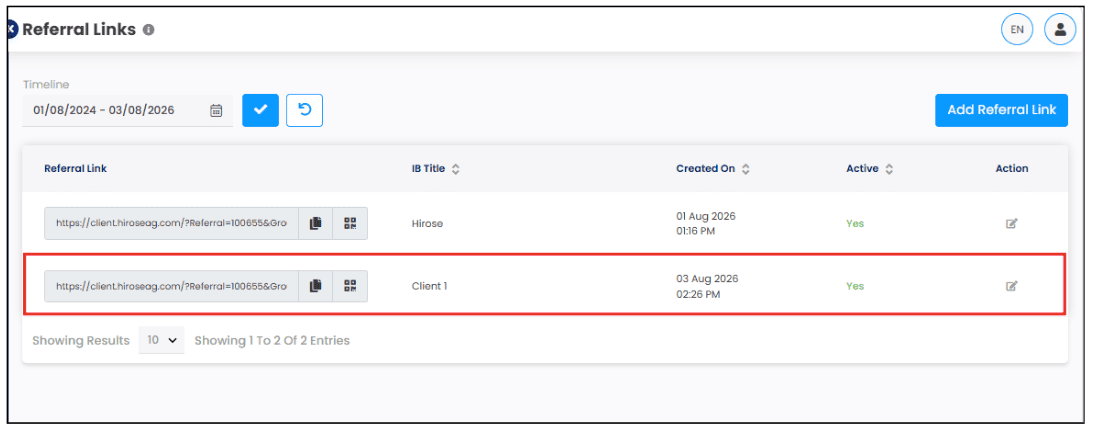
How to Create your Client Referral Link
Once your IB account is approved by Hirose, your IB referral link will be automatically generated. However, the Client referral link must be created by you.
Additionally, with our new IB portal, IBs can open Client and Sub-IB accounts on behalf of their referrals. The clients and Sub-IBs only need to complete the email verification and onboarding process.
Step 1: Access the IB Portal using the following link: https://ib.hiroseag.com
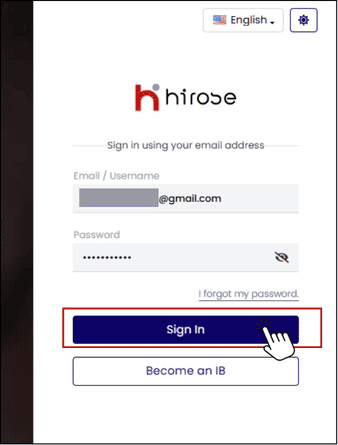
Step 2: Log in by entering your Email/Username and Password, then click the [Sign In] button.
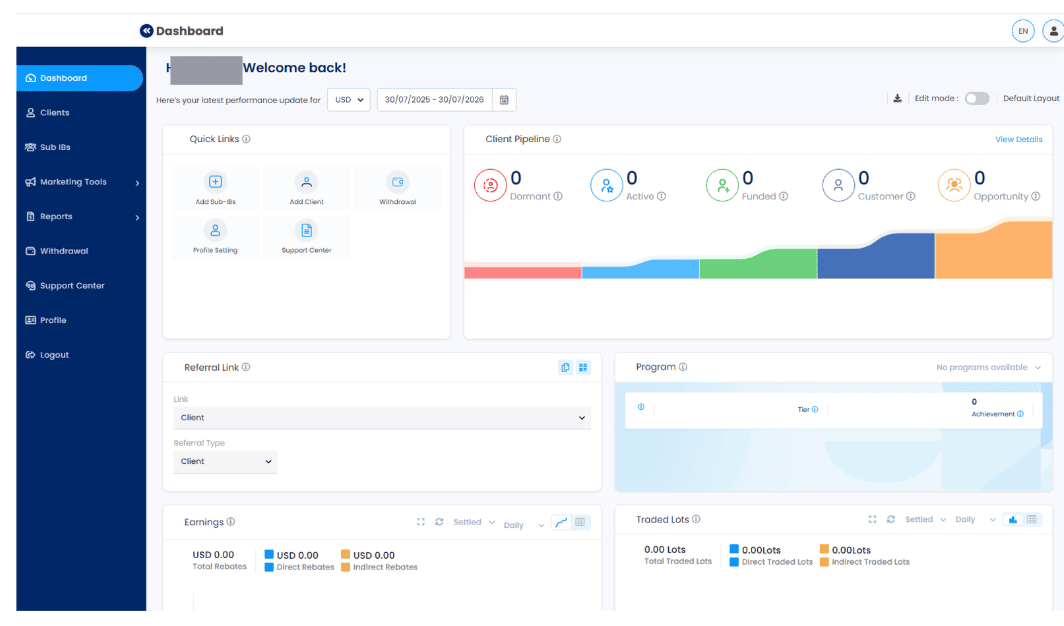
Once you have successfully logged in to the IB Portal, you will be taken to the Dashboard.
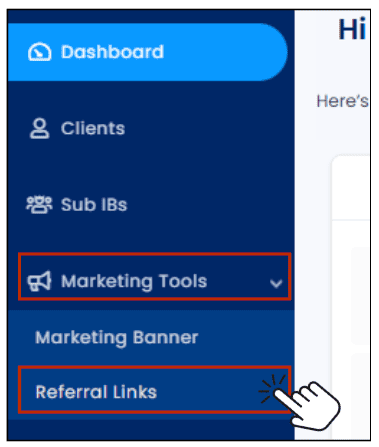
Step 3: In the left side menu, select [Marketing Tools] > [Referral Links]
Step 4: Click [Add Referral Link] button on the top-right of the page

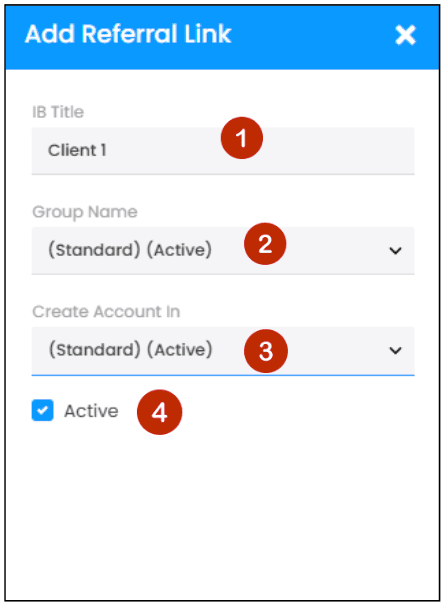
Step 5: Please fill out the required fields to add a new Referral Link.
1 IB Title: Please enter the name of your referral link
2 Group Name: Choose the appropriate Group Name from the drop-down list.
3 Create Account in: Choose the appropriate option from the drop-down list.
4 Active: Check the box to activate this option.
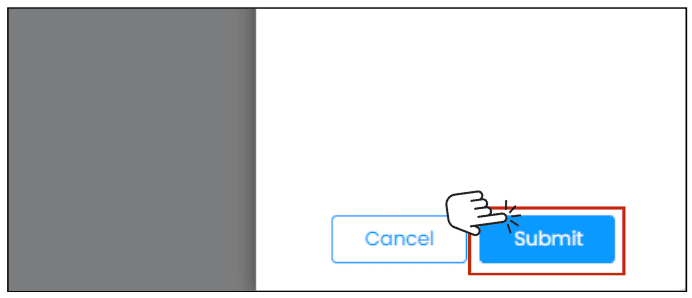
Step 6: Click [Submit] button to create Referral Link
Step 7: Once the referral link has been successfully created, it will appear in the Referral Link list.