How to open an IB Account
Part 1: Fill Out the IB Application Form
https://ib.hiroseag.com/Affiliates/SignUp
*If you are a Sub-IB, please access the registration page through your IB referral link instead.
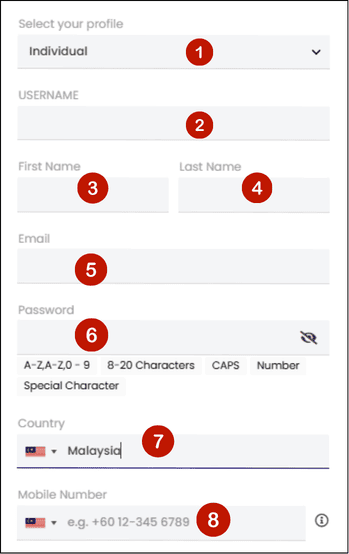
1 Profile: Select your profile from the dropdown list (Individual or Corporate).
2 Username: Enter your username. If the username is already taken by another IB, you will be asked to choose a different one.
3 First Name: Enter your given name as shown on your official ID.
4 Last Name: Enter your family name/surname as shown on your official ID.
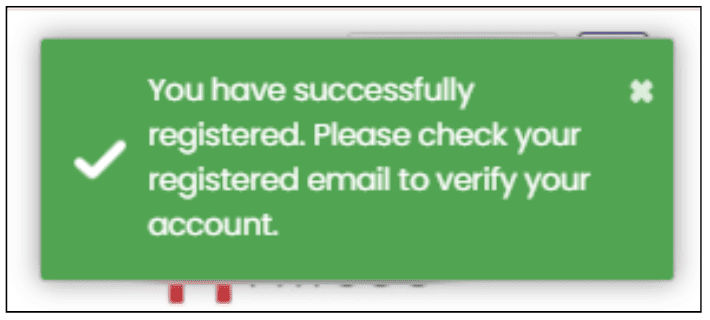
5 Email: Provide a valid email address, which will be used for account verification & communication.
6 Password: Create a strong password (at least 8 characters, including letters, numbers, and special characters).
7 Country: Select your country of residence from the dropdown list.
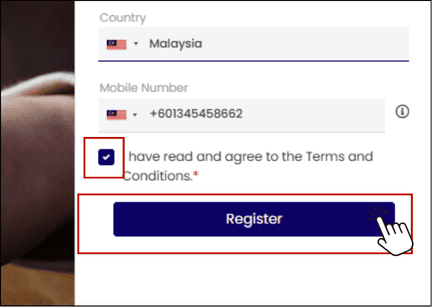
8 Mobile Number: Provide your active mobile phone number (include country code).
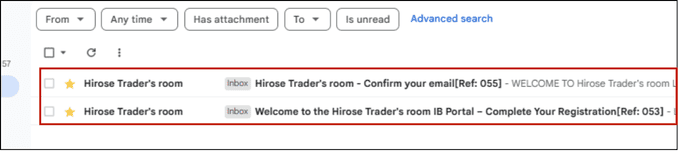
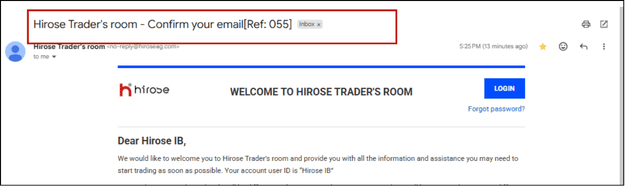
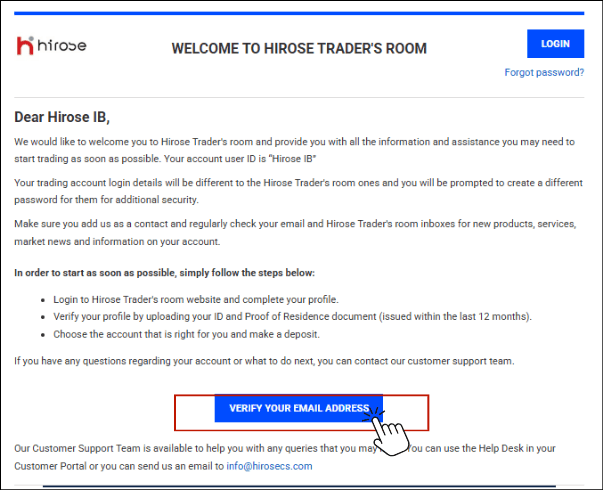
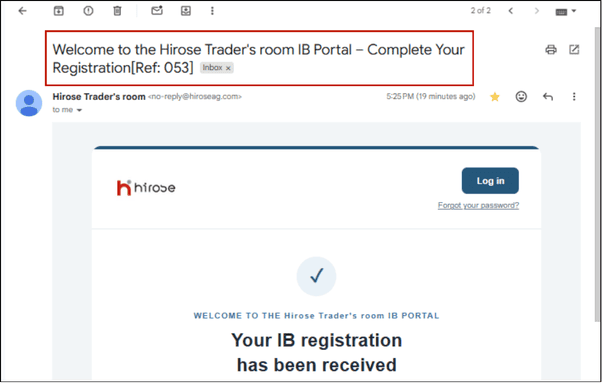
Part 2: Verify your Email
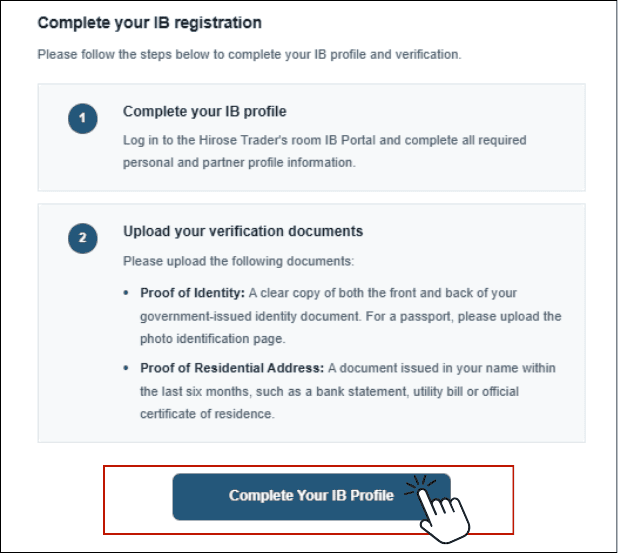
Part 3: Complete the Onboarding Process
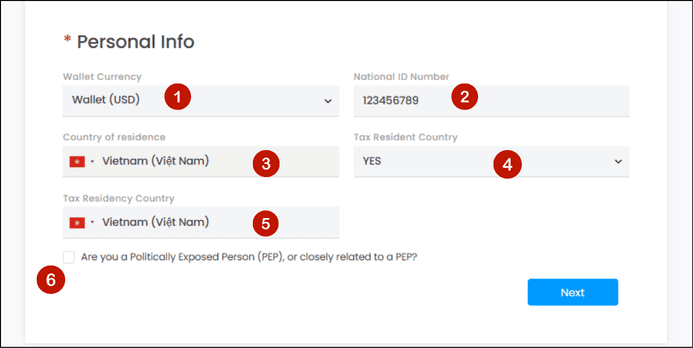
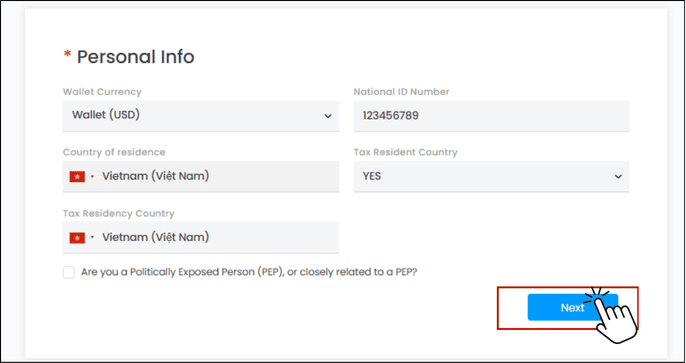
Part 3.1: PERSONAL INFORMATION

1 Wallet Currency: Please choose option Wallet (USD)
2 National ID Number: Please enter your National ID Number
3 Country of Residence: Please select the country where you currently reside from the dropdown list.
4 Tax Resident Country: Choose YES if you have tax obligations in any country.
5 Tax Residency Country: Please select the country where you are currently subject to tax obligations.
6 Tick the checkbox if you ARE a Politically Exposed Person (PEP) or are closely related to a PEP. If neither applies to you, leave the checkbox unticked.
Part 3.2: Upload Documents

1. Proof of Identity (choose one)
• National ID card (front and back)
• Passport (photo page)
• Driver’s License (front and back)
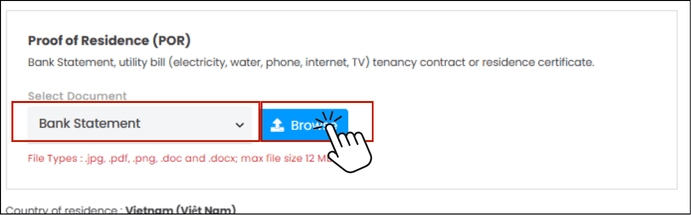
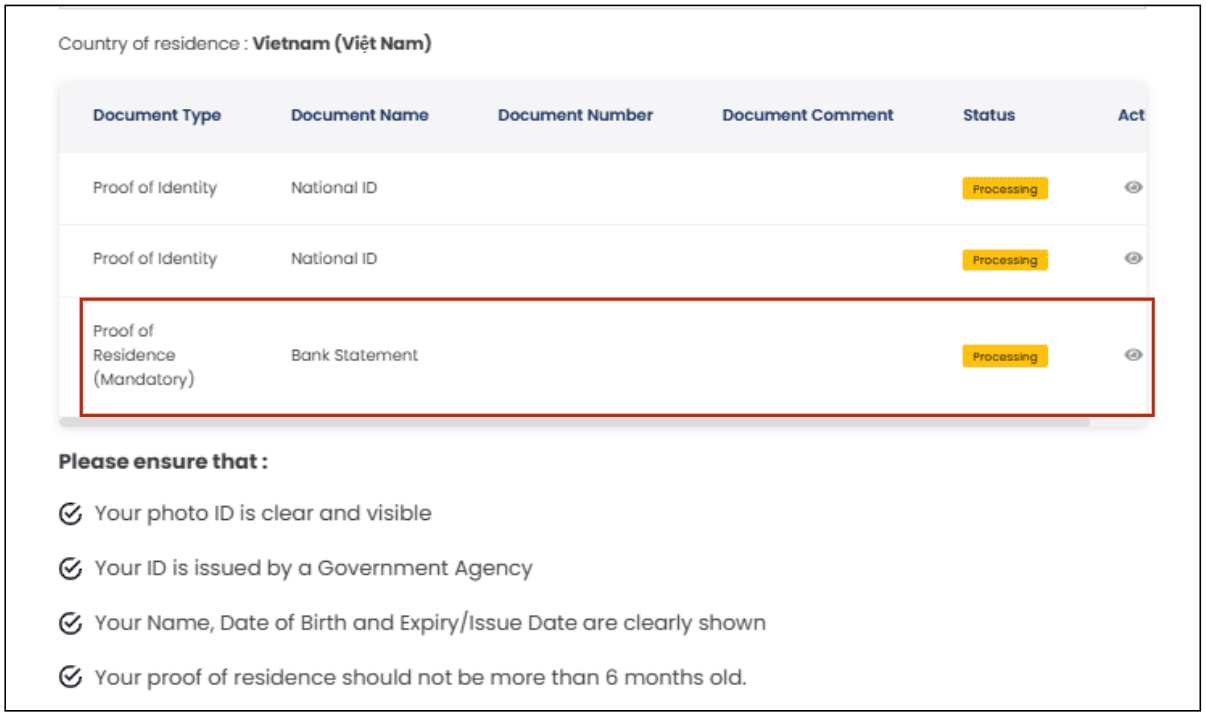
2. Proof of Address (choose one) – issued within the last 6 months
• Utility bill (electricity, water, gas, internet, etc.)
• Bank statement
• Government-issued residence certificate
- • Select the document type from the dropdown list.
- • Click [Browse] to upload your document.
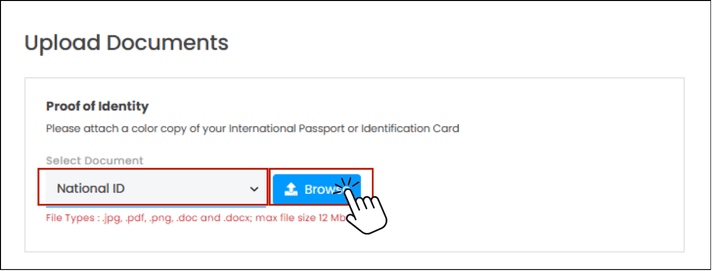
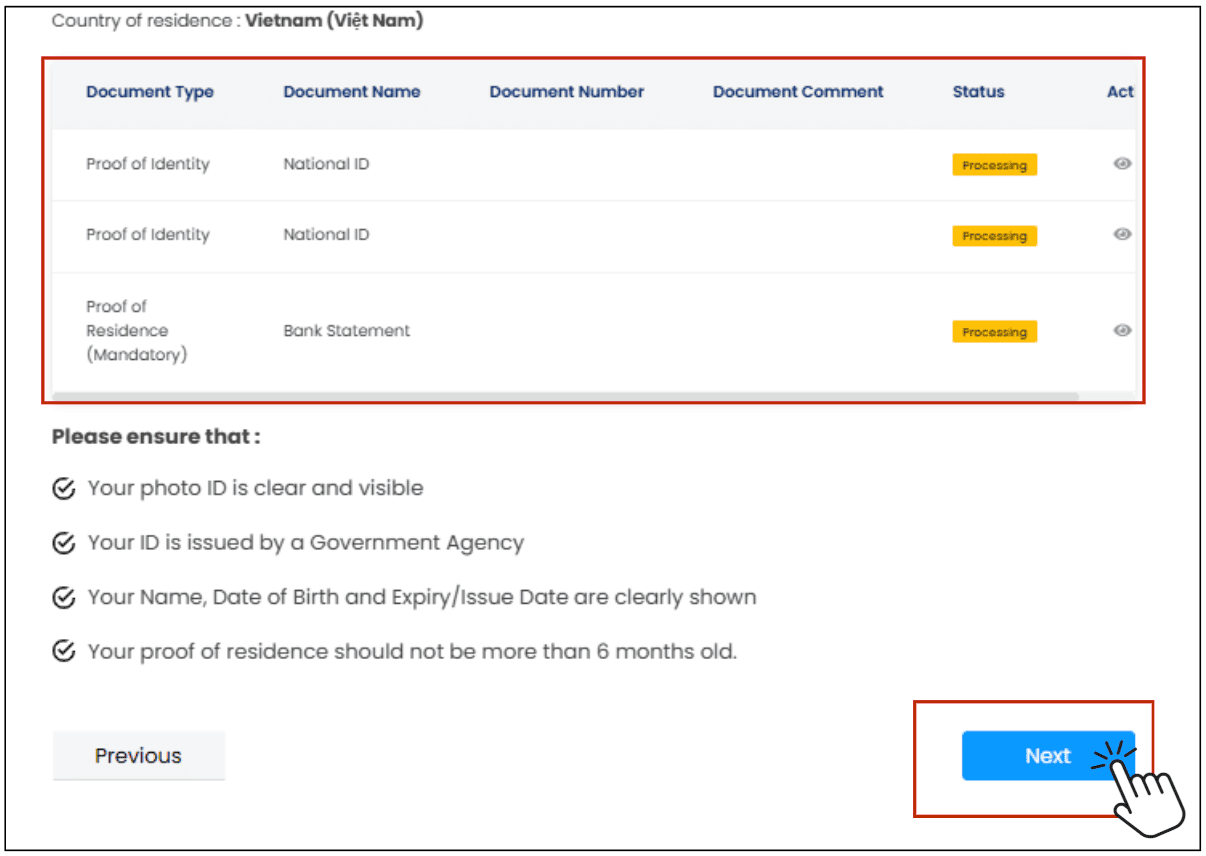
- • Scroll to the bottom of the page and verify that your document appears in the Document List table.
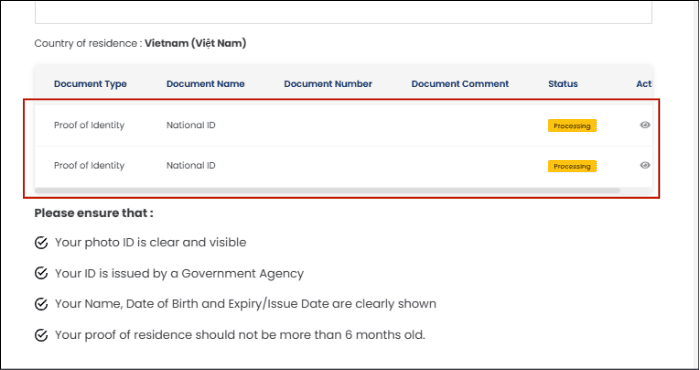
- • Select the document type.
- • Click [Browse] to upload your document.
- • Scroll to the bottom of the page and verify that your document appears in the Document List table.
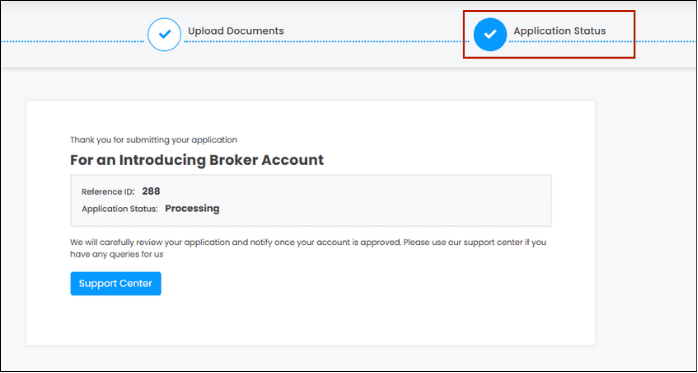
Part 3.3: APPLICATION STATUS
Once submitted, you will be redirected to the Application Status page.
Your IB Account application will be reviewed by our team, and this process normally takes 1-2 business days.