HOW TO GET YOUR CLIENT & IB REFERRAL LINK
Once your IB account is approved by Hirose, your IB referral link will be automatically generated. However, the Client referral link must be created by you.
Additionally, with our new IB portal, IBs can open Client and Sub-IB accounts on behalf of their referrals. The clients and Sub-IBs only need to complete the email verification and onboarding process.
Step 1: Access the IB Portal using the following link: https://ib.hiroseag.com
Step 2: Log in by entering your Email/Username and Password, then click the [Sign In] button.
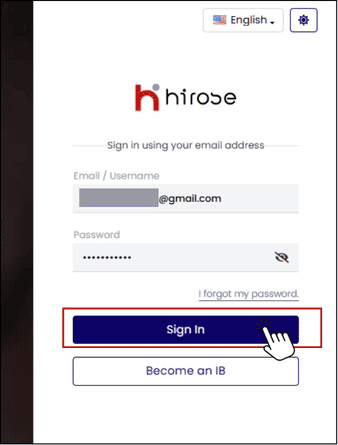
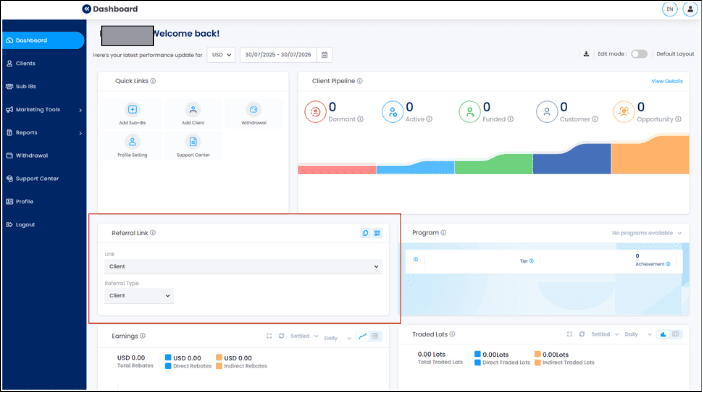
Once you have successfully logged in to the IB Portal, you will be taken to the Dashboard.
You can find the referral link in the Referral Link section of the Dashboard.
Part 1: Get Client Referral Link
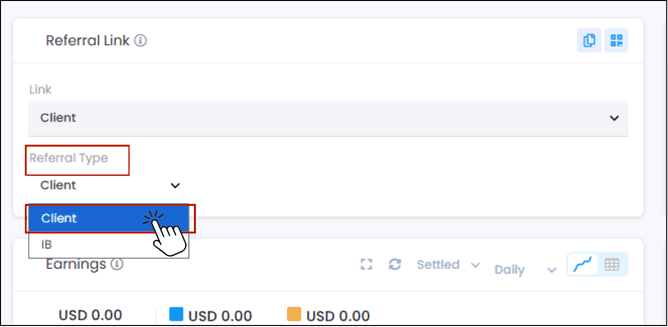
Step 1: In the Referral Type field, select [Client] from the drop-down menu.
Step 2: The list of client referral links will appear in the Link drop-down menu. Select the referral link you would like to use.
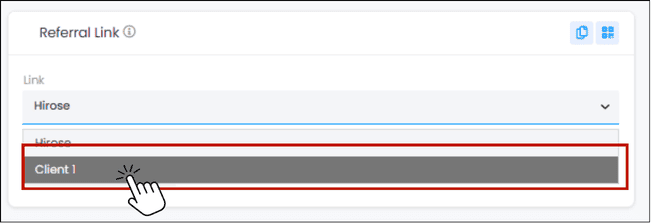
Step 3: There are two options for obtaining the referral link: Copy URL or Download QR Code.
Method 1 – Copy URL:
a. Click to the icon  to copy the Referral URL
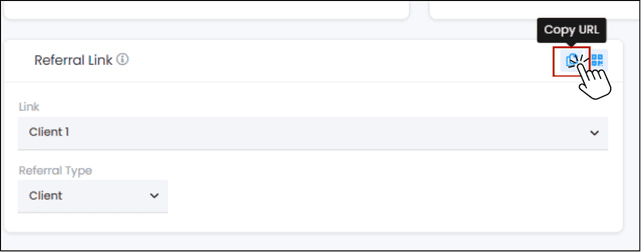
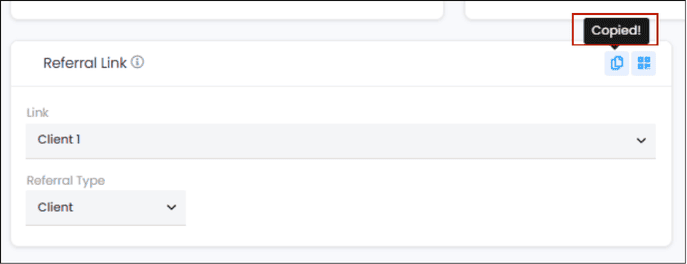
b. The link is copied instantly, and the text changes from “Copy URL” to “Copied!”. You can then paste the URL anywhere.
Method 2 – Download QR Code:
a. Click to the icon  to copy the Referral URL
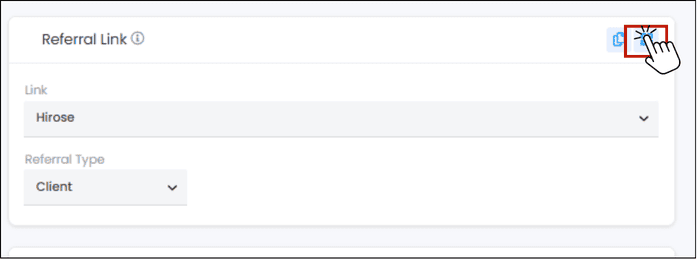
b. A QR code window will appear. Click the [Download] button to save the QR code to your device.
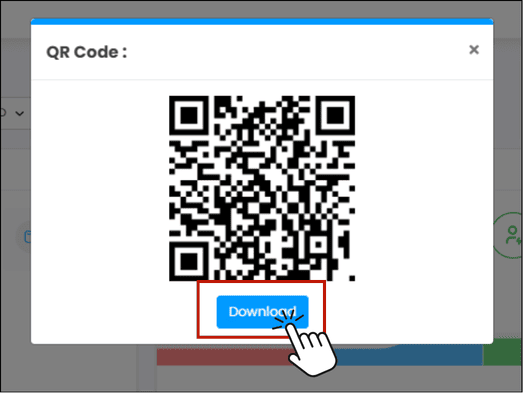
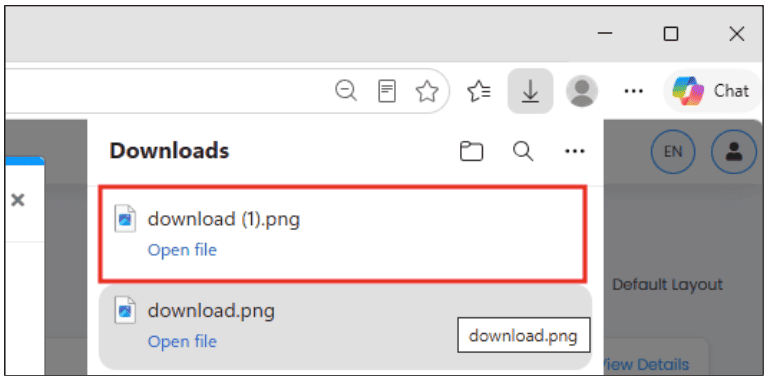
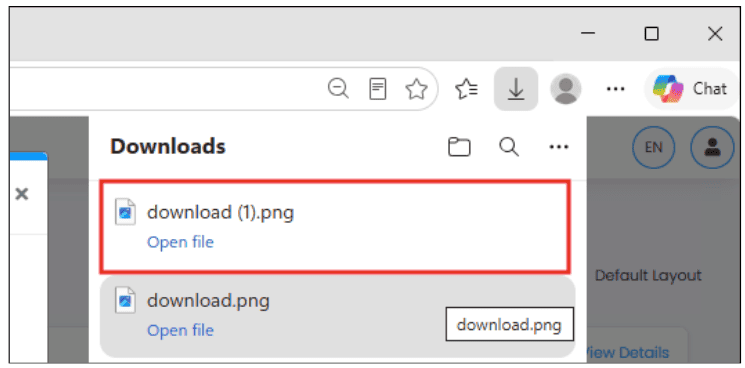
c. The QR code is downloaded instantly to your device. Now you can send the QR file to your client.
Part 2: Get Sub-IB Referral Link
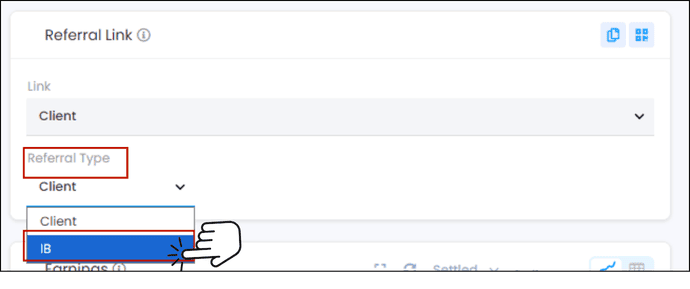
Step 1: In the Referral Type field, select [IB] from the drop-down menu.
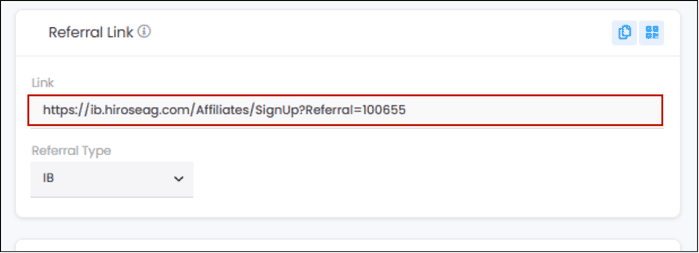
Step 2: In the Link section, the Sub-IB Referral Link will appear automatically.
Step 3: There are two options for obtaining the referral link: Copy URL or Download QR Code.
Method 1 – Copy URL:
a. Click to the icon to copy the Referral URL
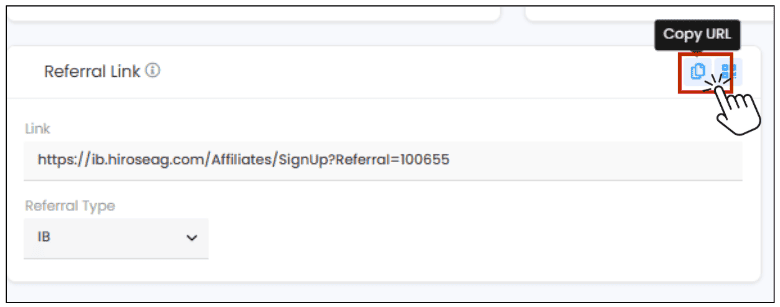
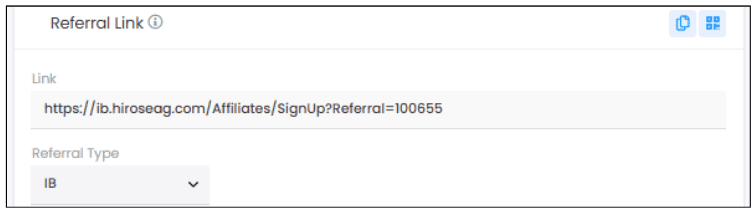
b. The link is copied instantly and the “Copy URL” text disappears. You can then paste the URL anywhere.
Method 2 – Download QR Code:
a. Click to the icon to copy the Referral URL
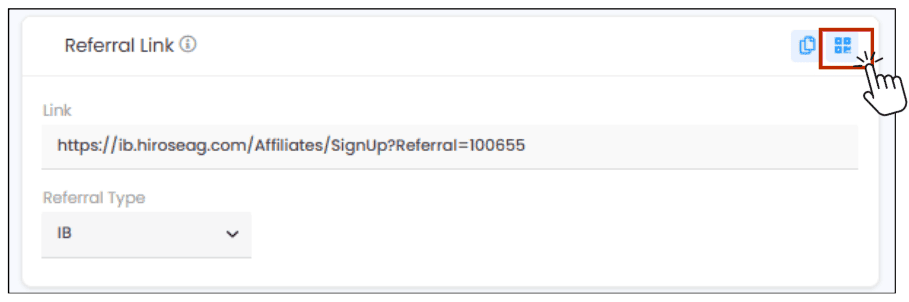
b. A QR code window will appear. Click the [Download] button to save the QR code to your device.
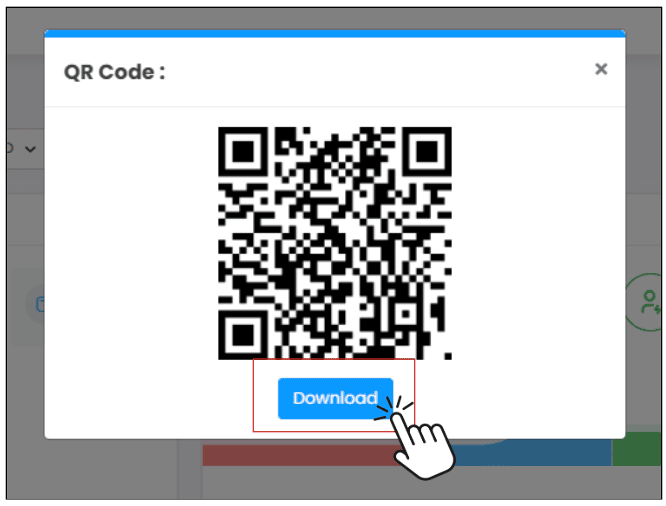
c. The QR code is downloaded instantly to your device. Now you can send the QR file to your client.