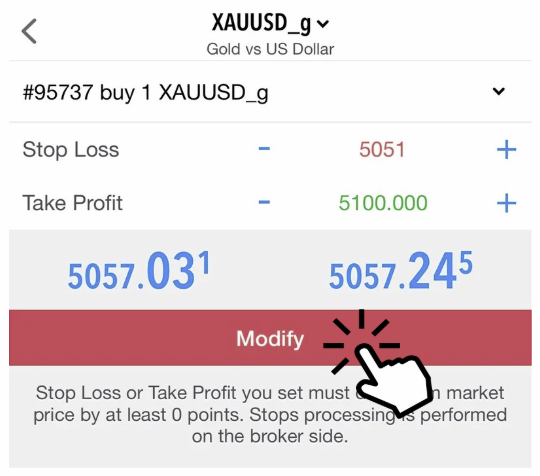
Invalid Stop Loss (S/L) or Take Profit (T/P)
What does “Invalid S/L or T/P” mean?
This error appears when the Stop Loss or Take Profit you entered does not follow the broker’s trading rules, such as:
– Too close to the market price
– Wrong side of Buy/Sell price
– Price format incorrect
– Market is closed
– Price changed too fast
This error appears when the Stop Loss or Take Profit you entered does not follow the broker’s trading rules, such as:
– Too close to the market price
– Wrong side of Buy/Sell price
– Price format incorrect
– Market is closed
– Price changed too fast
| Step 1 – Understand Correct Price | ||
|---|---|---|
| Order Type | Stop Loss Must Be | Take Profit Must Be |
| Buy | Below current price | Above current price |
| Sell | Above current price | Below current price |
| If this rule is broken, MT5 will reject the order. | ||
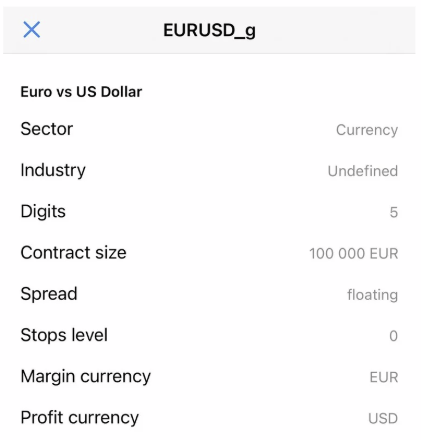
Step 2 – Check Minimum Distance (Stop Level)
S/L and T/P to be a minimum number of pips away from the current price.
To check it on MT5 iOS:
– Open MT5
– Tap Quotes
– Tap the symbol (e.g., EURUSD)
– Tap Details.
Look for Stop Level
S/L and T/P to be a minimum number of pips away from the current price.
To check it on MT5 iOS:
– Open MT5
– Tap Quotes
– Tap the symbol (e.g., EURUSD)
– Tap Details.
Look for Stop Level
Step 3 – Use Auto Price Button
When placing or editing a trade:
Tap Trade
Tap Buy or Sell
Tap S/L or T/P
Tap the calculator / arrow icon
Let MT5 auto-fill a valid price
Then adjust it further if needed
This ensures the price is not invalid.
When placing or editing a trade:
Tap Trade
Tap Buy or Sell
Tap S/L or T/P
Tap the calculator / arrow icon
Let MT5 auto-fill a valid price
Then adjust it further if needed
This ensures the price is not invalid.
Step 4 – Check Number Format
Make sure:
– You do not remove decimal places.
– You do not type whole numbers only
Correct example:
1.08540
Wrong example:
10854
Step 5 – Check Market Status
S/L or T/P cannot be set if:
– Market is closed
– Instrument is suspended
– Price is not moving
To check:
Look at the symbol → If it is greyed out, it is closed.
Step 6 – Modify from Open Position
– If it fails while opening a trade:
– Open the trade without S/L & T/P
– Go to Trade
– Tap the open position
– Tap Modify
– Enter S/L & T/P
– Tap Modify
– This avoids price-change rejection.
– If it fails while opening a trade:
– Open the trade without S/L & T/P
– Go to Trade
– Tap the open position
– Tap Modify
– Enter S/L & T/P
– Tap Modify
– This avoids price-change rejection.