
Viewing Order History on MT5 (iOS Version)
✅ Step 1 – Open the MT5 App
– Launch the MetaTrader 5 (MT5) app on your iPhone or iPad.
– Make sure you are logged in to your trading account.
– Launch the MetaTrader 5 (MT5) app on your iPhone or iPad.
– Make sure you are logged in to your trading account.

✅ Step 2: Go to the Trade Section
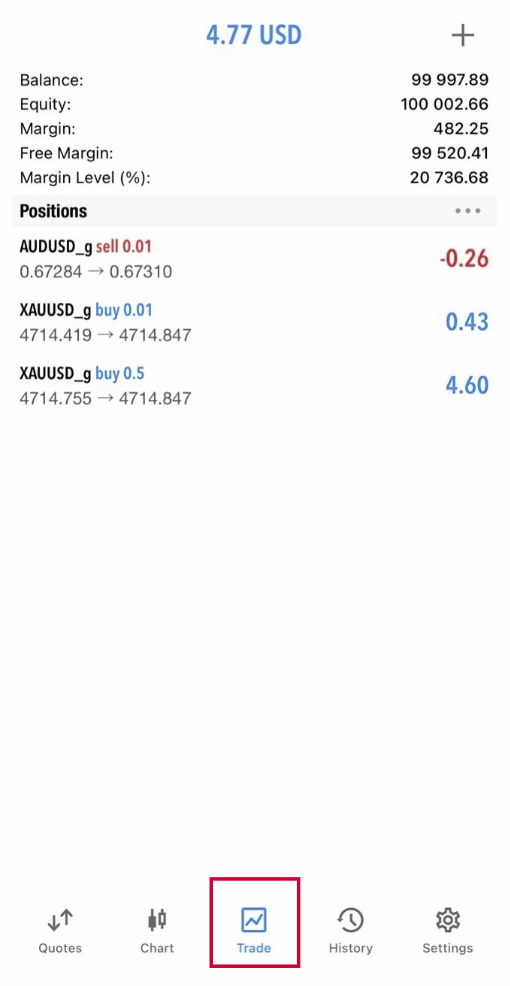
– At the bottom menu, tap “Trade”.
– This page shows your open positions and account details.
– At the bottom menu, tap “Trade”.
– This page shows your open positions and account details.
✅ Step 3: Open Order History
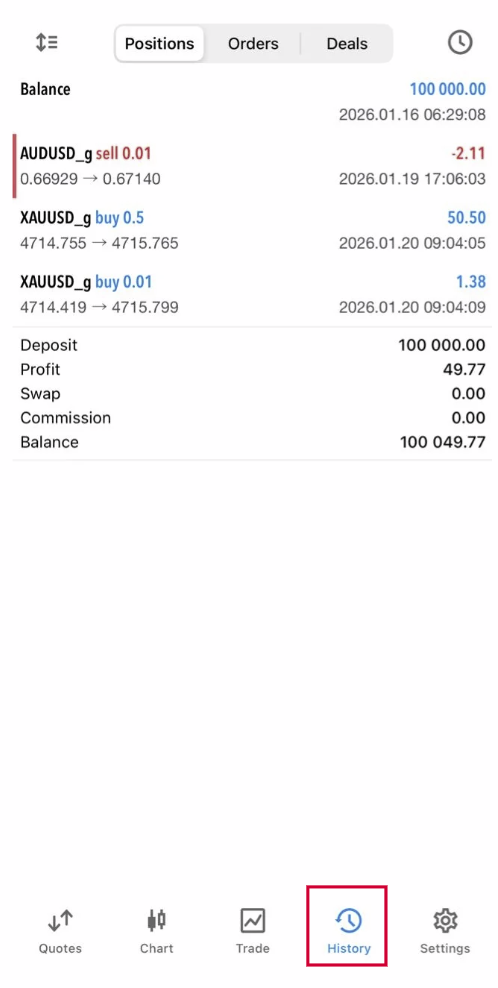
– This will display your closed trades, including:
– Buy/Sell orders
– Profit or loss
– Open & close time
– Lot size and price
– This will display your closed trades, including:
– Buy/Sell orders
– Profit or loss
– Open & close time
– Lot size and price
✅ Step 4: Filter by Date (Optional)
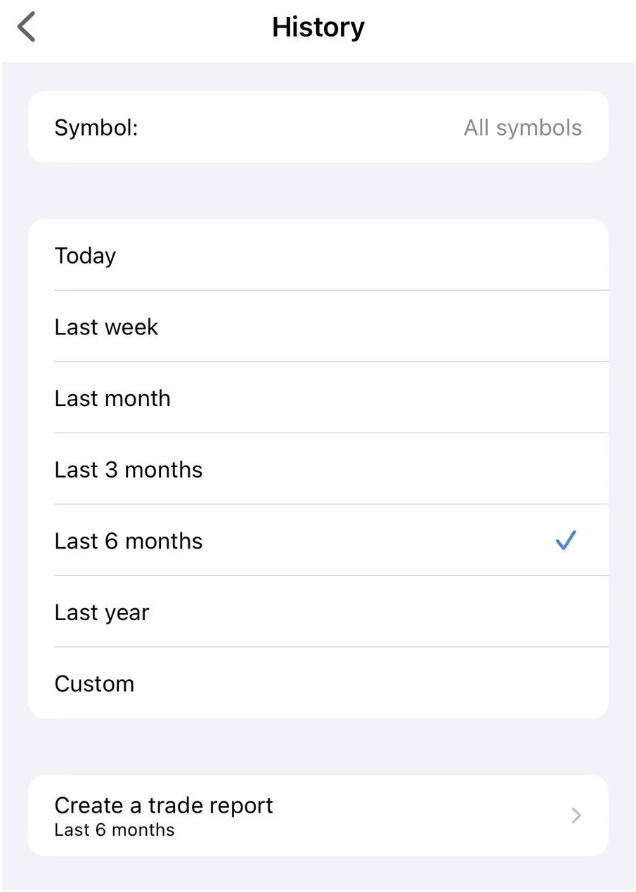
– Tap the clock icon on top right corner.
– Choose a time period:
– Today
– Last week
– Last month
– Last 3 months
– Last 6 months
– Custom
This helps you find specific trades more easily.
– Tap the clock icon on top right corner.
– Choose a time period:
– Today
– Last week
– Last month
– Last 3 months
– Last 6 months
– Custom
This helps you find specific trades more easily.
✅ Step 5: View Trade Details
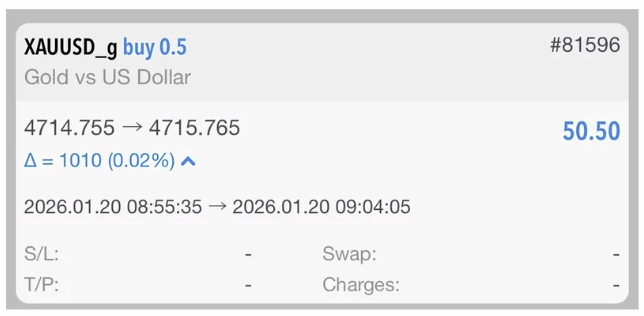
– Tap on any closed order to see full details:
– Order number
– Instrument (e.g. XAU/USD)
– Open & close price
– Stop Loss/Take Profit
– Profit or loss
– Tap on any closed order to see full details:
– Order number
– Instrument (e.g. XAU/USD)
– Open & close price
– Stop Loss/Take Profit
– Profit or loss
Notes / Tips
– Only closed trades appear in Order History.
– Open trades remain in the Trade tab.
– If no history appears, check that the date range is correct.
– Only closed trades appear in Order History.
– Open trades remain in the Trade tab.
– If no history appears, check that the date range is correct.