
The Charts Tab (iOS)
A chart shows price changes over time. You can apply various built-in indicators to a chart to analyze the market. To switch to this tab, use the menu at the bottom of the MetaTrader 5 app.
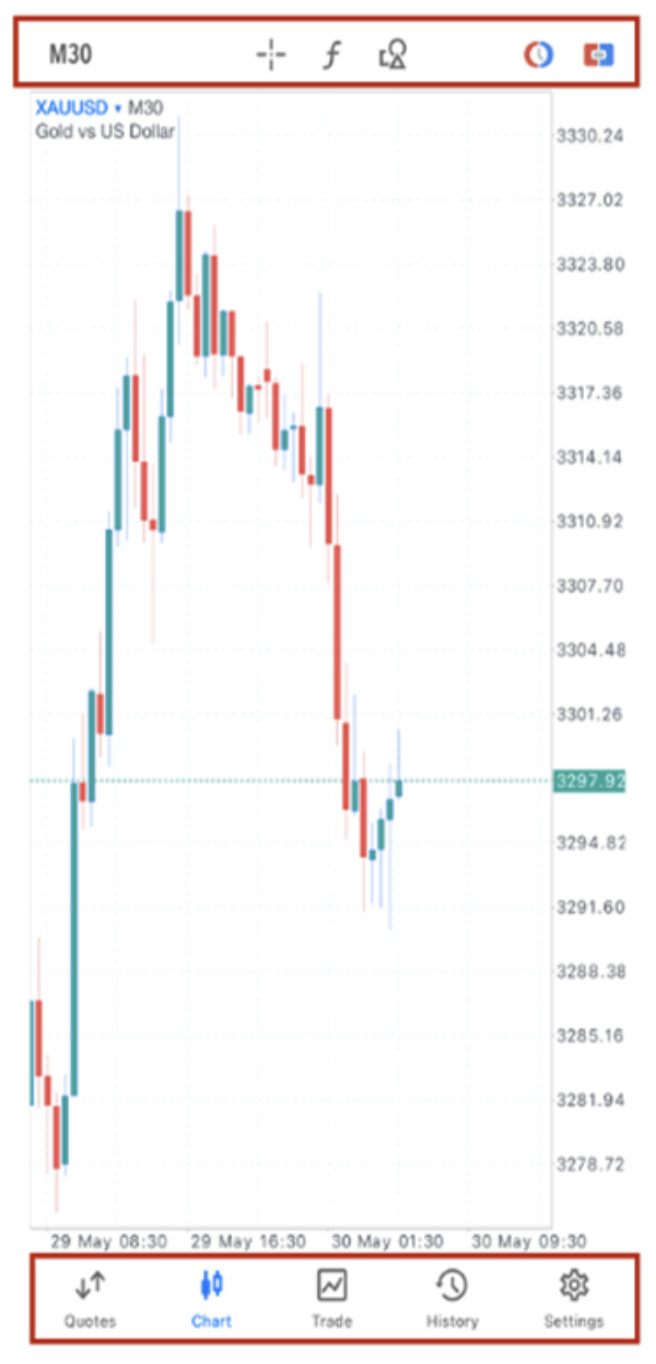
MT5 Menu for iOS
The iOS version of MT5 operates through five menus at the bottom of the screen.
Here, we provide an overview of what operations are performed on each screen.
The iOS version of MT5 operates through five menus at the bottom of the screen.
Here, we provide an overview of what operations are performed on each screen.

Chart Controls for iOS
A user can perform the following manipulations on charts:
- Scrolling: to scroll across a chart, drag your finger left or right.
- Scaling: to zoom in, place two fingers together on the area of the chart you want to zoom in on and then drag your fingers apart. To zoom out, place two fingers apart on the screen and drag them towards each other.
- Full-screen mode: the full-screen mode is automatically enabled when you rotate your device to landscape view. You can also switch between the full-screen and normal mode by tapping on the chart.
Overview of Each Screen in MT5 for iOS
 ‘Quotes’ Screen
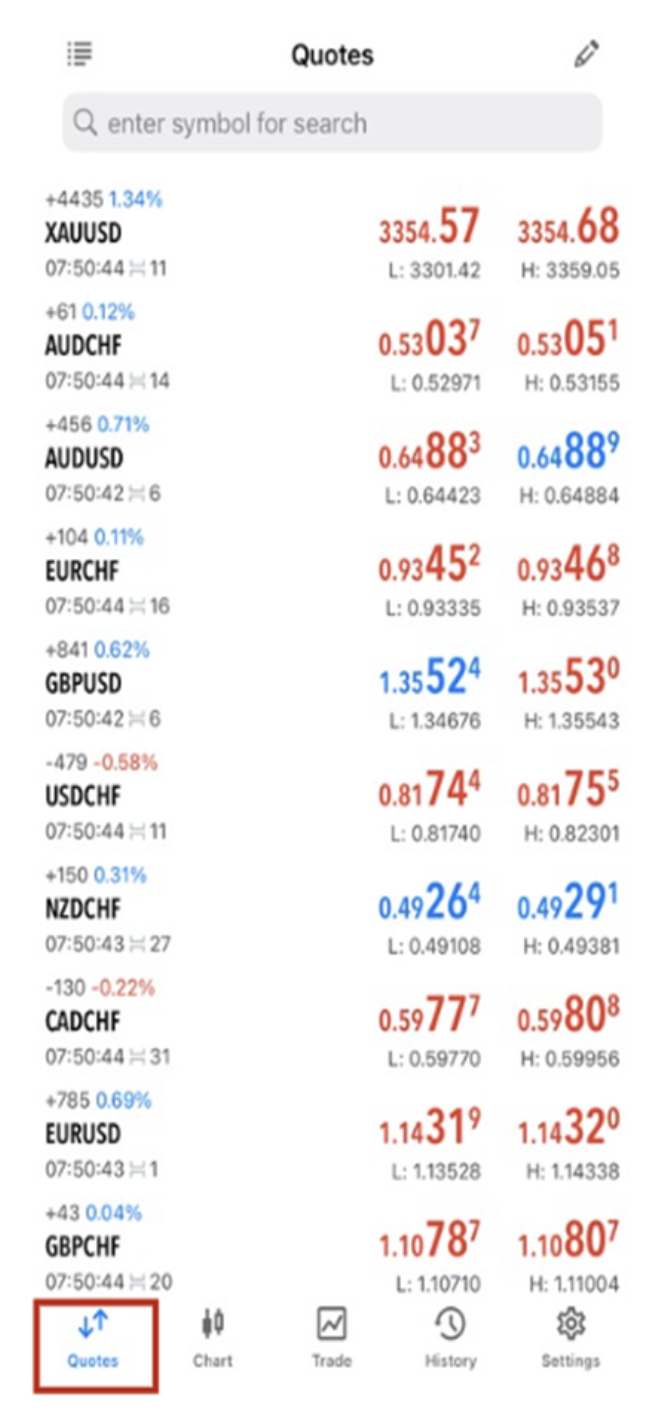
Displays a price list for each symbol.
From this screen, you can navigate to the order screen.
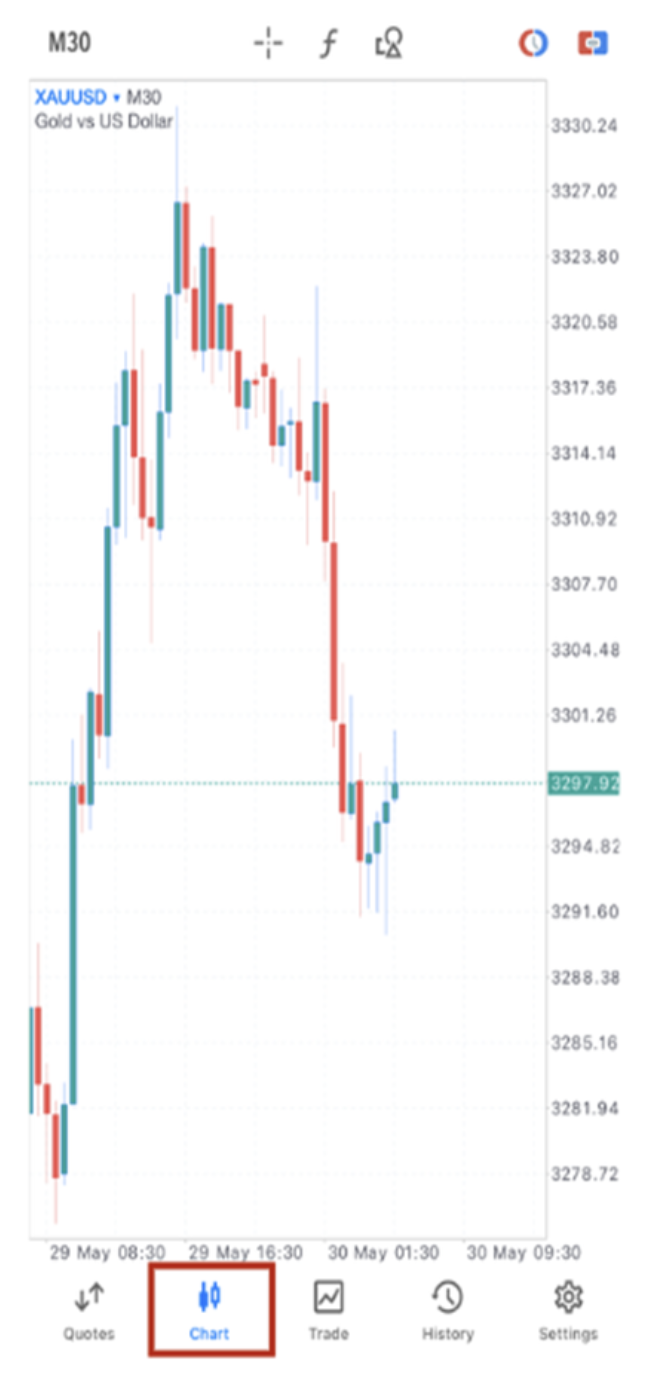
 ‘Chart’ Screen
Display charts.
While viewing the charts, you can execute one-click orders or modify orders.
 ‘Trade’ Screen
You can check the current account status, open positions, and pending stop and limit orders.
Modifying or closing positions and changing or cancelling orders are primarily done from this screen.

 ‘History’ Screen
This screen allows you to review your trading history.
Trade history is displayed in three formats: ‘Positions’, ‘Orders’, and ‘Deals’.
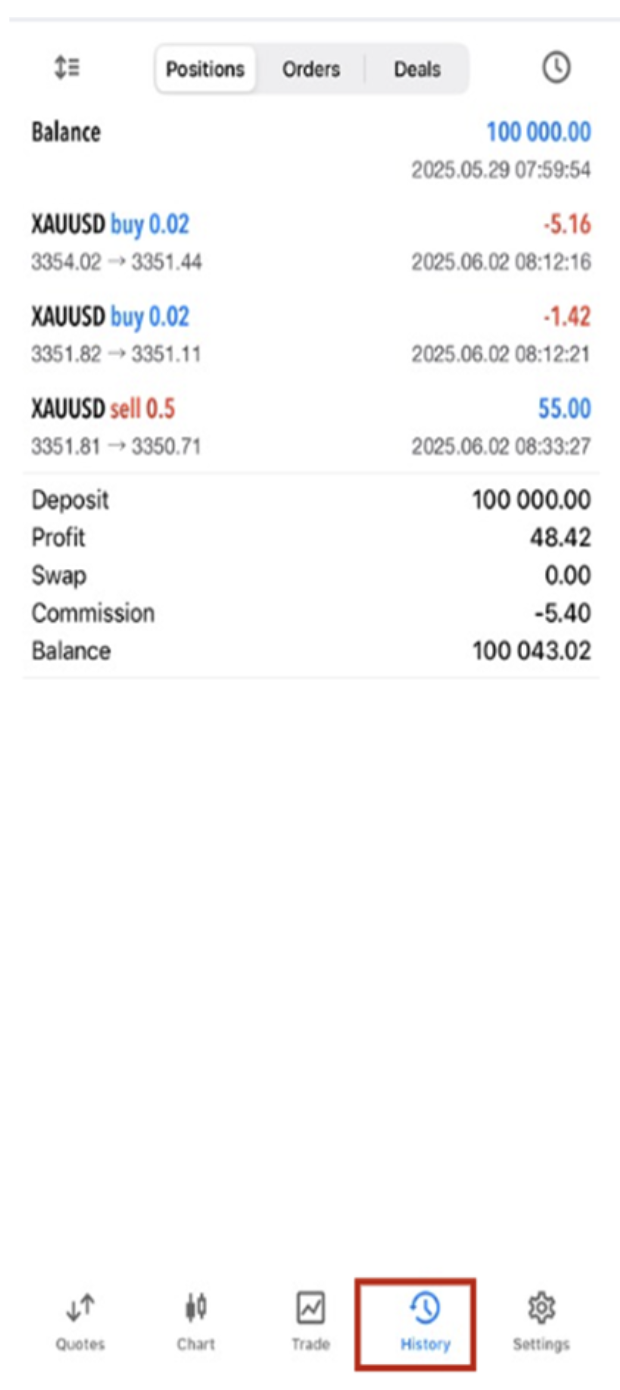
 ‘Settings’ Screen
In the settings screen, you can log into your account and configure chart settings, among others.

Tap icon to view chart of currency pair you have selected
icon to view chart of currency pair you have selected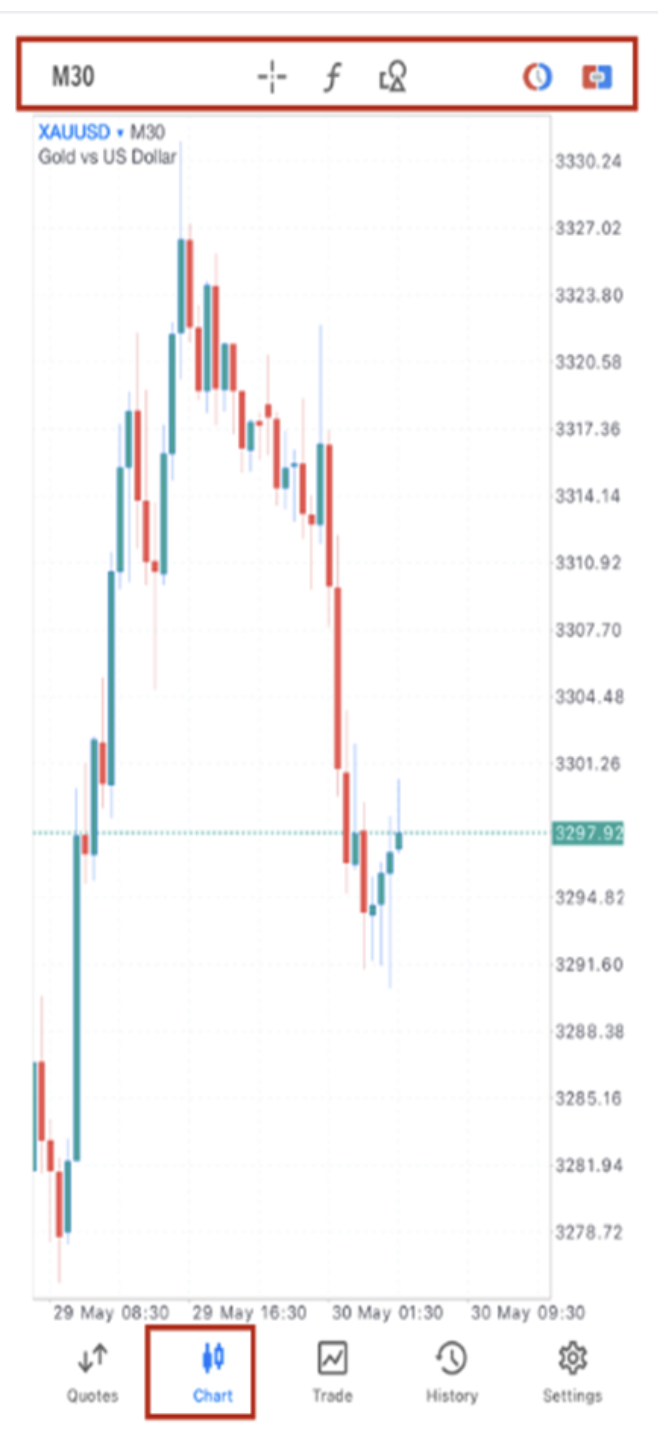
 |
Change the timeframe |
|---|---|
 |
show time (vertical axis), rate (horizontal axis), and indicator (data window) of current price quotes |
 |
Indicators: to start working with indicators on a chart |
 |
Indicators: to start working with indicators on a chart |
 |
Objects: to draw an object on the chart |
 |
Placing Pending Orders |
 |
One Click Trading |