
How to View Trading Reports on MT5 iOS App
1. Open the MT5 App
– Launch the MT5 app.
– Log in to your trading account.
– Launch the MT5 app.
– Log in to your trading account.

2. Go to the History Tab
1. Tap History at the bottom menu.
2. You will see:
– Closed trades
– Deposits & withdrawals
– Balance operations
1. Tap History at the bottom menu.
2. You will see:
– Closed trades
– Deposits & withdrawals
– Balance operations

3. Select the Report Period
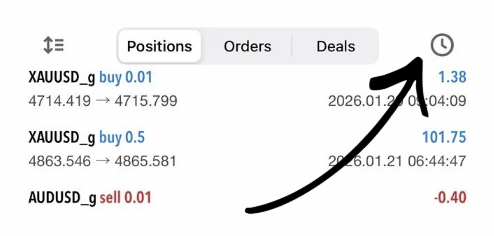
1. Tap the clock icon (top right).
1. Tap the clock icon (top right).
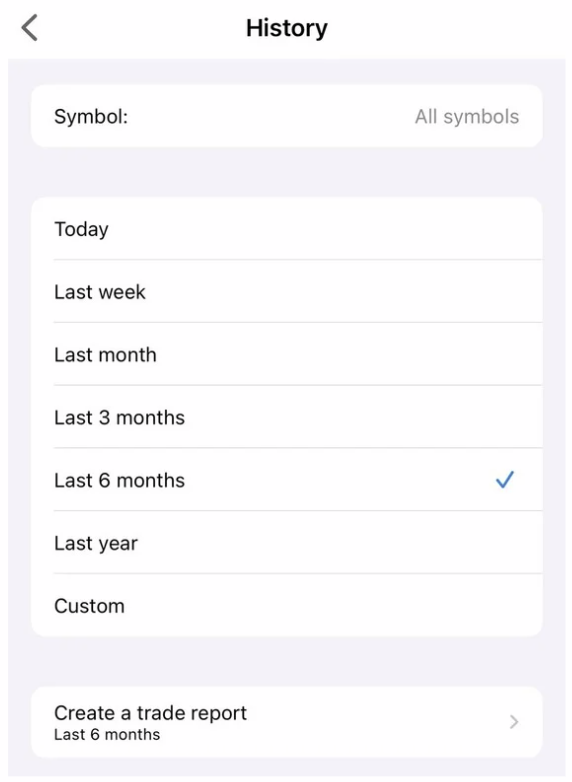
2. Choose:
– Today
– Last week
– Last month
– Last 3 months
– Last 6 months
– Last year
– Custom
– Today
– Last week
– Last month
– Last 3 months
– Last 6 months
– Last year
– Custom
4. View Trade Details
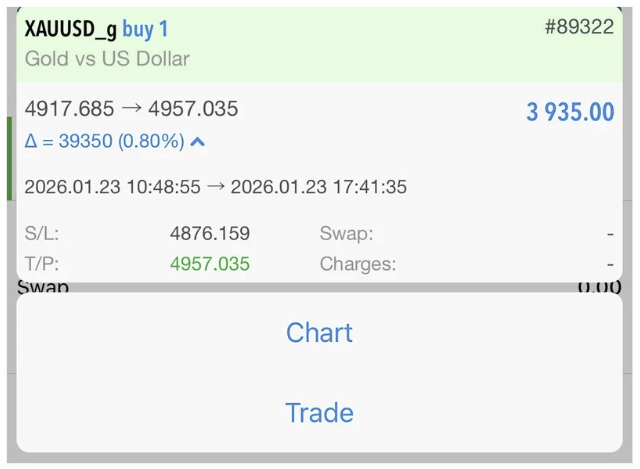
Tap any closed trade to see:
– Symbol
– Buy/Sell
– Lot size
– Open & Close price Swap & Commission
– Net Profit/Loss
Tap any closed trade to see:
– Symbol
– Buy/Sell
– Lot size
– Open & Close price Swap & Commission
– Net Profit/Loss
5. Generate a Trading Report
– MT5 iOS can only view the trading history.
– If you would like to save the report, you can make a Screenshot from this page
– MT5 iOS can only view the trading history.
– If you would like to save the report, you can make a Screenshot from this page