
How to Set Alerts & Notifications on MT5 (iOS)
Note: The iOS version of MT5 does not support price alerts directly on the app. However, you can still receive push notifications from your PC MT5 platform to your iPhone by linking the devices using MetaQuotes ID.
1. Open your MT5 app on iOS.
2. Tap “Settings” (gear icon at the bottom).
3. Tap “Chat and Messages”.
2. Tap “Settings” (gear icon at the bottom).
3. Tap “Chat and Messages”.

4. You’ll see your MetaQuotes ID (e.g., X1Y2Z3).
Note: If the MetaQuotes ID is not displayed, please ensure that notifications are enabled for the MT5 app and that you are logged in to your MQL5 account.
Note: If the MetaQuotes ID is not displayed, please ensure that notifications are enabled for the MT5 app and that you are logged in to your MQL5 account.
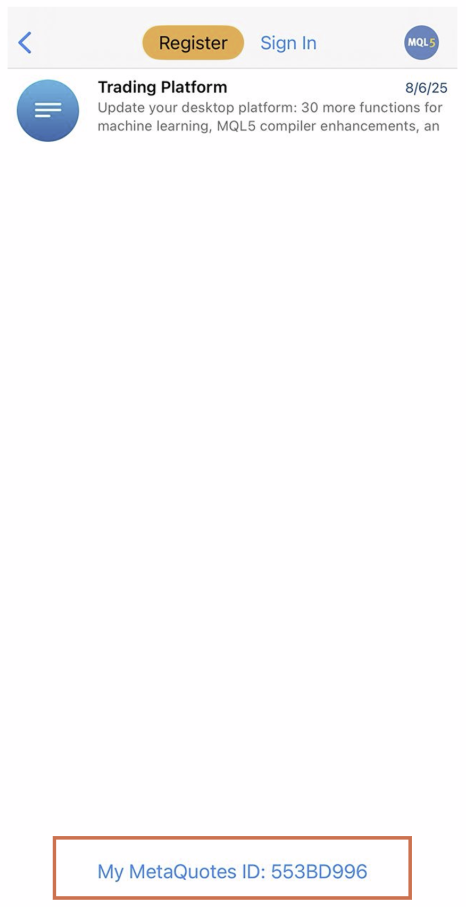
5. Copy this ID- you will need it to enable push notifications from your MT5 desktop to your phone.

How to link MT5 PC to Your Android
1. Open MT5 on your PC.
2. Go to Tools > Options > Notifications.
2. Go to Tools > Options > Notifications.
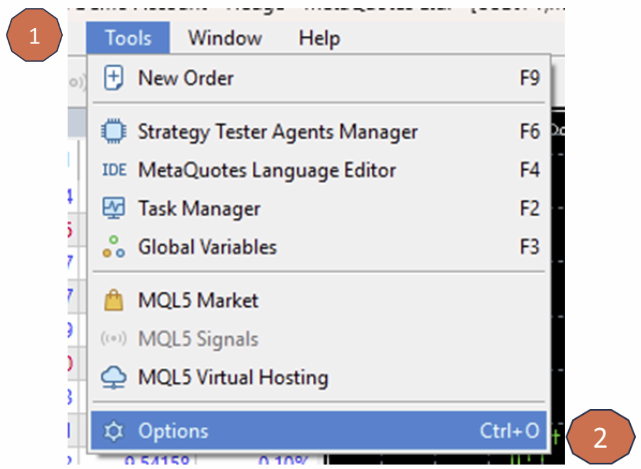
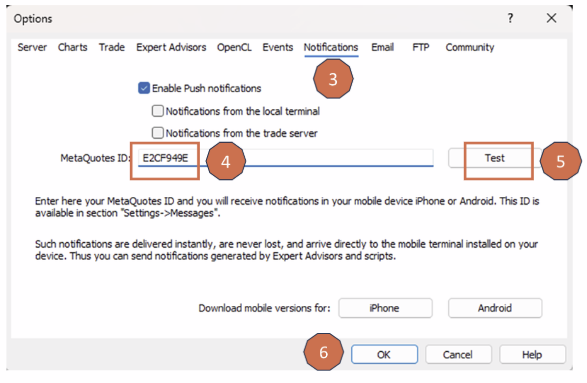
3. Check ✅ “Enable Push Notifications”.
4. Enter the MetaQuotes ID you got from your phone.
5. Click Test to send a sample notification.
6. Click OK to save.
4. Enter the MetaQuotes ID you got from your phone.
5. Click Test to send a sample notification.
6. Click OK to save.
Step 4: Set Price Alerts (from MT5 PC)
MT5 Android does not currently support price alerts directly in the app.
But you can set price alerts from MT5 PC, and receive them on your Android via push notifications.
MT5 Android does not currently support price alerts directly in the app.
But you can set price alerts from MT5 PC, and receive them on your Android via push notifications.
Extra Tips:
– Make sure MT5 has notification permissions enabled in your Android system settings.
– Your MetaQuotes ID acts like an address – alerts will be sent to it.
– Make sure MT5 has notification permissions enabled in your Android system settings.
– Your MetaQuotes ID acts like an address – alerts will be sent to it.