
How to Use Drawing Tools on MT5 Platform
(iOS Version)
Part 1 – Access the Chart Screen
- Step 1 – Open the MT5 App
- – Tap the MetaTrader 5 icon on your iPhone or iPad to open the app.

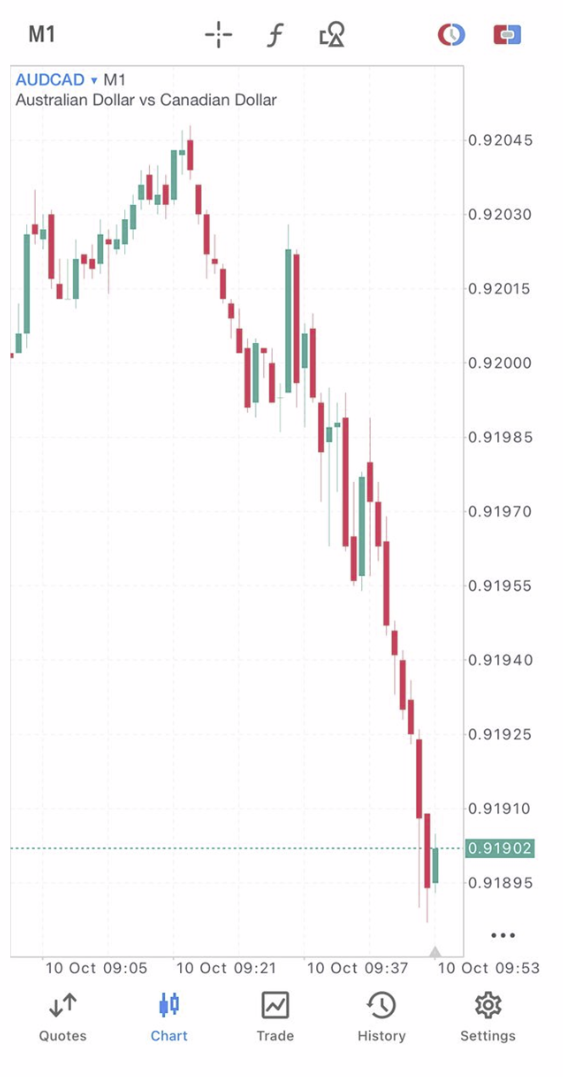
Step 2 – Go to the Chart
- – Tap “Charts” at the bottom of the screen.
- – Choose your desired trading instrument (e.g., EUR/USD, XAU/USD).
Part 2 – How to Add Drawing Tools
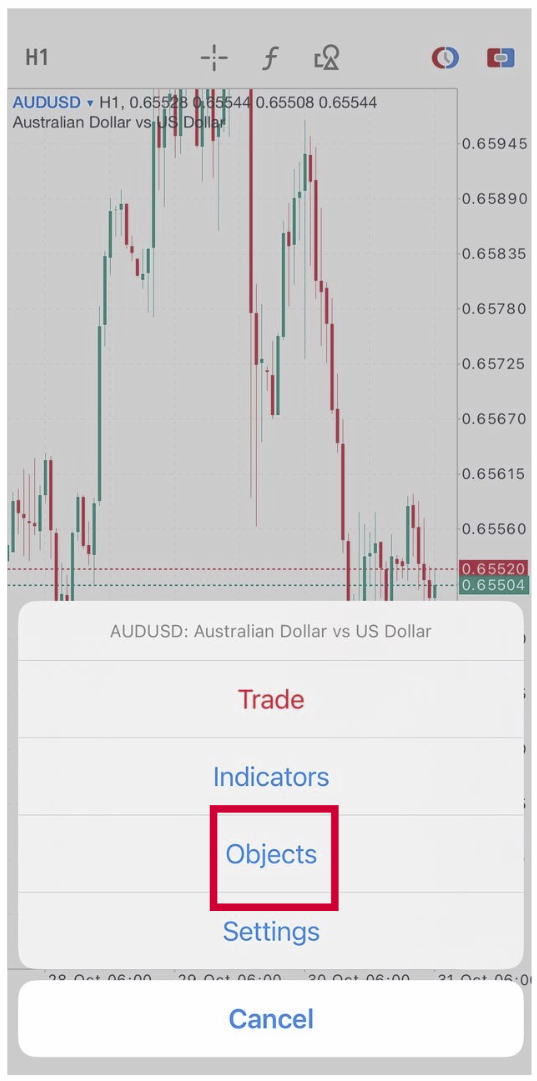
Step 1 – Open the Chart Tools Menu
- – Tap anywhere on the chart to display the menu.
- – Tap the “Objects”.
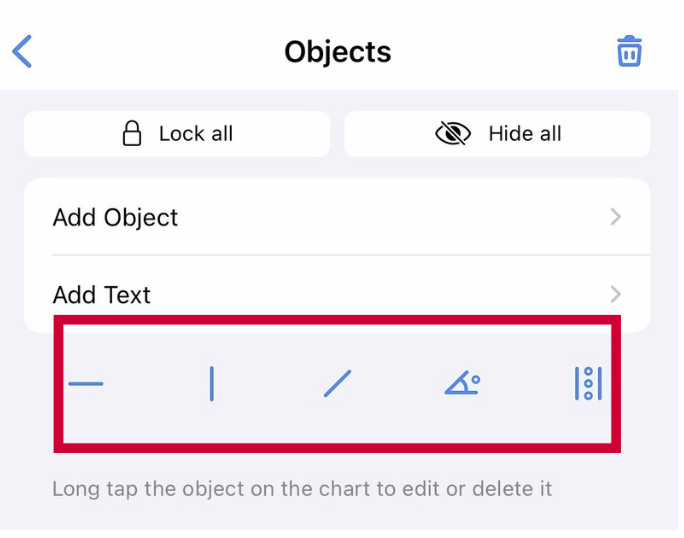
Step 2 – Choose a Drawing Tool
- Select the drawing tool you want to use:
- – Vertical Line – marks a specific time.
- – Horizontal Line – marks a specific price level.
- – Trendline – identifies uptrends or downtrends.
- – Equidistant Channel – draws two parallel lines for price channels.
- – Fibonacci Retracement – identifies potential reversal levels.
- – Shapes – draw rectangles, ellipses, or text labels on the chart.
✅ Once selected, the drawing tool will appear on your chart for you to adjust.
Part 3 – Edit or Delete Drawing Tools
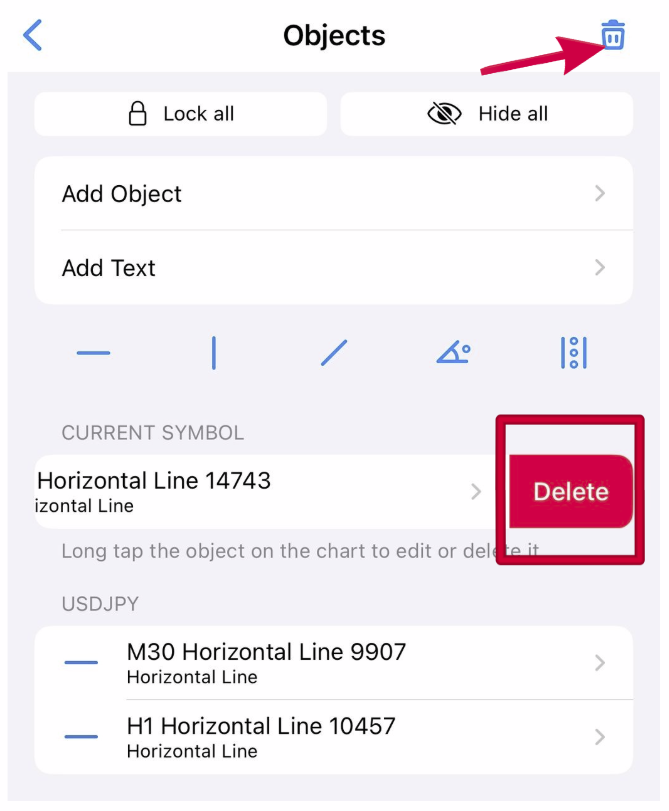
Step 1 – Open the Object List
- – Select the “Objects” again.
Step 2 – Manage Your Drawings
- – Choose the drawing you wish to modify or delete.
- – Tap “Edit” to adjust properties or “Delete” to remove it from the chart.
Part 4 – Tips for Effective Use
✅ Use Trendlines to visualize support and resistance.
✅ Use Fibonacci Retracement to spot retracement levels.
✅ Use Horizontal Lines for key price zones.
✅ Keep your chart clean – remove unnecessary drawings regularly.
✅ Use Trendlines to visualize support and resistance.
✅ Use Fibonacci Retracement to spot retracement levels.
✅ Use Horizontal Lines for key price zones.
✅ Keep your chart clean – remove unnecessary drawings regularly.