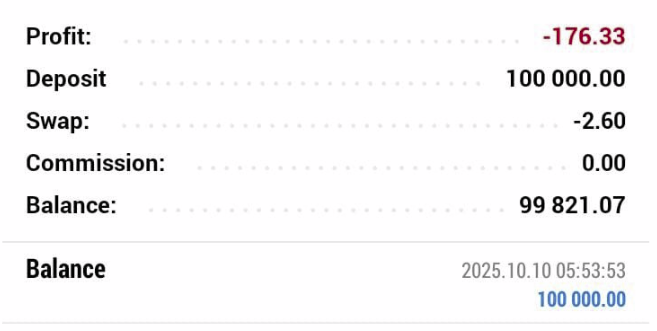
Checking Order History on MT5 (Android)
Launch the MetaTrader 5 app on your Android device and log in to your trading account.

2. Go to the “Trade” Tab
At the bottom of your screen, you’ll see several icons:
– Quotes – live prices
– Chart – market charts
– Trade – current open positions
– History – account and order history
👉 Tap on “History” (usually looks like a clock icon).

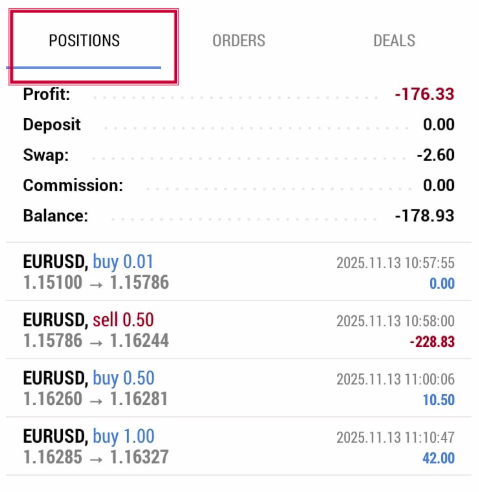
 1. Positions
“Positions” shows your closed trades — the results of your completed buy or sell positions.
 What You’ll See:
– Symbol (e.g., EURUSD)
-Type (Buy/Sell)
– Volume (lot size)
– Open & close prices
– Profit/Loss
– Swap and commission (if applicable)
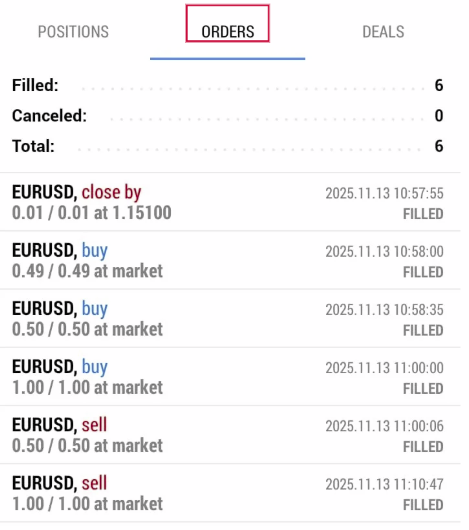
“Orders” lists all your trade instructions — both executed and non-executed.
What You’ll See:
– Order type: Market, Pending (Buy Limit, Sell Stop, etc.)
– Status: Filled, Canceled, or Expired
– Time the order was placed
– Price requested and executed
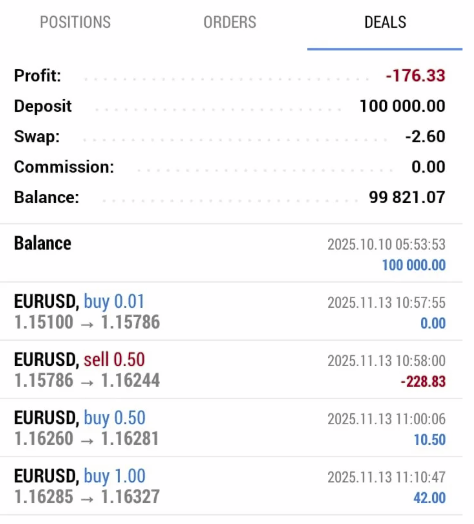
“Deals” shows every individual transaction that happened – including partial fills, commissions, and swaps.
What You’ll See:
– Each execution within a position
– Execution price and volume
– Deal type (buy/sell, deposit, withdrawal, etc.)
– Time and ticket number
– Profit or loss on each deal
By default, MT5 shows recent closed trades.
To view a specific date range:
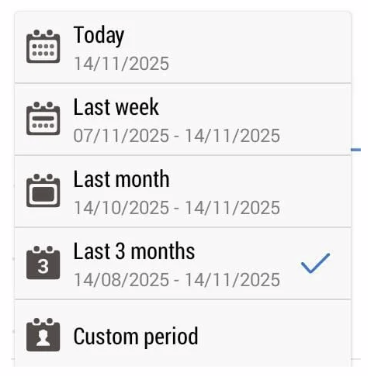
– Tap on the calendar icon (top-right corner).
– Choose one of the following options:
– Today
– Last Week
– Last Month
– Last 3 Months
– Custom Period → allows you to set exact start and end dates.
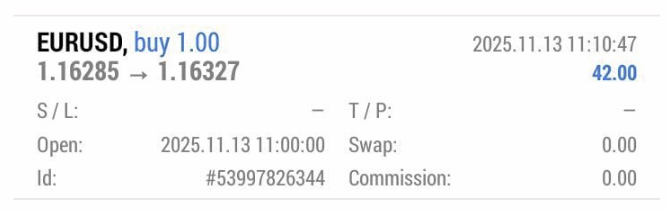
Your closed orders will appear as a list, showing:
– Symbol (e.g., EURUSD)
– Order type (Buy/Sell)
– Volume
– Open & Close prices
– Profit/Loss
Tap on a specific trade to see more detailed information, such as:
– Order number
– Open/close time
– Swap & commission
– Net profit
At the top of the History page, you’ll see a summary of:
– Profit
– Deposit
– Withdrawal
– Balance
This gives you a quick overview of your account performance for the selected period.