How to Add Indicators in MetaTrader 5 Android App
Indicators help analyze market behavior by visualizing price trends, momentum, and volatility directly on the chart. MT5 for Android allows you to add both main chart indicators (e.g., Moving Average) and separate window indicators (e.g., RSI, MACD).
1. Open the Chart of the Instrument
If the Navigator panel is not already visible:
If the Navigator panel is not already visible:
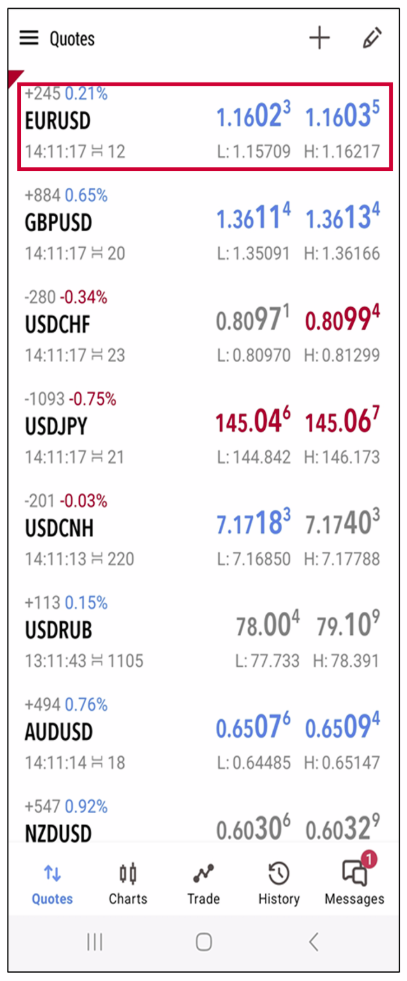
- • From the “Quotes” or “Trade” tab, tap the symbol you want to analyze.
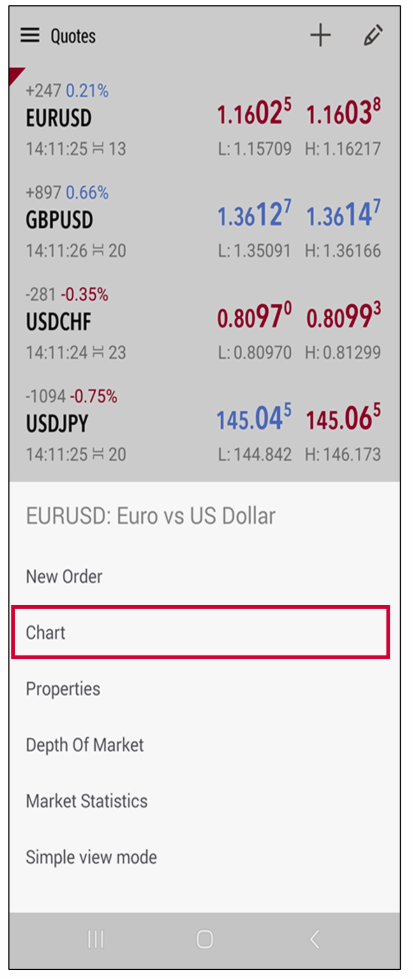
- • Select “Chart” from the pop-up menu to open its price chart.
2. Tap the Indicator Icon (Graph-Like Symbol) on the Chart
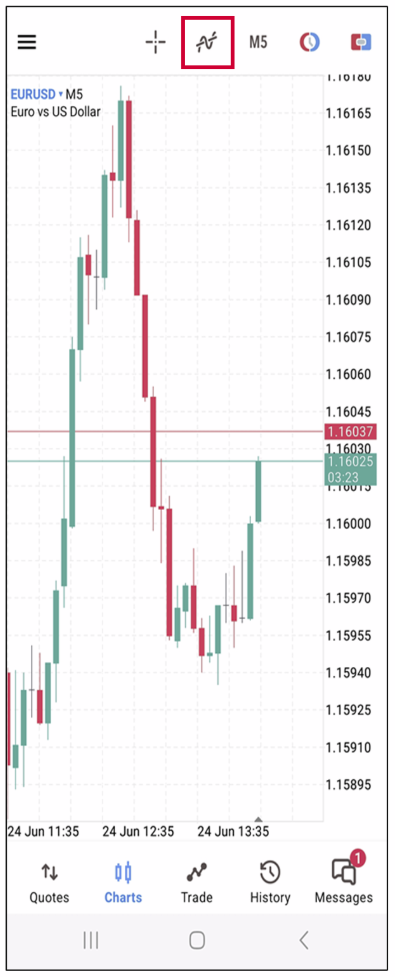
- • On the chart screen, look for a small wave-shaped icon (indicator symbol) at the top or edge of the screen.
- • It may look like a line chart or oscillating waveform.
- • Tap this icon to reveal the indicator management options.
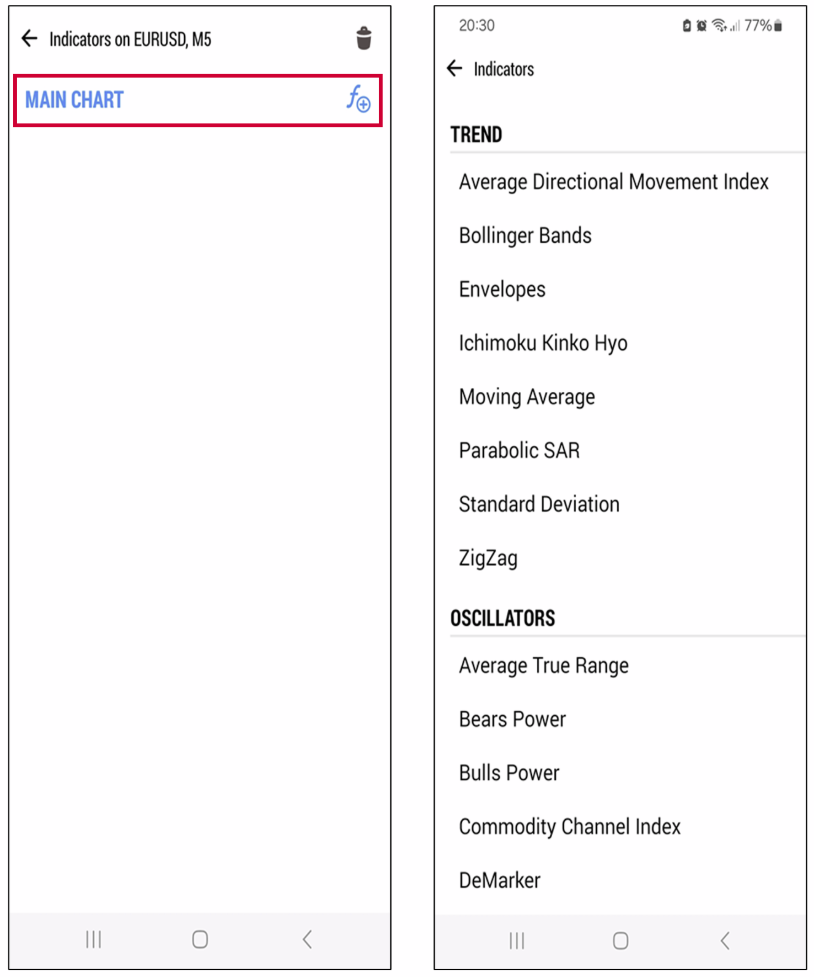
3. Tap the “f” Icon to Open Indicator Categories
- • After tapping the indicator icon, a new top menu will appear including the “f” icon.
- • Tap the “f” to open the indicator selection menu.
You will now see indicator categories such as:
Trend Oscillators Volumes
Bill Williams
4. Choose an Indicator and Set Parameters
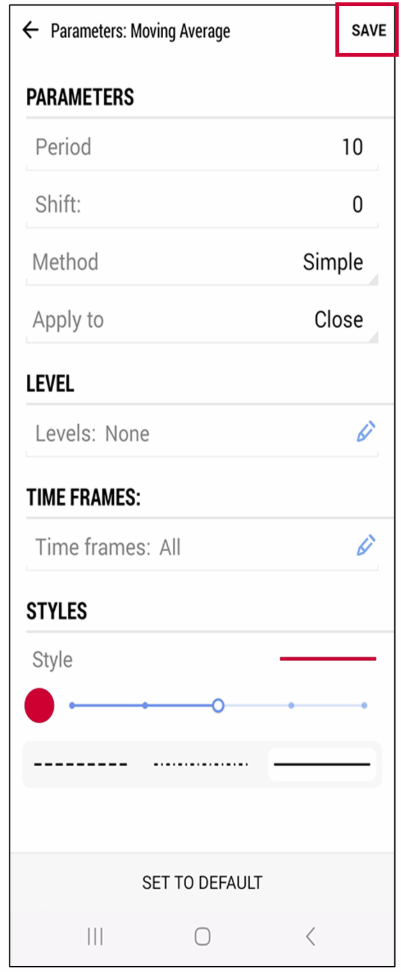
- • Tap the indicator you want to use (e.g., Moving Average, MACD, RSI).
- • A parameter window will open where you can configure:
- • Period, method, price type
- • Line color, thickness, and style
- • Tap “Save” to apply it.
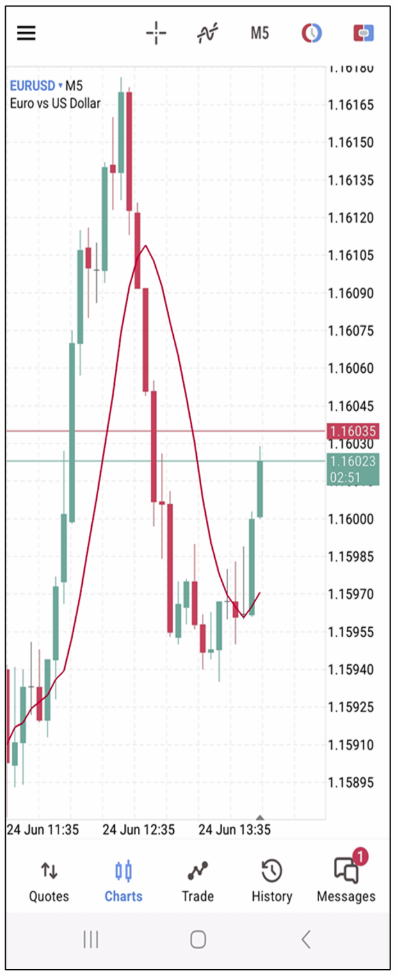
5. Confirm the Indicator Is Applied to the Chart
- • The selected indicator will now be displayed on the chart.
- • You can repeat the steps to add multiple indicators in either chart window.