How to Make a Withdrawal via Credit Card/ Debit Card
Withdrawal Notes:
1.Withdrawal Requirements
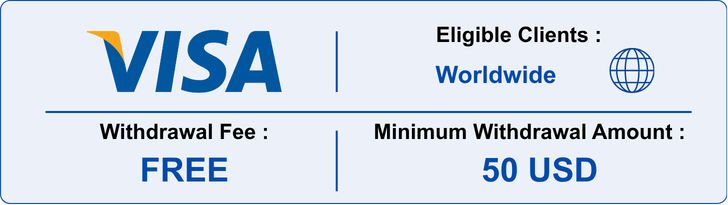
- Minimum withdrawal amount: 50 USD.
- Withdrawals can only be processed to the same VISA credit or debit card used for your deposit.
- The cardholder’s name must match the name registered on your trading account.
- Third-party withdrawals are not accepted.
2.Withdrawal Limits
- Withdrawals cannot exceed the total amount deposited using the same card.
- If you wish to withdraw more than the deposited amount, the remaining balance must be withdrawn using another available method, such as Bank Transfer.
3.Withdrawal Processing Time
- Same-Day Processing: 00:00–08:00 GMT
- Requests may take up to one business day depending on system status and your card issuer’s processing time.
4.Withdrawal Fees
- Hirose does not charge additional withdrawal fees. However, your bank may apply processing or currency conversion fees.
5.Required Documents
- Please provide clear color images of the front and back of the card used for the deposit.
- For security, you may cover the middle digits of the card number and the CVV security code. Please ensure the cardholder’s name and the last four digits remain visible.
Part 1: Submit a Withdrawal Request
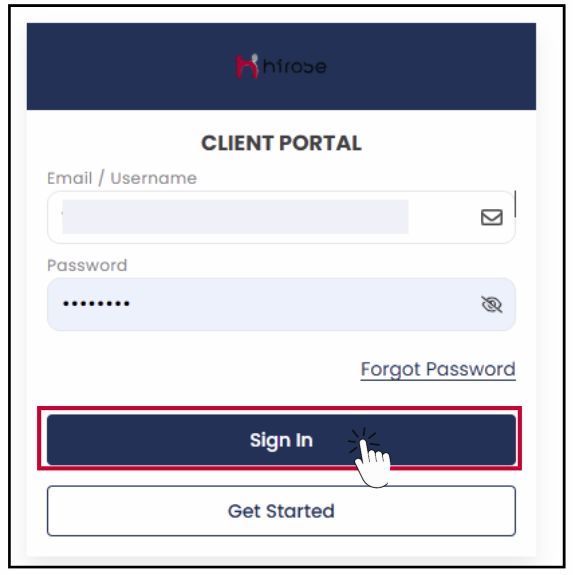
Step 1: Login to the Client Portal
Enter your Email and Password (the same ones you used during registration).
Click 
Step 2
Click the icon button to open the left-hand menu.
Click the
icon button to open the left-hand menu.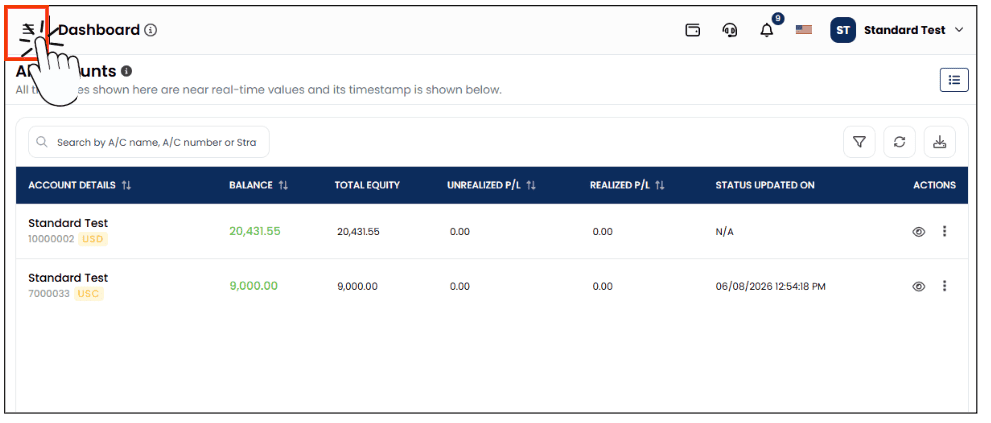
Step 3
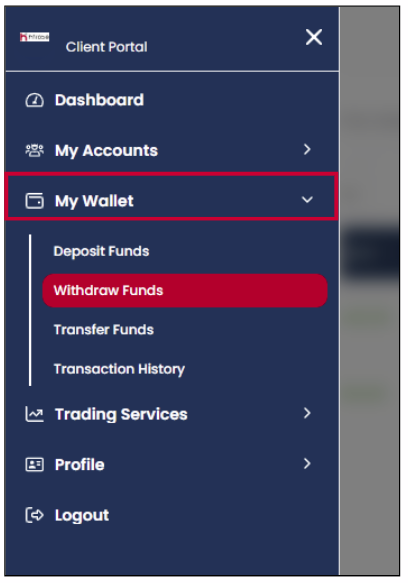
From the left-hand menu, click [My Wallet], then click the [Withdraw Funds] button located below your balance.
From the left-hand menu, click [My Wallet], then click the [Withdraw Funds] button located below your balance.
Step 4
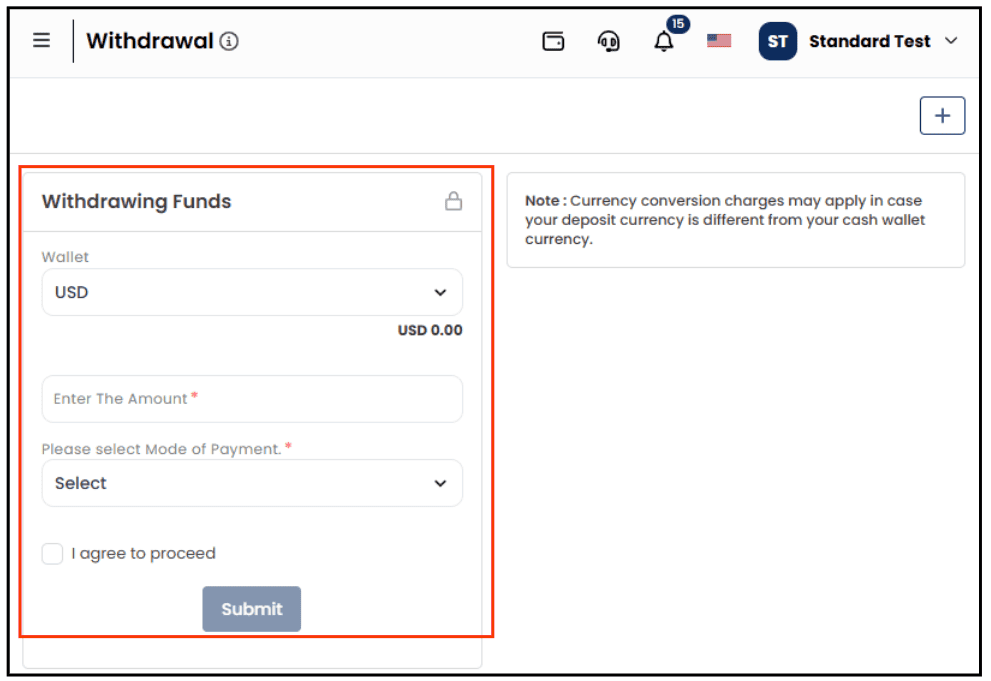
You will be redirected to the Withdrawal page. On this page, you can access all available withdrawal methods.
You will be redirected to the Withdrawal page. On this page, you can access all available withdrawal methods.
Step 5: Start the Withdrawal Process
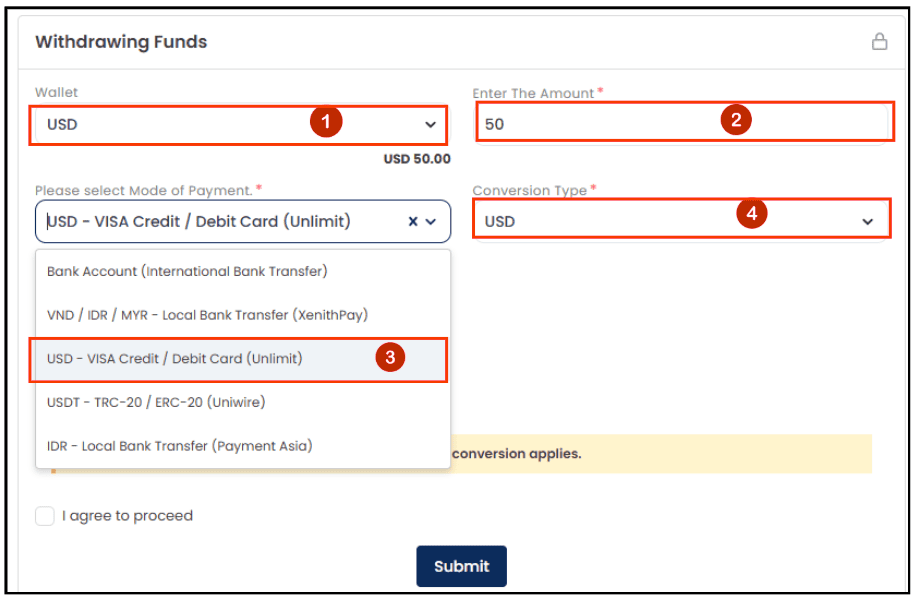
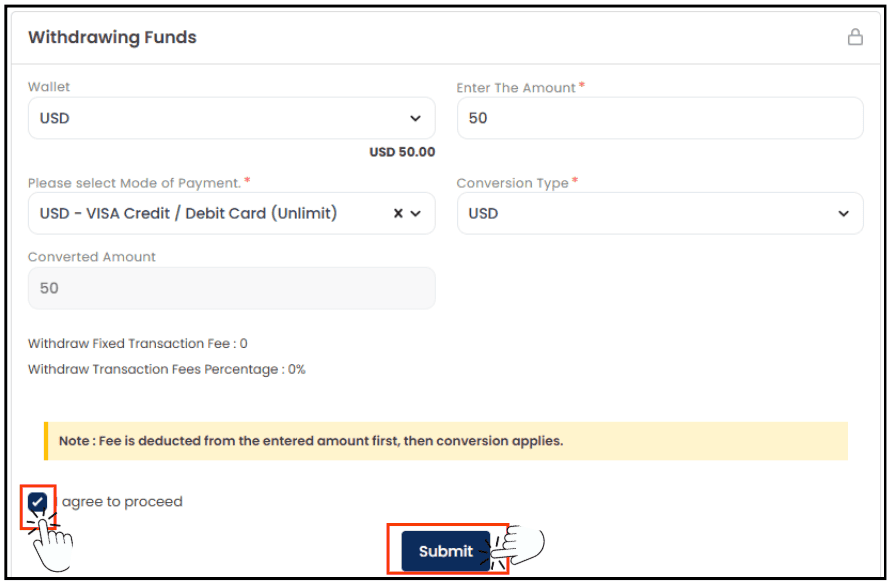
- Wallet: Select USD
- Enter your withdrawal amount
- Select the Mode of Payment: USD – VISA Credit / Debit Card (Unlimit)
- Conversion Type: Select USD.
- Start the Withdrawal Process
Step 6:
- Tick the box
 to “I agree to proceed”
 - Click [Submit] button
-
Note: Fee is deducted from the entered amount first, then conversion applies.
Step 7: Confirm Your Withdrawal
The Withdrawal Confirmation window will pop up.
The Withdrawal Confirmation window will pop up.
- If you want to proceed with the withdrawal, click the [Yes] button.
- If you would like to review or modify the withdrawal details, click the [No] button to return to Step 5.
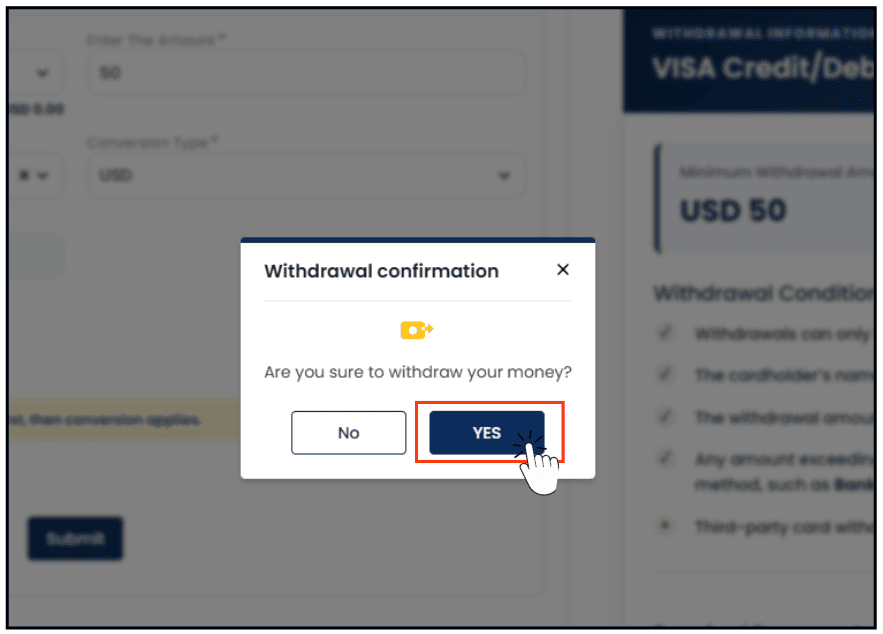
Click [Yes]
You will receive a notification on the right-hand side of the screen.
You will receive a notification on the right-hand side of the screen.
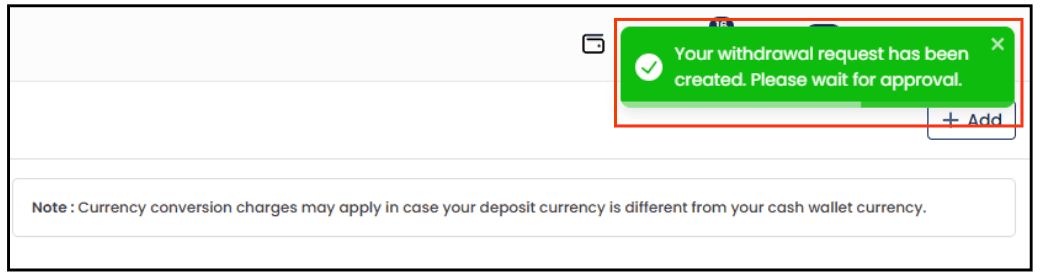
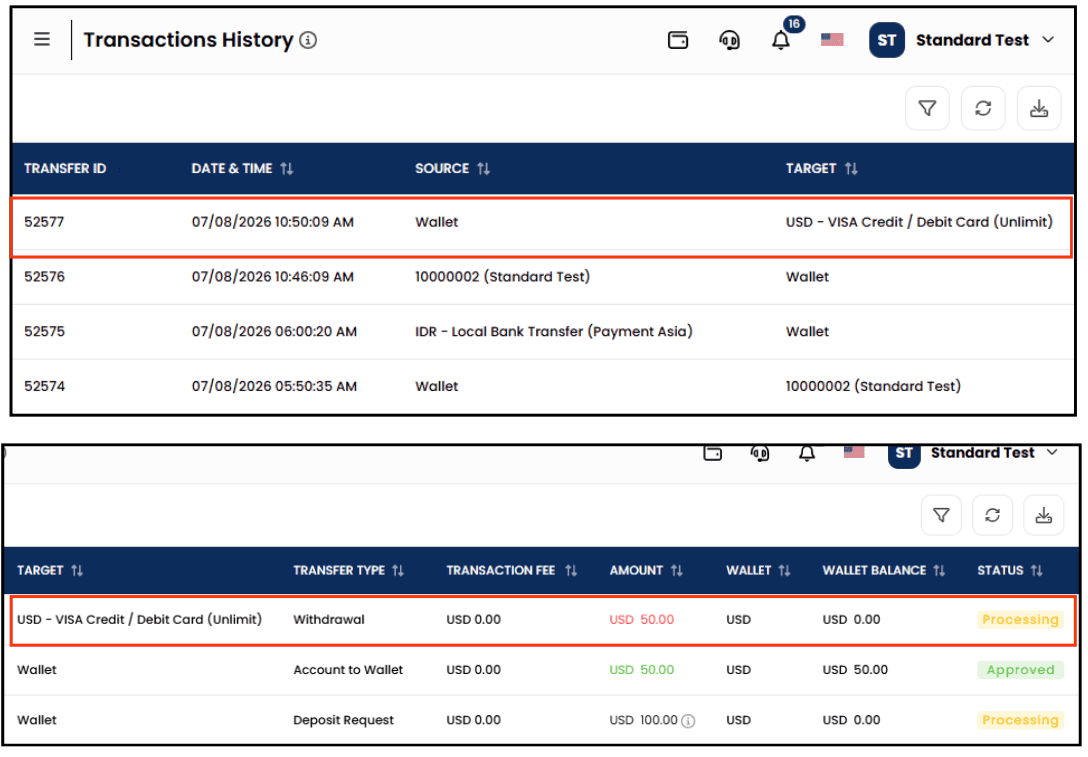
Step 8: Go to Transaction History to view the details of your recently submitted request.
Part 2: Upload Supporting Documents
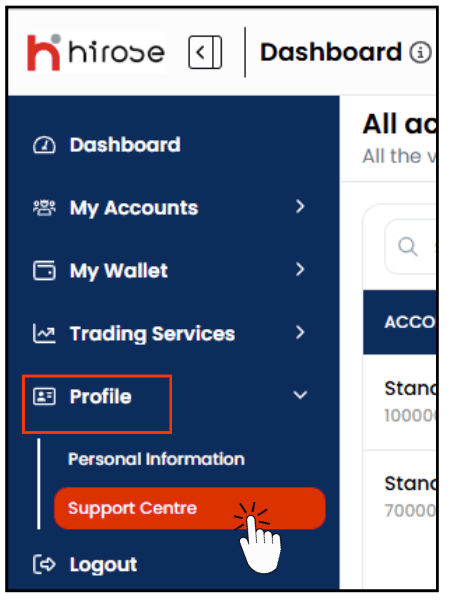
Step 1: Click [Profile] → [Support Center]
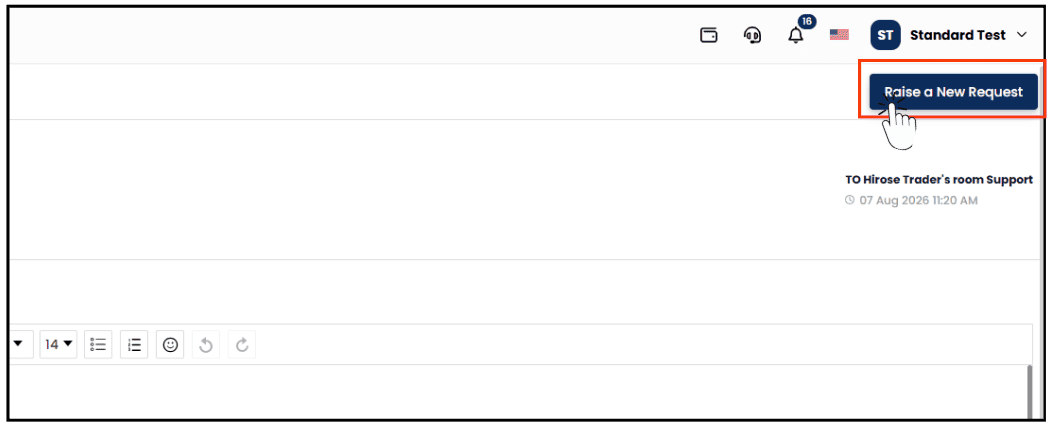
Step 2: Click [Raise a New Request] to submit your document.
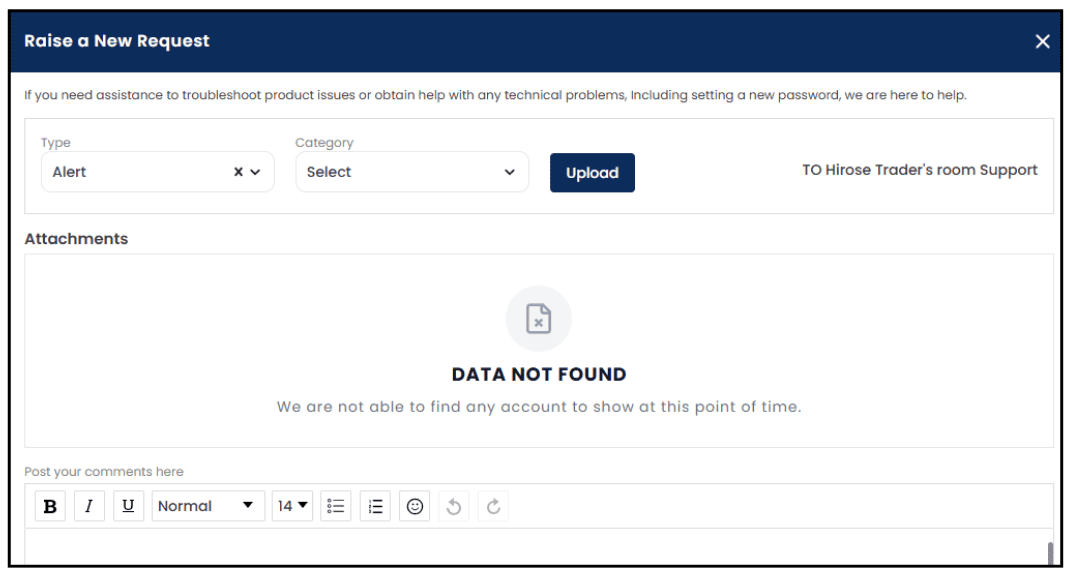
Step 3: You will be redirected to the Raise a New Request page, where you can upload and submit your documents.
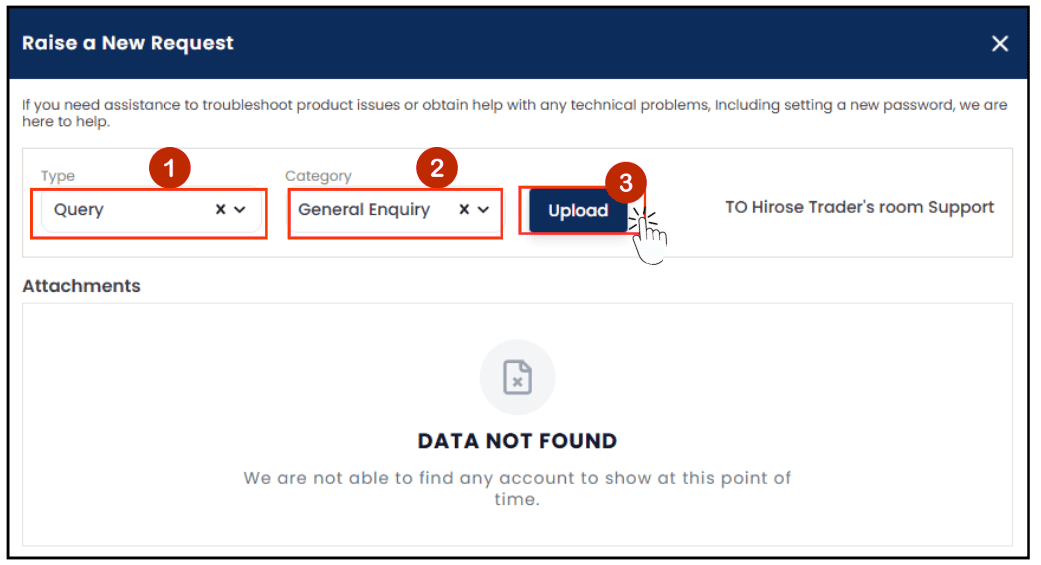
Step 4:
- Under Type, select Query.
- Under Category, select General Enquiry.
- Click [Upload] and upload clear images of the front and back of your VISA credit/debit card.
Step 5:
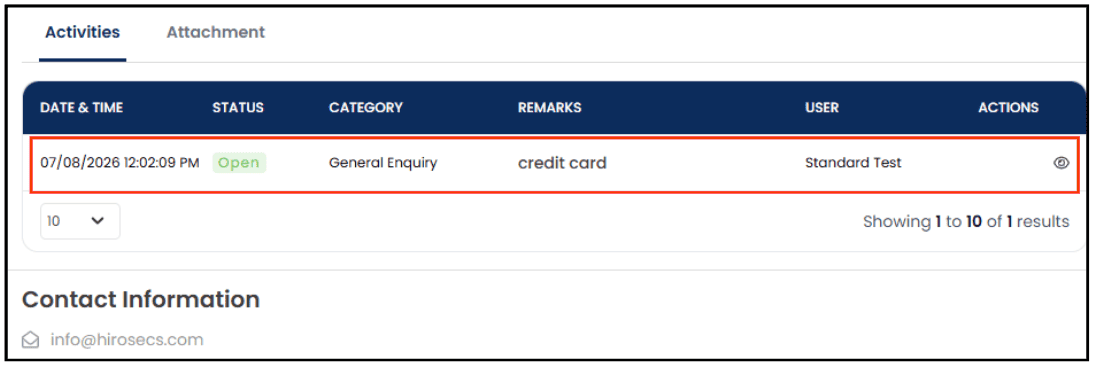
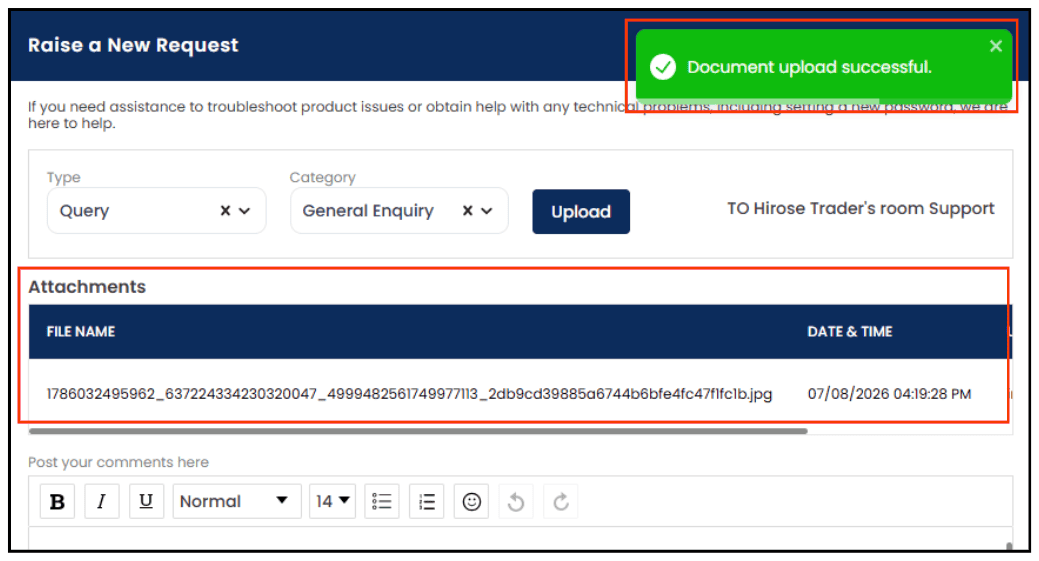
Once the upload is complete, a notification will appear, and the document will be displayed in the Attachments section.
Once the upload is complete, a notification will appear, and the document will be displayed in the Attachments section.
Step 6:
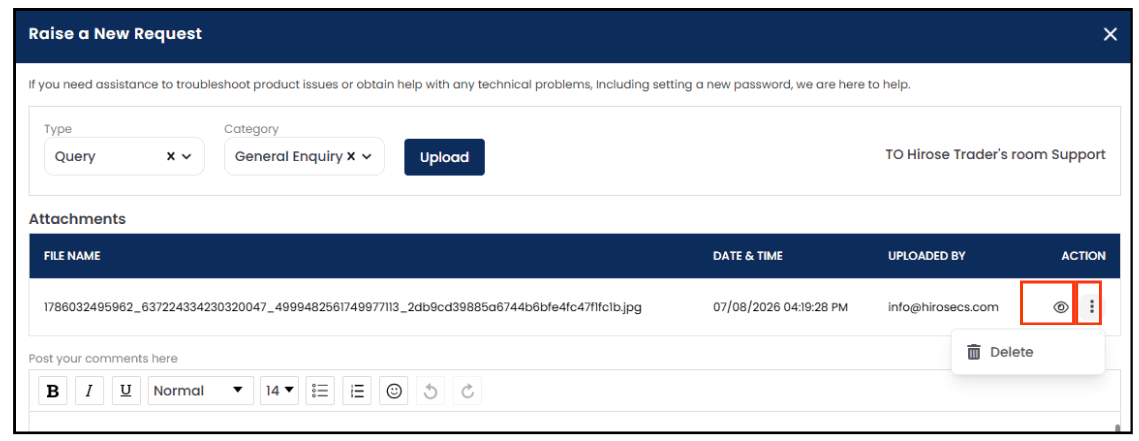
- Click
 to review the uploaded image.
 - If you wish to remove the file, click
 and select Delete
Step 7: Comment
This field is optional. You may enter a brief description such as “Credit Card” if needed.
This field is optional. You may enter a brief description such as “Credit Card” if needed.
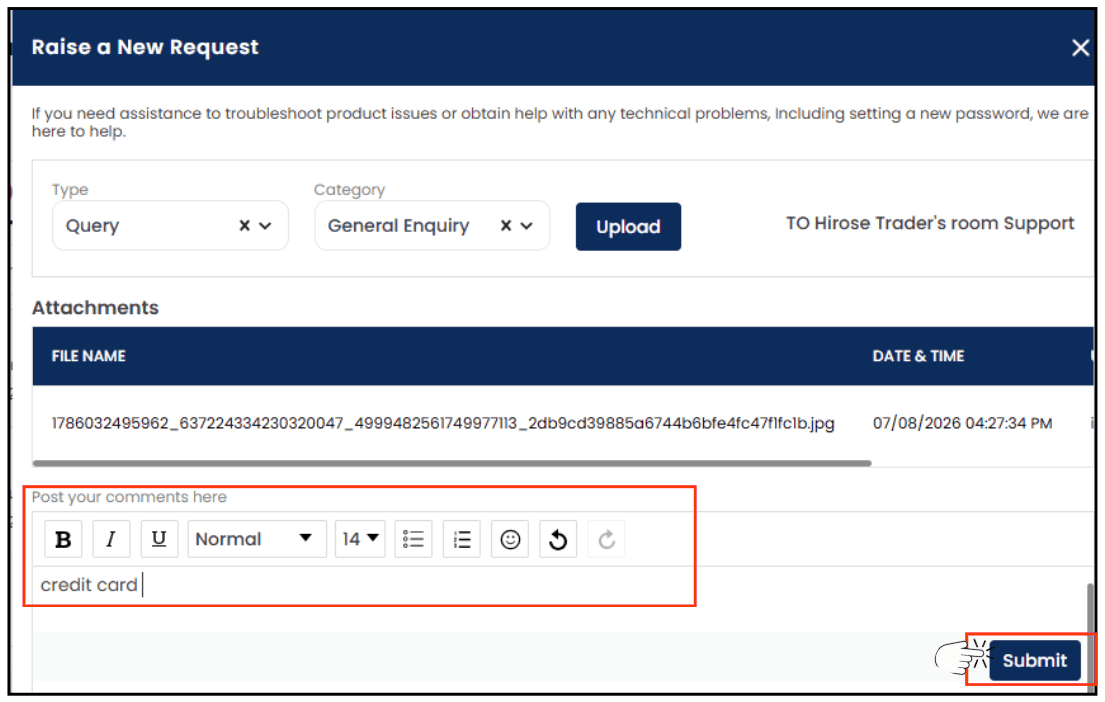
Click [Submit]
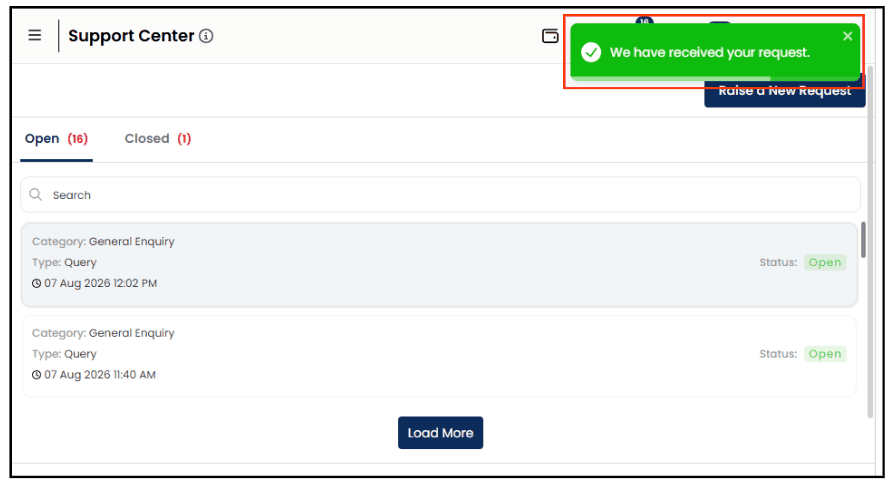
After submitting the request, a confirmation message will appear indicating that your request has been received successfully. You can view the submitted request and its status in the Support Centre section below.
Note: Our team will review and process your request as soon as possible. Please check the Support Centre section for status updates.