List of MT5 Objects (Drawing Tools) & How to Add Them
Types of Objects Available in the MT5 Mobile Version
In the MT5 mobile version, 25 types of objects are available.
Compared to the PC version, the toolset is simpler, but it is well-suited for quickly analyzing charts while on the go.
| Category | Object Name | Usage |
|---|---|---|
| Line | Vertical Line | Display a vertical line on the chart |
| Horizontal Line | Display a horizontal line on the chart | |
| Trend line | Draw a trend line | |
| Angle Trend | Draw a trend line considering the angle | |
| Cycle Line | Displays vertical lines at fixed intervals | |
| Arrowed Line | Draw a line with an arrow | |
| Channel | Equidistant Channel | Draw a channel with two parallel lines at equal intervals |
| Standard Deviation Channel | Draw a channel based on standard deviation | |
| Regression Channel | Draw a channel based on regression analysis | |
| Andrews’ Pitchfork | Draw a trend range with three lines | |
| Gann | Gann Line | Draw a Gann line |
| Gann Fan | Draw a Gann fan | |
| Gann Grid | Draw a Gann grid | |
| Fibonacci Ratios | Fibonacci Retracement | Draw Fibonacci retracement levels |
| Fibonacci Time Zones | Displays Fibonacci time zones | |
| Fibonacci Fan | Draw a Fibonacci fan | |
| Fibonacci Arcs | Draw a Fibonacci arcs | |
| Fibonacci Channel | Draw a Fibonacci channel | |
| Fibonacci Expansion | Draw Fibonacci expansion levels | |
| Elliott Wave | Elliott Impulse Wave | Draw an Elliott impulse waves |
| Elliott Correction Wave | Draw an Elliott correction waves | |
| Shape | Rectangle | Draw a rectangle |
| Triangle | Draw a triangle | |
| Ellipse | Draw an ellipse |
How to Draw Line and Other Objects
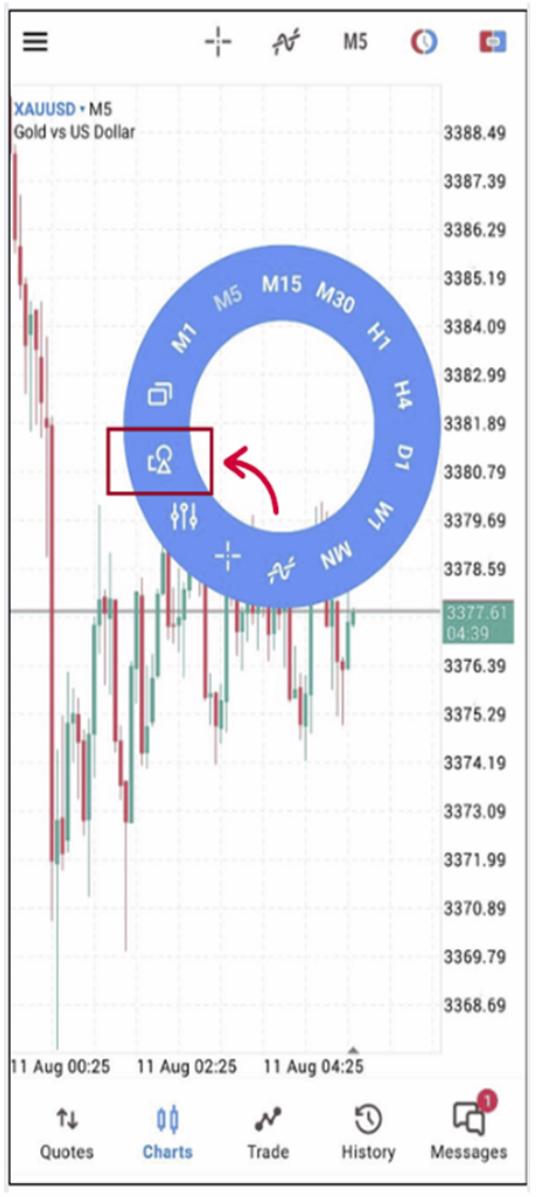
When drawing line or other objects, tap the shape icon in the menu that appears after tapping on the chart.
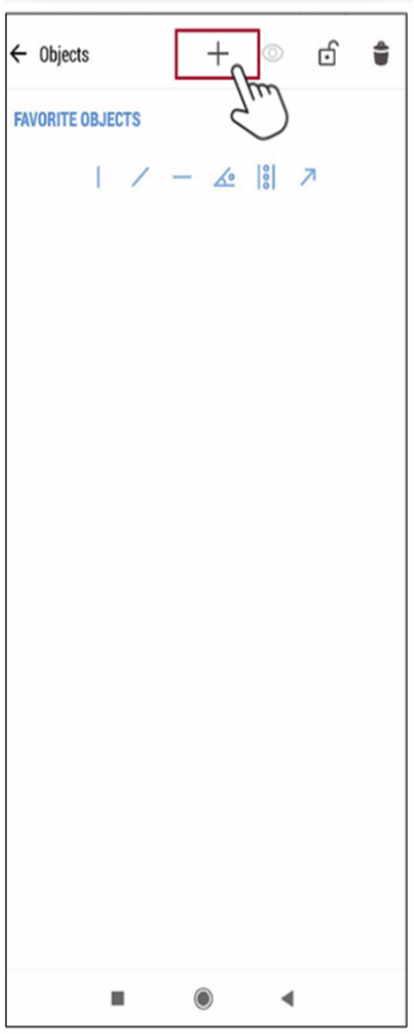
Tap the “+” button at the top right of the screen that appears to move to the list of drawable objects.
Also, simple objects are displayed in the favorites section, so you can tap those to draw them as well.
Also, simple objects are displayed in the favorites section, so you can tap those to draw them as well.
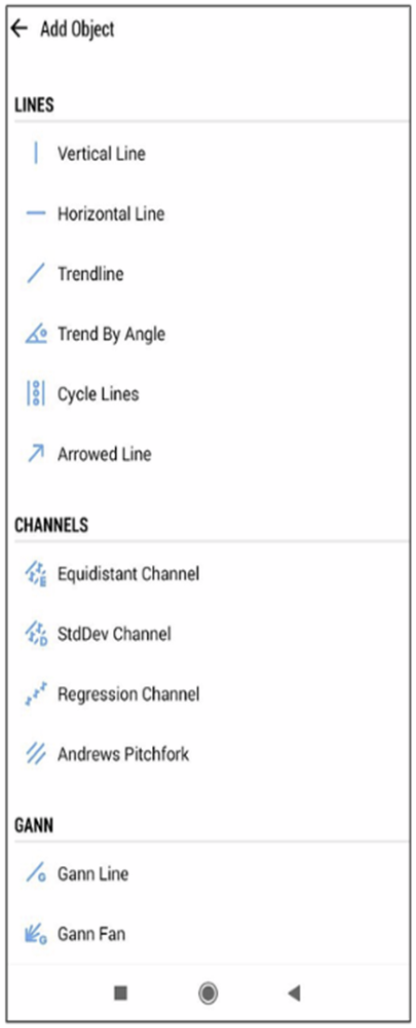
When you tap the object you want to draw from the object list screen, the chart screen will appear, and you can proceed to draw it.
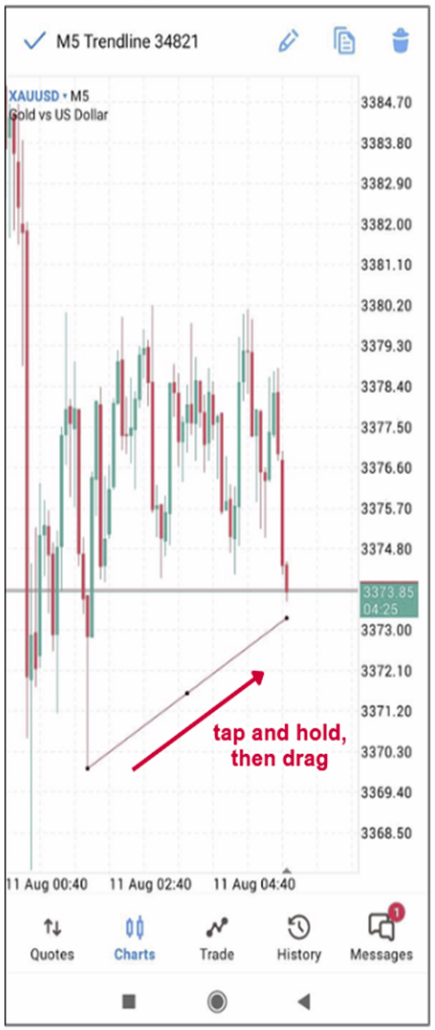
To draw basic lines and similar objects, tap and hold at the starting point, then drag to the endpoint to draw.
How to modify objects (such as lines and other drawings)
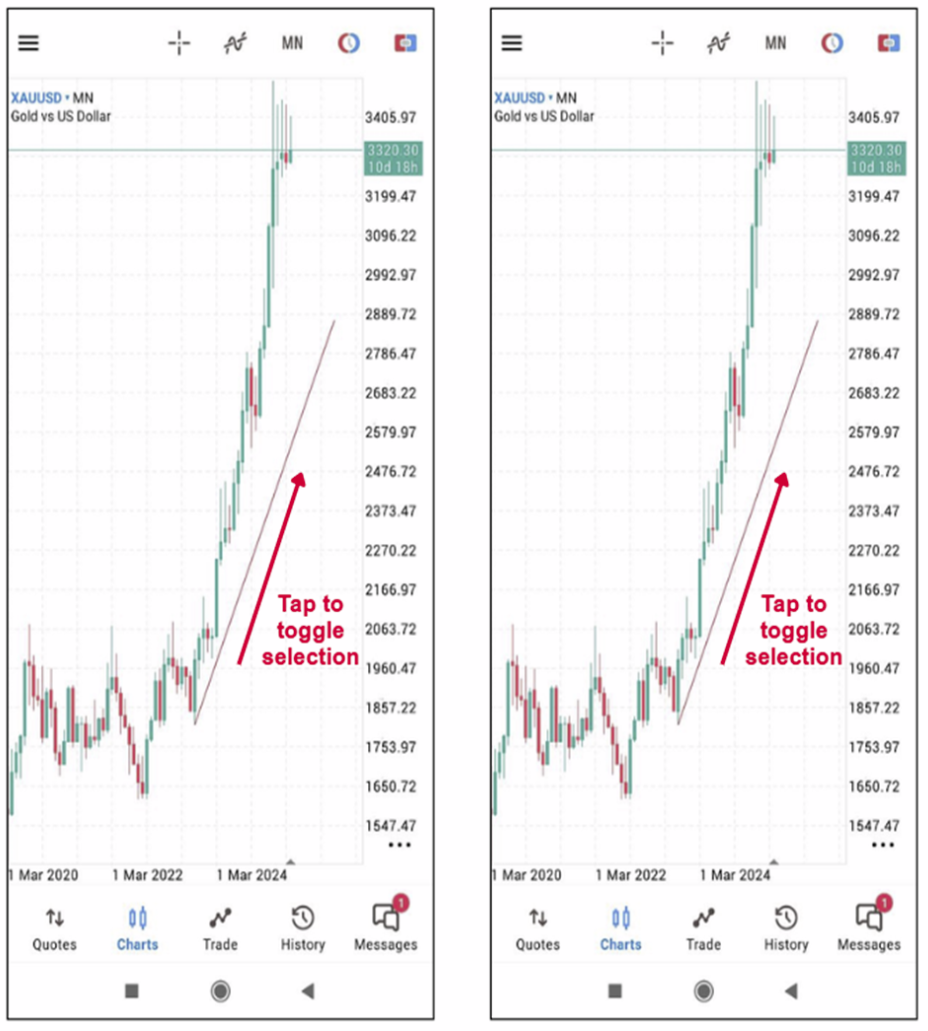
Tap on an object to toggle its selection on or off.
When the object is selected, tap and drag the circle to modify the object.
When the object is selected, tap and drag the circle to modify the object.
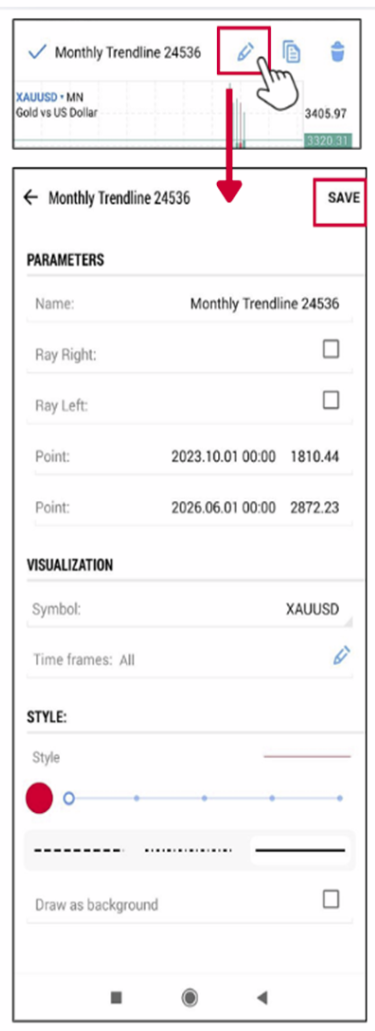
Tap and hold an object to display its menu at the top, then tap the pen icon on the left.
This opens the settings screen, where you can specify extensions on the left and right, adjust the exact display position, select which charts to display, set colors and styles, and tap ‘Save’ in the upper right to apply the settings.
This opens the settings screen, where you can specify extensions on the left and right, adjust the exact display position, select which charts to display, set colors and styles, and tap ‘Save’ in the upper right to apply the settings.
How to Duplicate objects (lines, drawings, etc.)
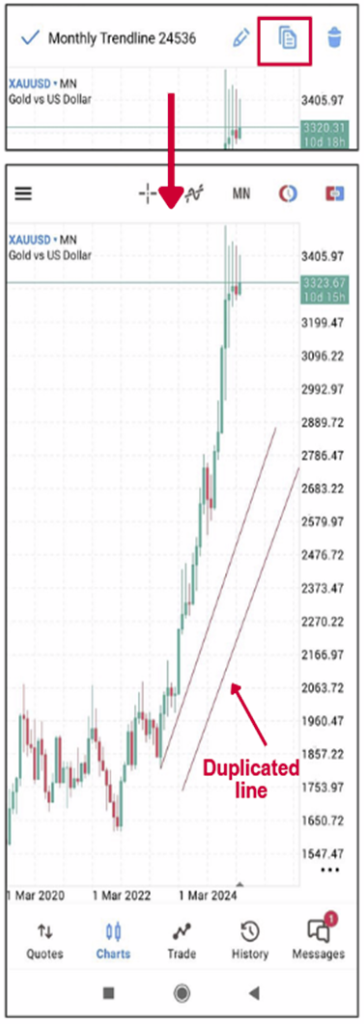
Tap and hold an object to display its menu at the top, then click the second icon from the right to duplicate the object.
How to delete objects (such as lines or drawings)
How to delete on the chart
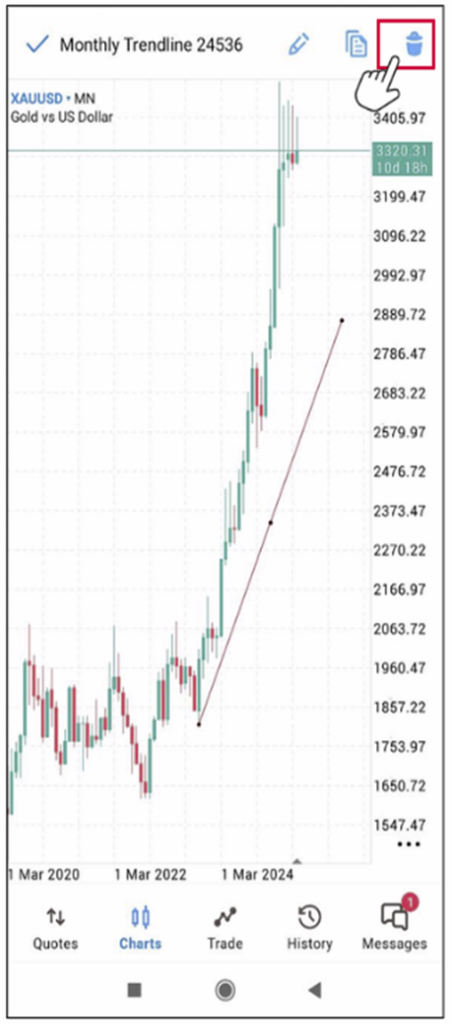
Press and hold an object to display its menu, then tap the trash icon to delete the object.
Press and hold an object to display its menu, then tap the trash icon to delete the object.
How to delete from the object list
Tap on the chart, then tap the object icon from the displayed menu to show the list of currently displayed objects
Tap on the chart, then tap the object icon from the displayed menu to show the list of currently displayed objects
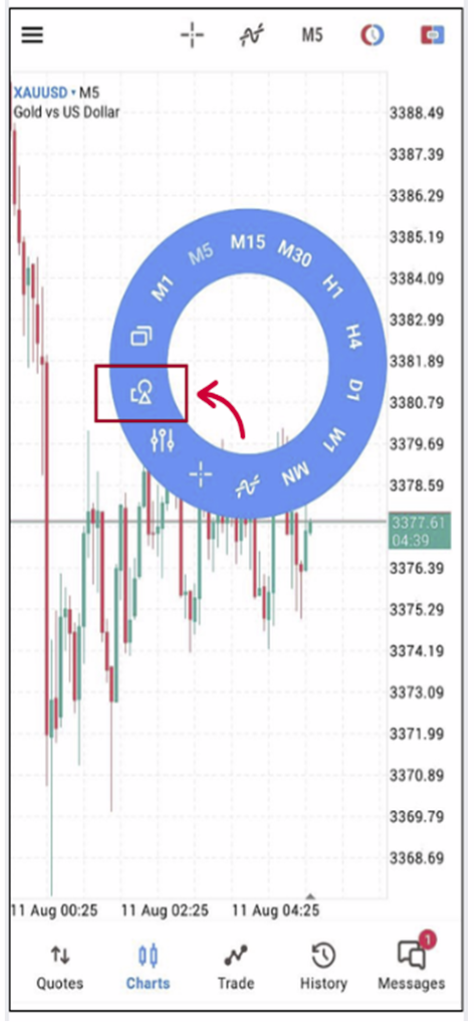
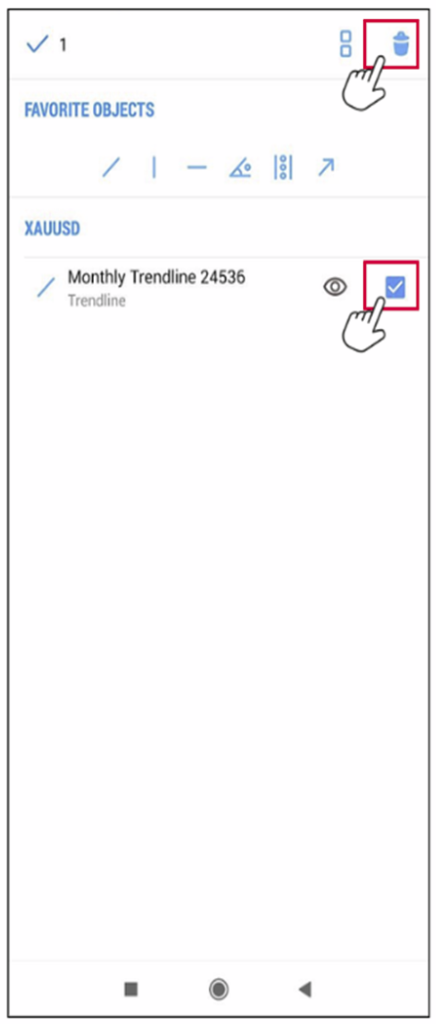
Tap the trash icon at the top right, check the checkbox next to the object you want to delete, and then tap the trash icon again to delete it.