
Manual Guidelines: Login Issues on MT5 (iOS Version)
1. Check Your Internet Connection
– Make sure Wi-Fi or mobile data is stable.
– Try switching networks or turning Airplane Mode ON/OFF.
– Make sure Wi-Fi or mobile data is stable.
– Try switching networks or turning Airplane Mode ON/OFF.
2. Confirm Login Details
Make sure:
– Login ID is correct
– Password is correct (case-sensitive)
– Server is correct
🔑 Wrong server is the most common reason for login failure.
Make sure:
– Login ID is correct
– Password is correct (case-sensitive)
– Server is correct
🔑 Wrong server is the most common reason for login failure.
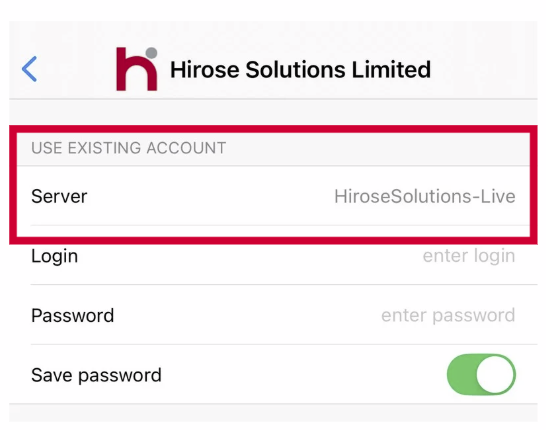
3. Select the Correct Server
– Open MT5 app.
– Tap Settings (bottom right).
– Tap New Account.
– Type Hirose Solution Limited.
– Select the exact server.
– Enter login & password again.
– Open MT5 app.
– Tap Settings (bottom right).
– Tap New Account.
– Type Hirose Solution Limited.
– Select the exact server.
– Enter login & password again.
4. Reset Your Password
If login still fails:
Go to your Client Portal.
– Choose Change Password.
– Set a new MT5 trading password.
– Wait 1-2 minutes, then try again.
If login still fails:
Go to your Client Portal.
– Choose Change Password.
– Set a new MT5 trading password.
– Wait 1-2 minutes, then try again.
5. Update the App
– Open App Store
– Search MetaTrader 5
– Tap Update
– Old versions may fail to connect.
– Open App Store
– Search MetaTrader 5
– Tap Update
– Old versions may fail to connect.
6. If Still Not Working
Prepare:
– MT5 Login ID
– Screenshot of error
Then contact Hirose Customer Support.
Prepare:
– MT5 Login ID
– Screenshot of error
Then contact Hirose Customer Support.
| Error | Meaning | Solution |
|---|---|---|
| Invalid account | Wrong login or server | Re-enter & re-select server |
| Authorization failed | Wrong password | Reset password |
| Account disabled | Account suspended | Contact broker support |
| No connection | Network/server down | Check internet, retry later |