How to Open an Additional Trading Account
- If this is your first time opening an account, please refer to Guide 4.How to Create a Live Trading Account.
- If you already have an account and would like to open an additional trading account, please follow the steps below.
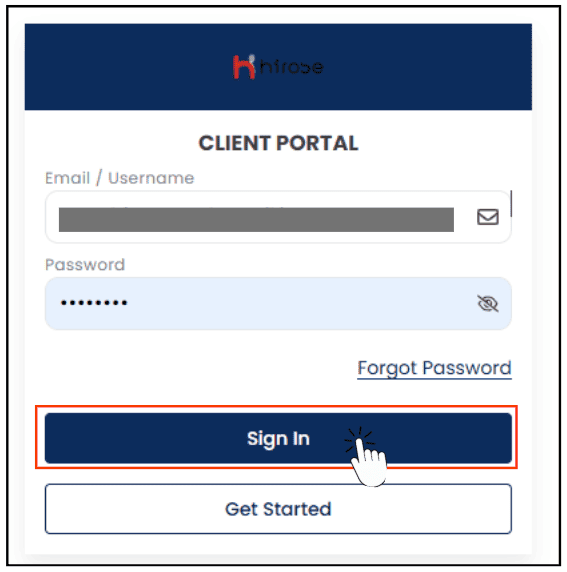
Enter your Email and Password (the same ones you used during registration).
Click 
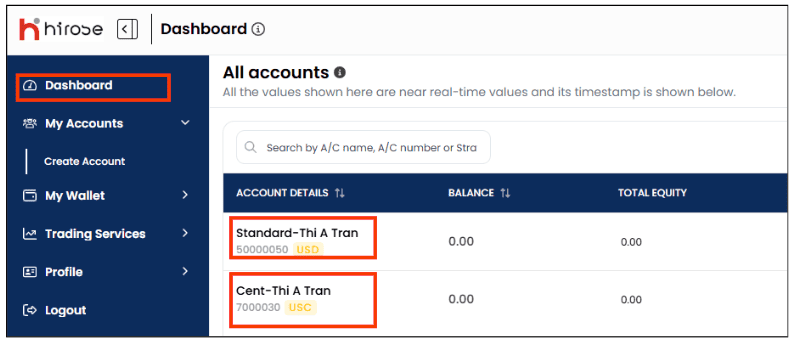
Each customer can open up to 3 accounts. You can view all your accounts in Your Trading Accounts under the Dashboard section.
By checking the Account Type, you can identify whether the account is a Standard or Cent account.
- USD = Standard Account
- USC = Cent Account
To create additional Account, access My Accounts ➡ Create Account
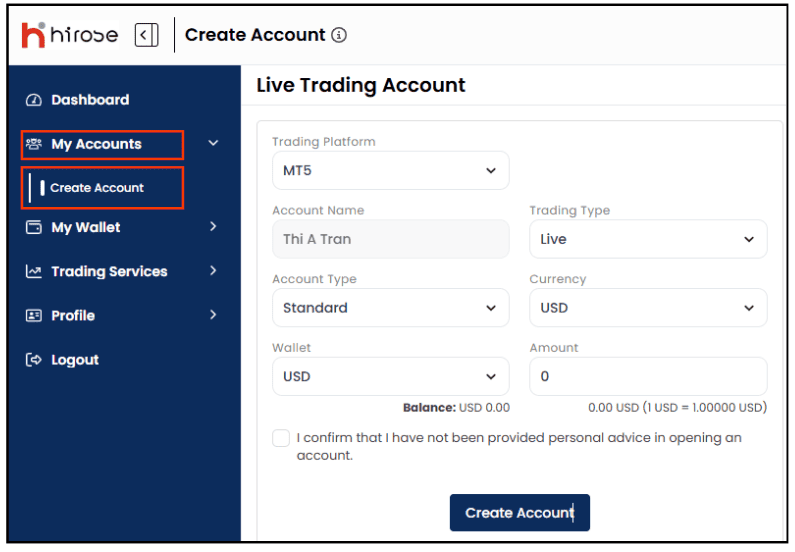
- Choose your preferred trading type:
- Live → Open a real trading account.
- Demo → Open a demo account for practice trading.
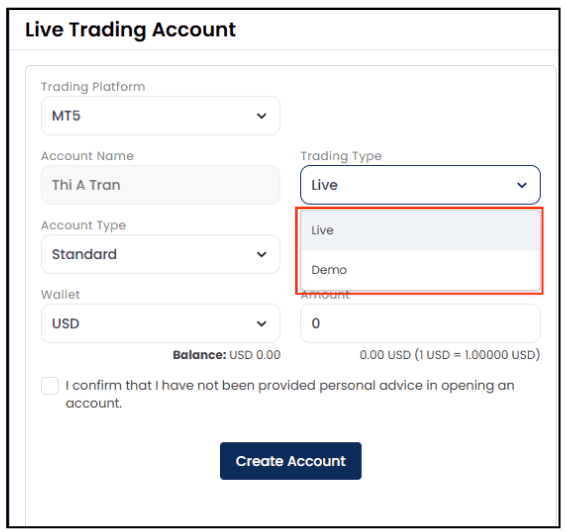
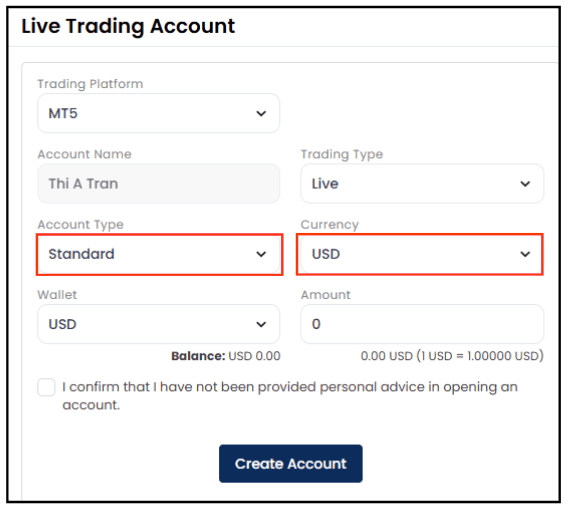
- Standard: Currency → USD ($)
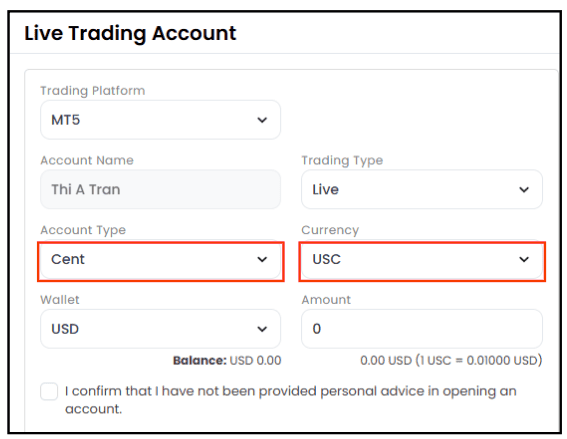
- Cent: Currency → USC (Cent Account: 1/100 of the standard account unit)
① If you select USD
- Standard
A regular USD account for standard trading.
- Cent Account
A cent account where 1 USD = 100 cents.
Allows smaller trades compared to the standard USD account.
Step 6:
Tick “I confirm that I have not been provided personal advice in opening an account” to confirm that you have not received personal financial advice when opening this account.
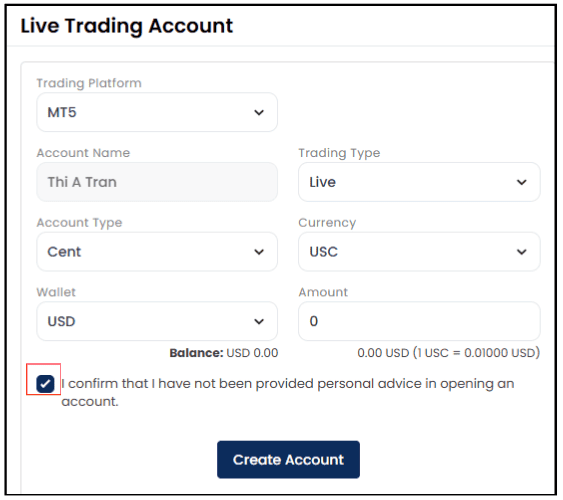
Step 7: Click [Create Account]
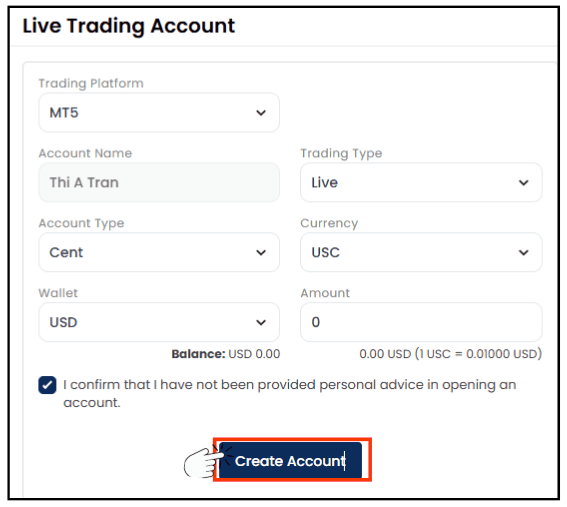
Step 8: You will receive a notification confirming that your account has been successfully created.
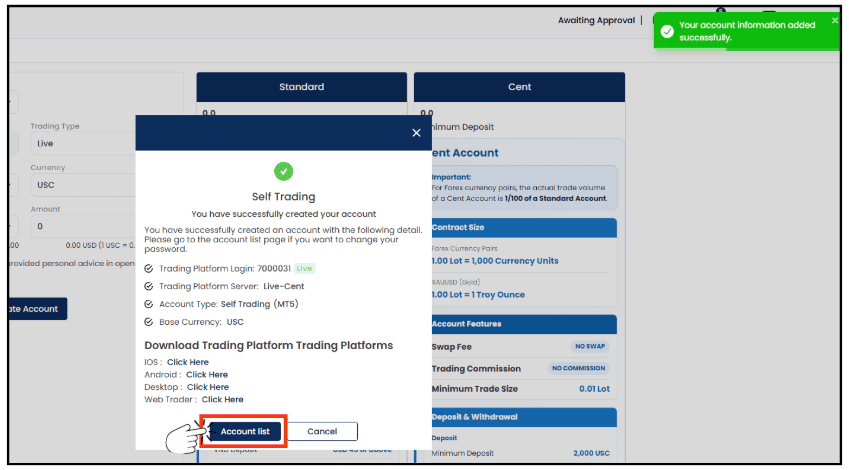
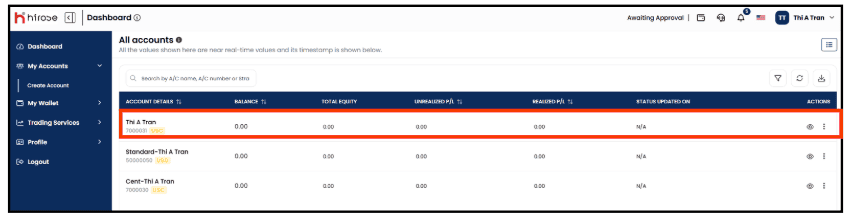
Click [Account List]
Your new Live Trading Account will be added.
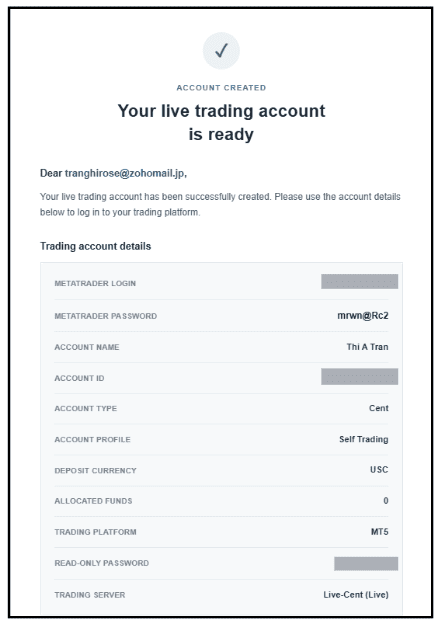
Check Your Email
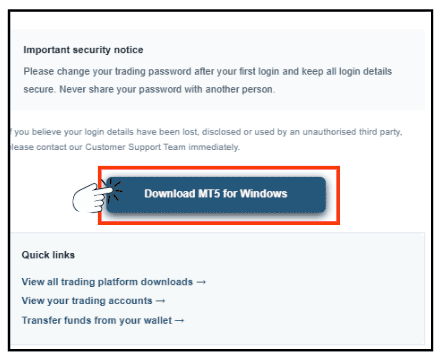
1. For Desktop version, click ‘Download MT5 for Windows’.
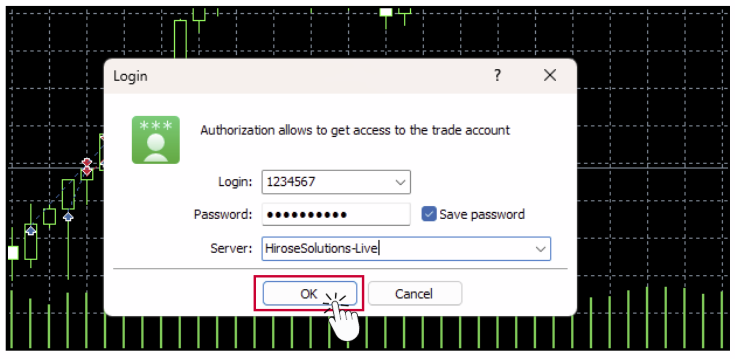
2. Launch the MT5 platform and go to File ⟶ Login to Trade Account.
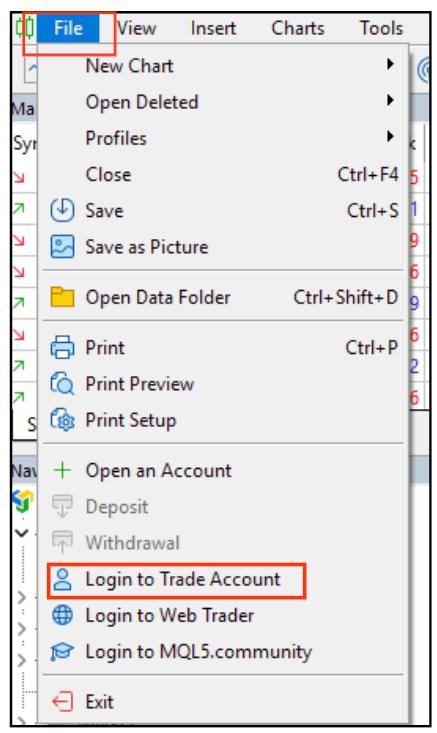
3. Enter your login details and click OK.