How to Transfer Funds Between Your Wallet and Trading Accounts
This guide explains how to transfer funds between your Wallet, USD Trading Account, and USC Trading Account. It covers the following scenarios:
• Part 1: Transfer funds from Wallet to a Trading Account
• Part 2: Transfer Funds: Standard to Cent Account
• Part 3: Transfer Funds: Cent to Standard Account
Please ensure that you have sufficient available balance in the source account before initiating a transfer.
Part 1: Transfer funds from Wallet to a Trading Account
Step 1: Login to the Client Portal
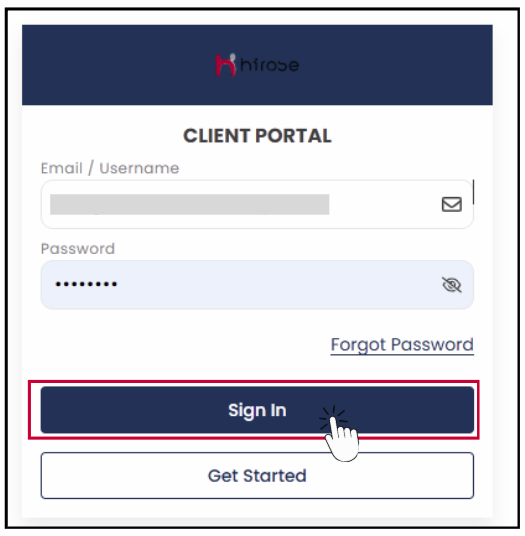
Enter your Email and Password (the same ones you used during registration).
Click 
Step 2: Navigate to Transfer Funds
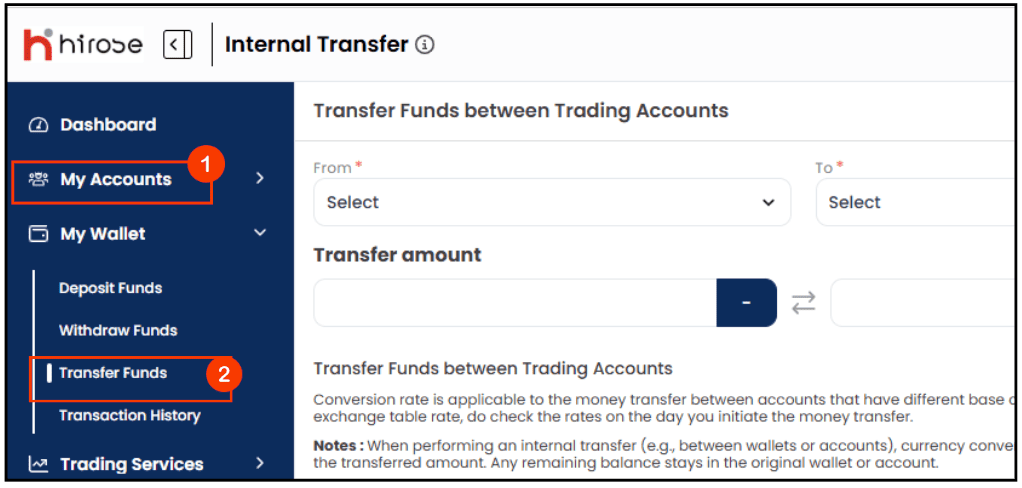
From the left-hand menu, click My Accounts, then choose Transfer Funds
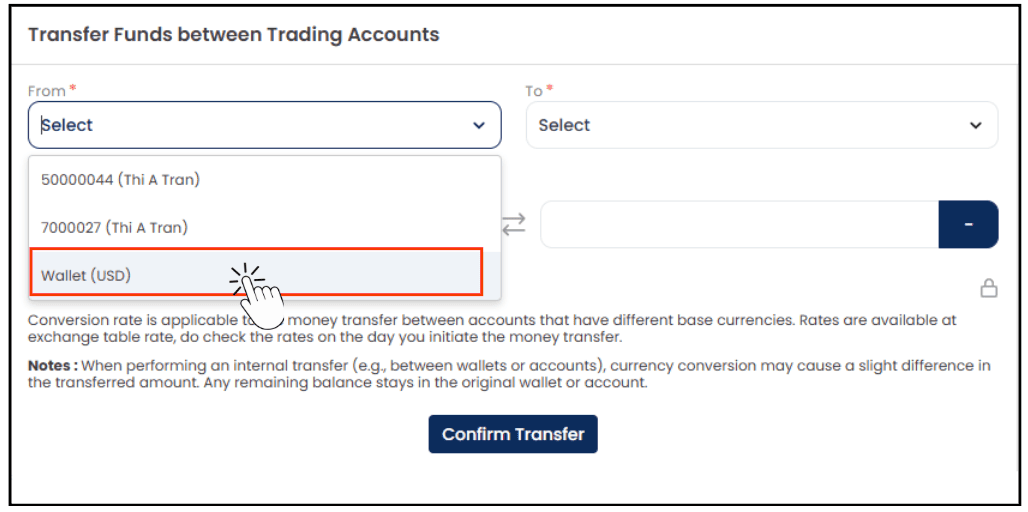
Step 3: Select From*
In the From* field, select your Wallet (USD) as the source account from which the funds will be transferred.
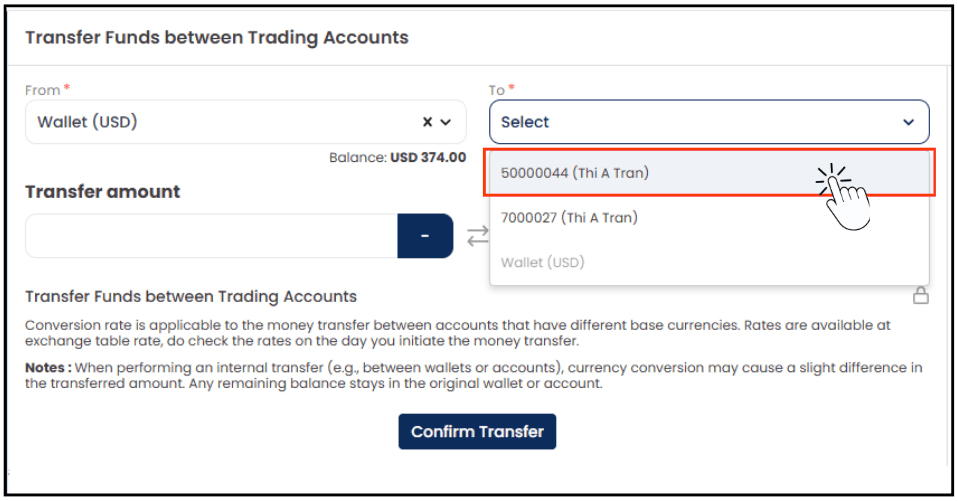
Step 4: Select To*
In the To* field, select the trading account you would like to transfer funds to.
Note: – Please ensure that you select the correct destination account before confirming the transfer. The funds will be credited to the selected account once the transfer is successfully processed.
– Any account number starting with 7 is a Cent account.
Step 5: Enter Transfer Amount
In the Transfer Amount field, enter the amount you would like to transfer.
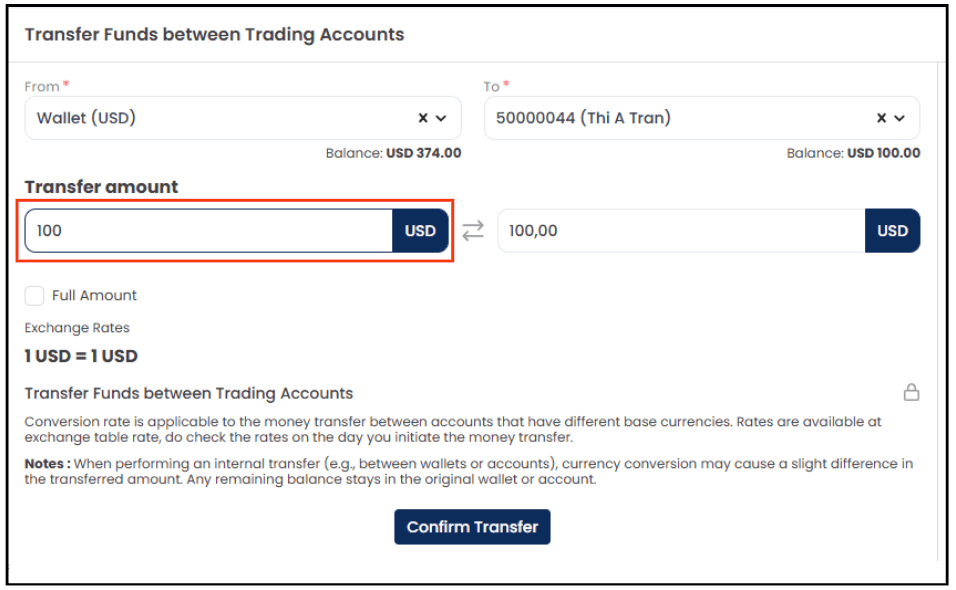
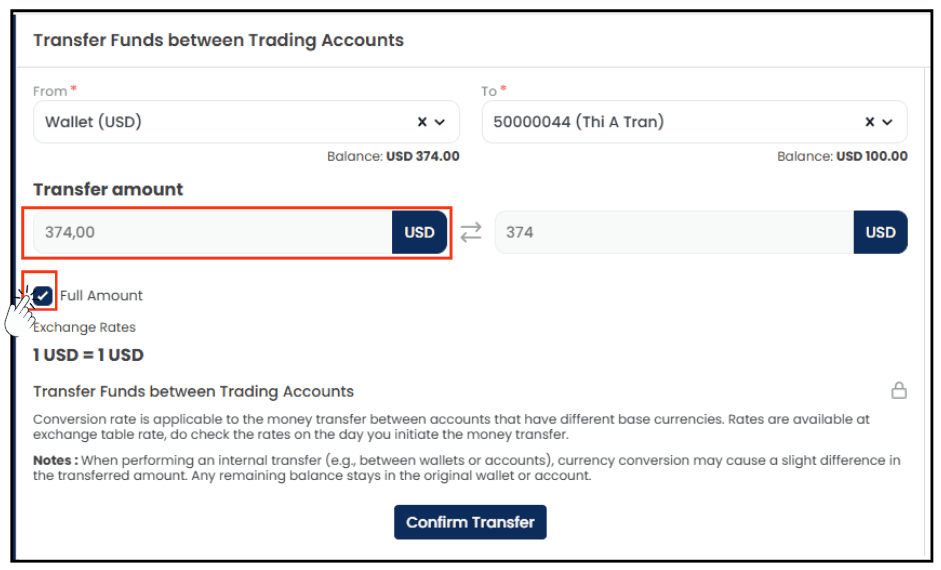
Note: If you tick Full Amount, the system will automatically populate the maximum available balance from the selected source account.
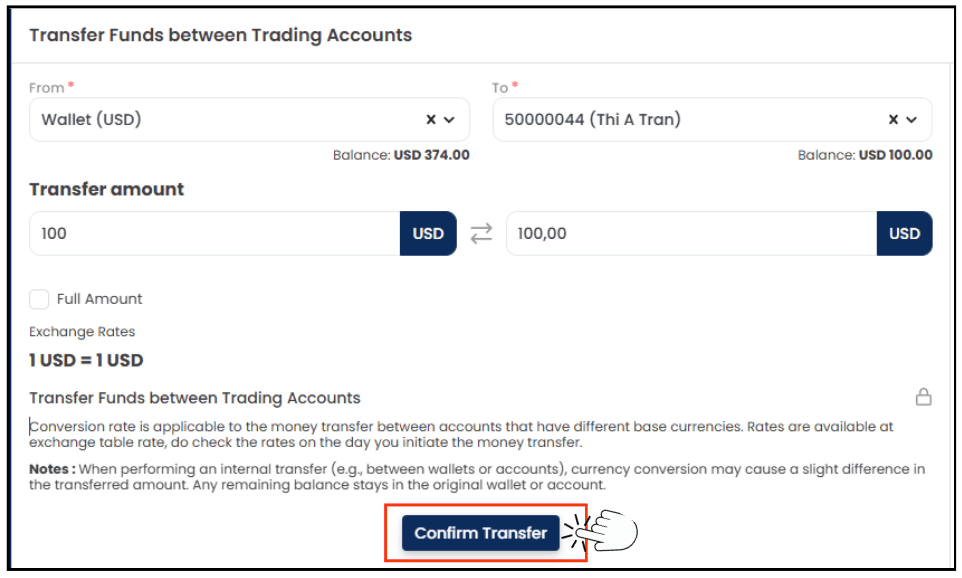
Step 6: Confirm the Transfer
Click Confirm Transfer to proceed with the transfer.
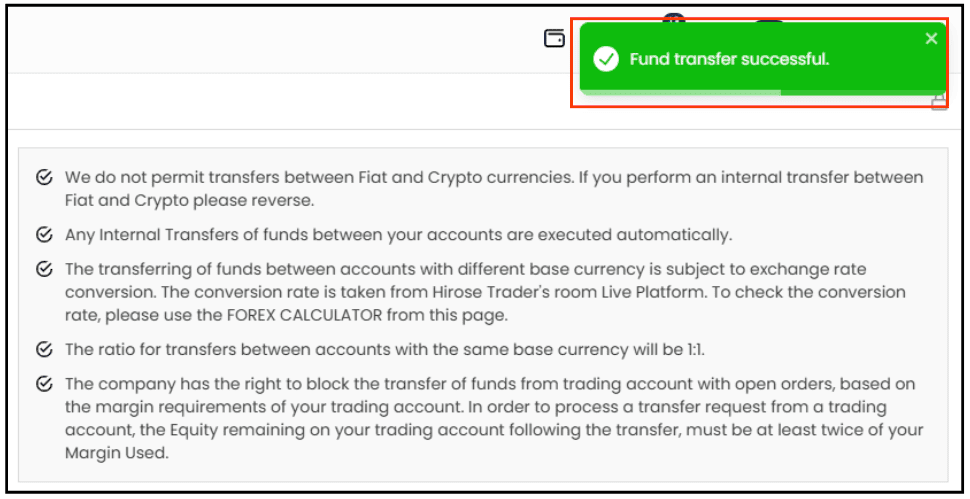
Step 7: Transfer Successful
The right-hand panel will display a Transfer Successful message once the transfer has been completed successfully.
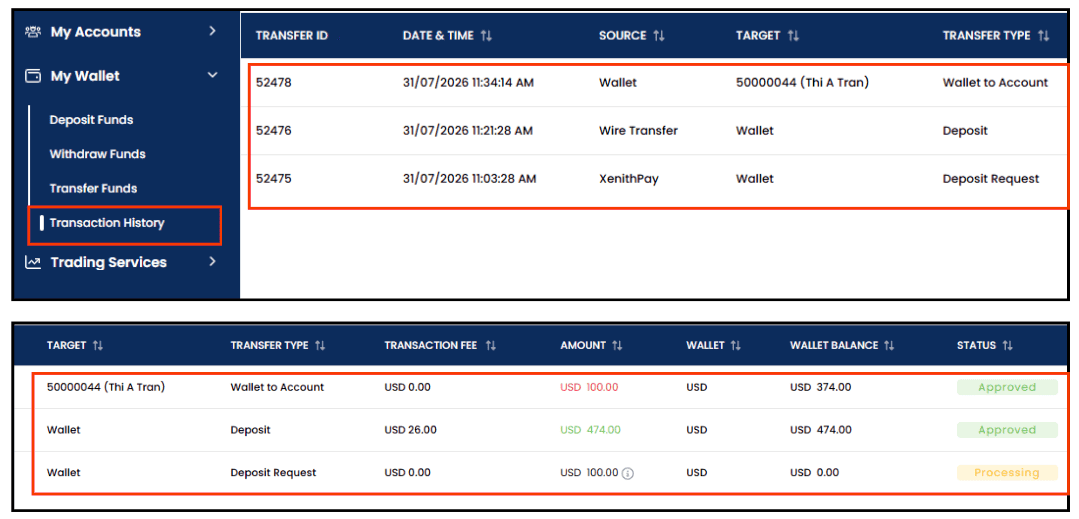
Step 8: View Transaction History
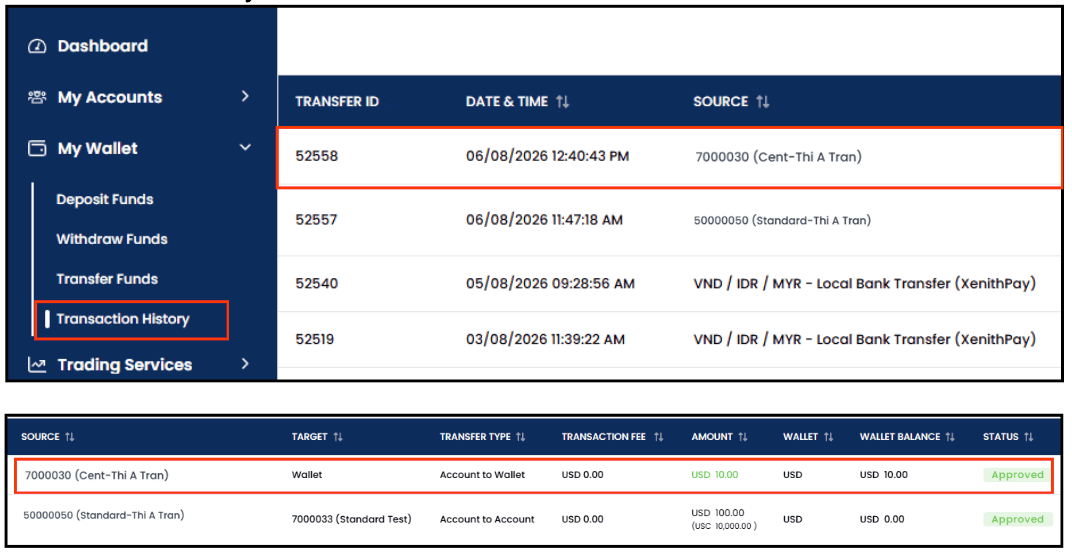
Go to Transaction History to view the details and status of your fund transfer.
Note: You can review information such as the transfer amount, source account, destination account, transaction date, and transaction status in the Transaction History section.
Part 2: Transfer Funds:
Standard to Cent Account
Step 1: Navigate to Transfer Funds
Fom the left-hand menu, click My Wallet, then choose Transfer Funds
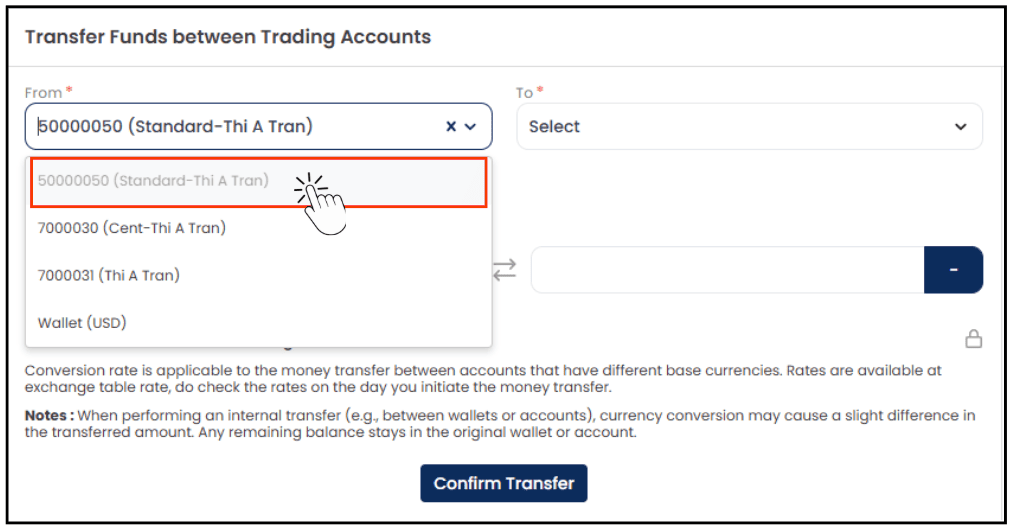
Step 2: Select From*
Select the Standard Account in the From* field as the source account for the transfer.
*Note: Any account number starting with 7 is a Cent account.
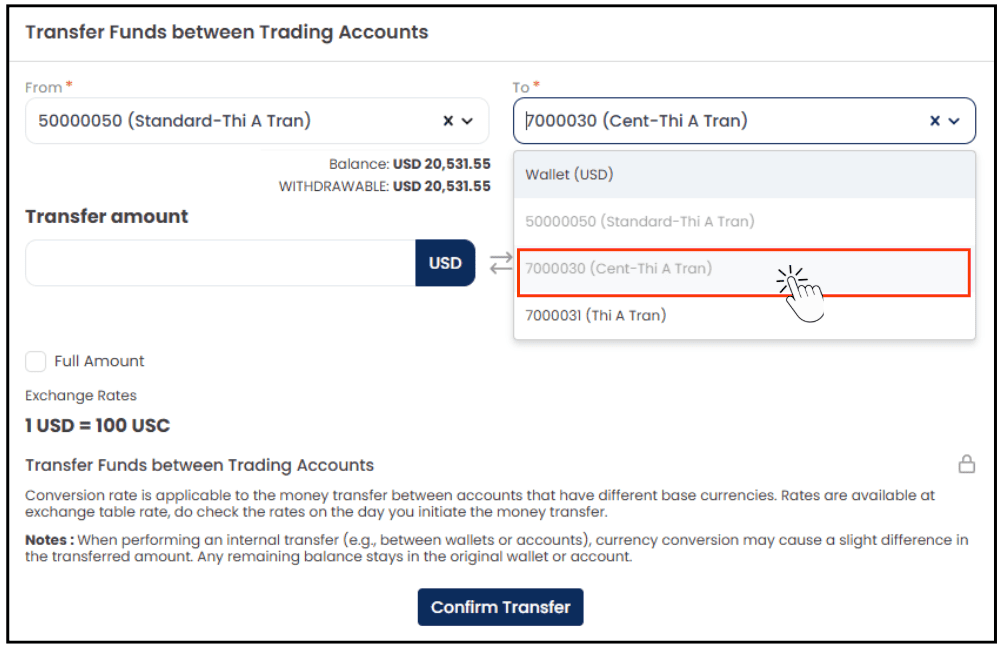
Step 3: Select To*
In the To* field, select the Cent Account as the receiving account for the fund transfer.
Step 4: Enter Transfer Amount
In the Transfer Amount field, enter the amount you would like to transfer.
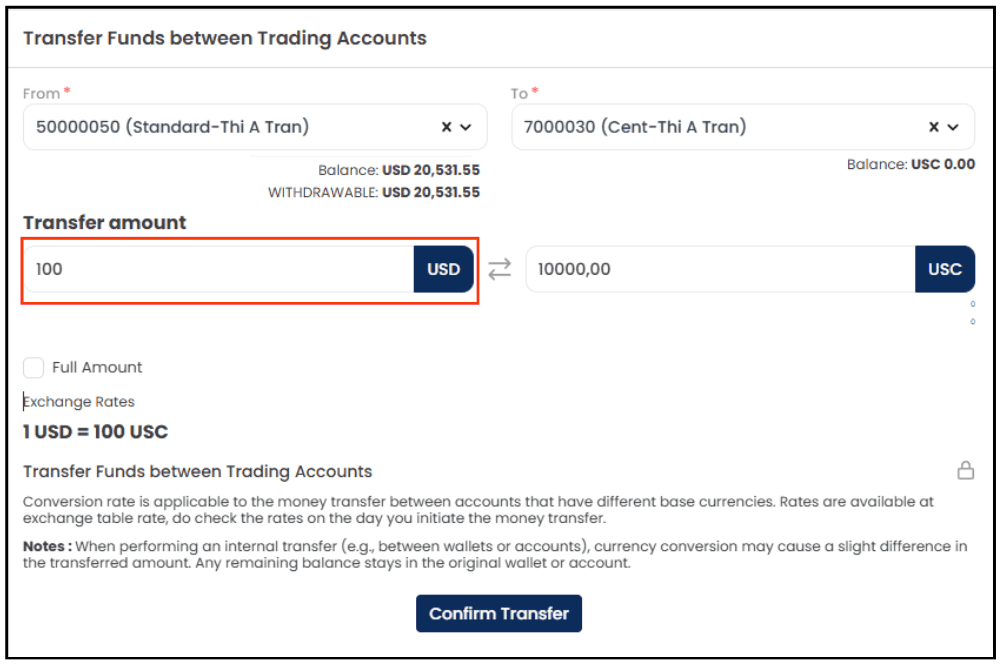
Note: If you tick Full Amount, the system will automatically populate the maximum available balance from the selected source account.
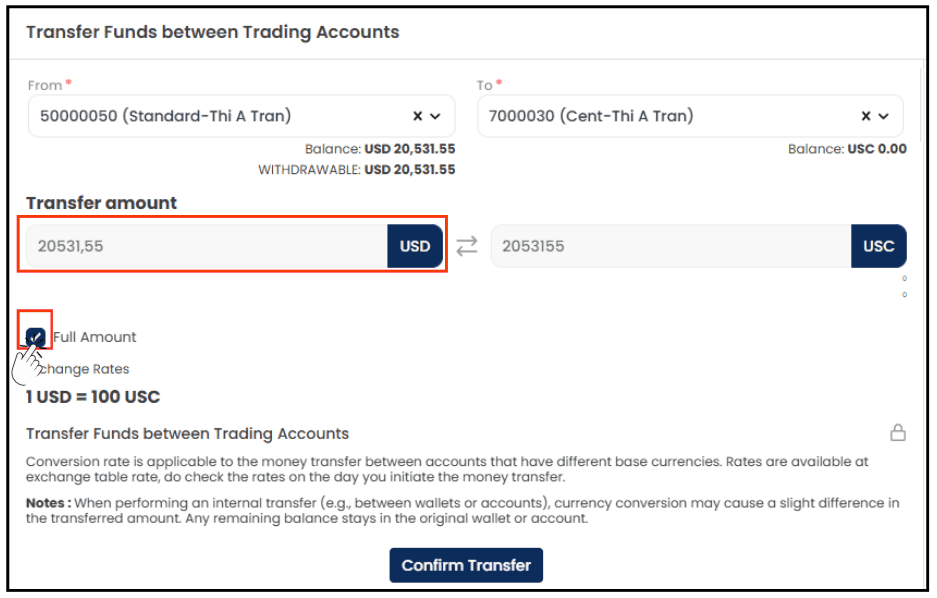
Step 5: Confirm the Transfer
Click Confirm Transfer to proceed with the transfer.
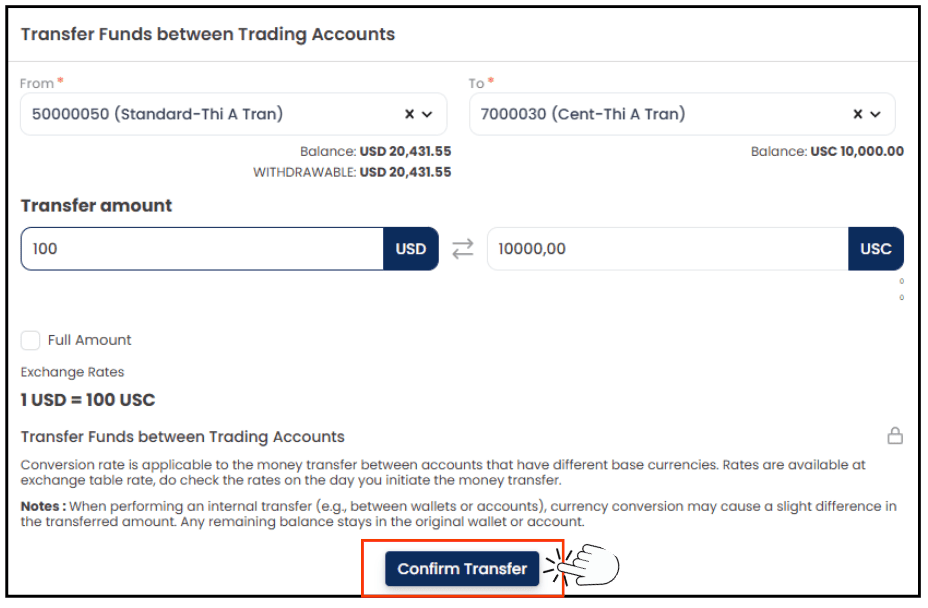
Step 6: Transfer Successful
The right-hand panel will display a Transfer Successful message once the transfer has been completed successfully.
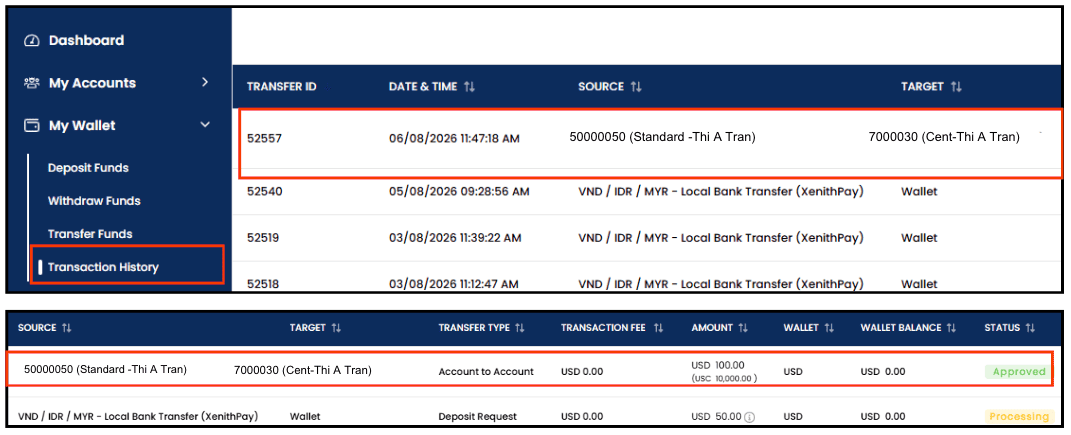
Step 7: View Transaction History
Go to Transaction History to view the details and status of your fund transfer.
Note: You can review information such as the transfer amount, source account, destination account, transaction date, and transaction status in the Transaction History section.
Part 3: Transfer Funds:
from Cent Account to Standard Account
Cent Account → Wallet → Standard Account (USD).
Part 3.1: Cent Account to Wallet
Step 1: Navigate to Transfer Funds
Fom the left-hand menu, click My Wallet, then choose Transfer Funds
Step 2: Select From*
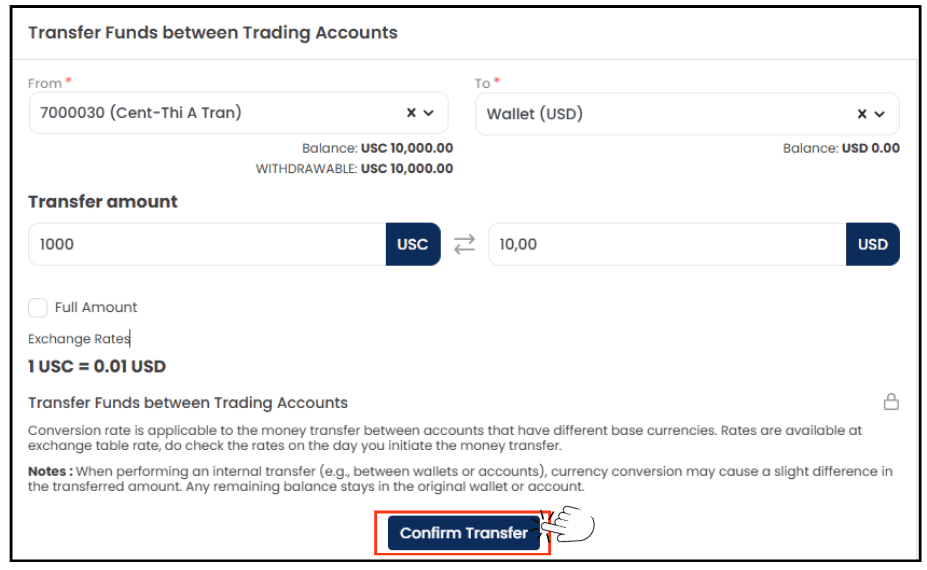
Select the Cent Account in the From* field as the source account for the transfer.
*Note: Any account number starting with 7 is a Cent account.
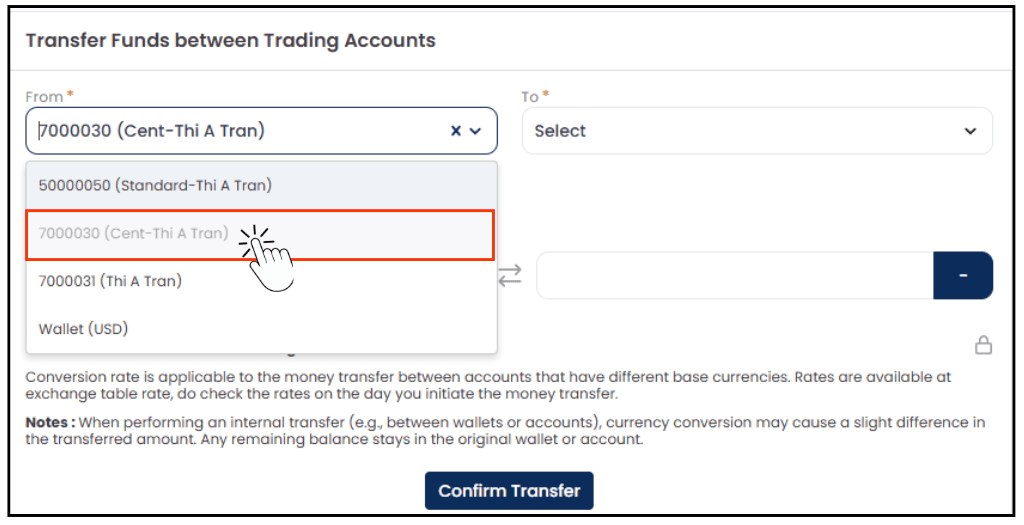
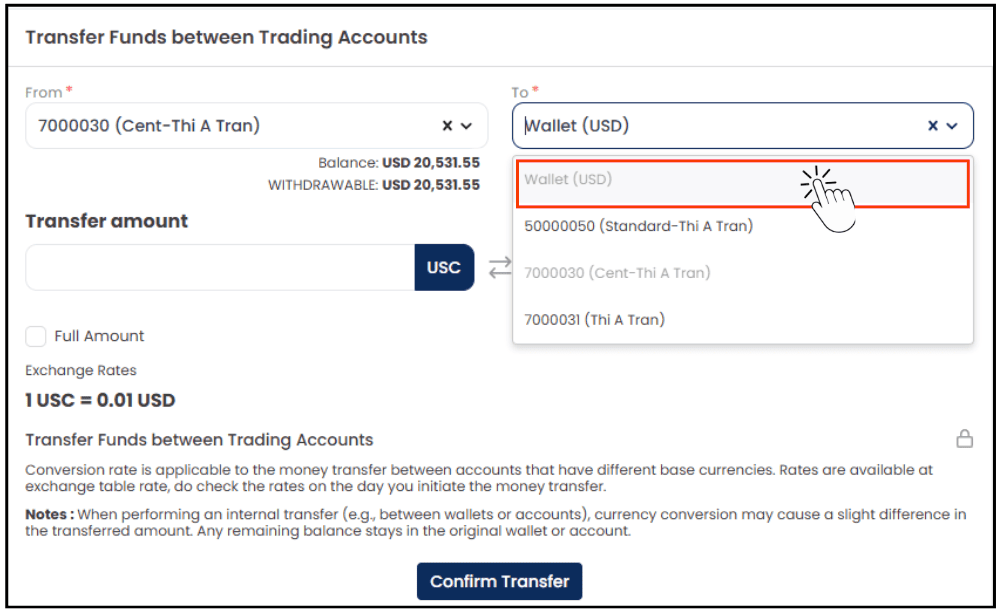
Step 3: Select To*, Choose Wallet as the destination account.
Note: Funds cannot be transferred directly from a Cent Account (USC) to a Standard Account (USD). Please use the following transfer path:
Cent Account → Wallet → Standard Account (USD).
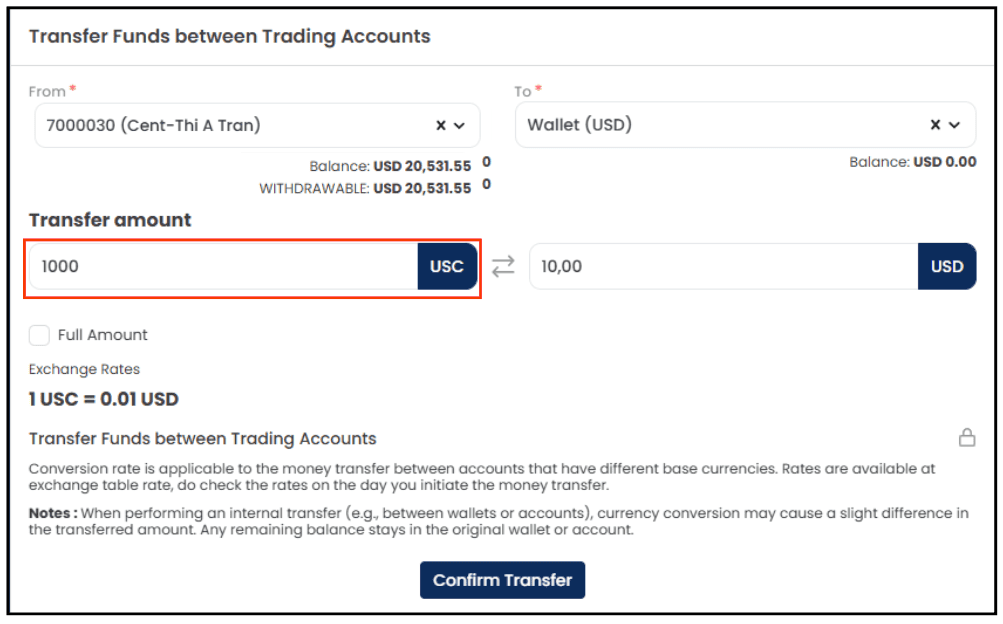
Step 4: Enter Transfer Amount
In the Transfer Amount field, enter the amount you would like to transfer.
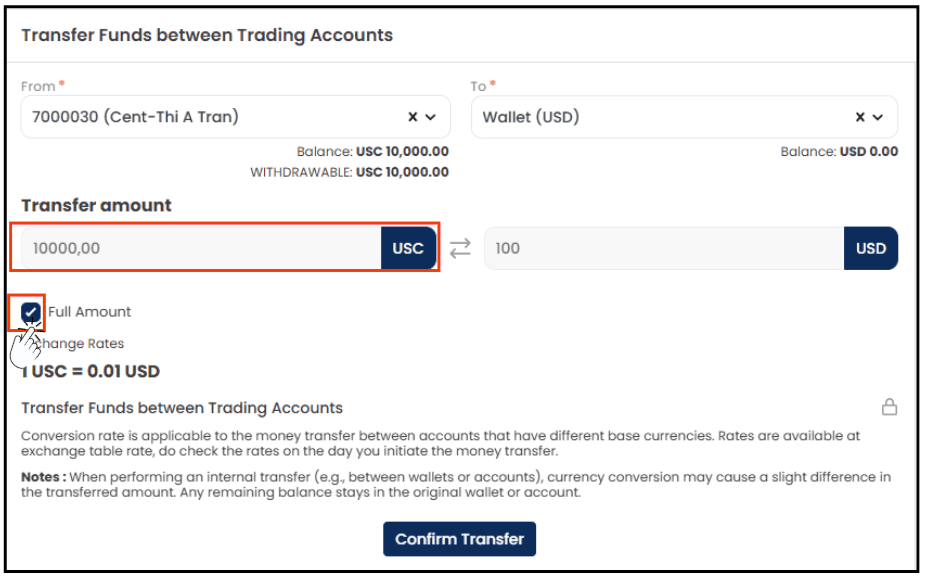
Note: If you tick Full Amount, the system will automatically populate the maximum available balance from the selected source account.
Step 5: Confirm the Transfer
Click Confirm Transfer to proceed with the transfer.
Step 6: Transfer Successful
The right-hand panel will display a Transfer Successful message once the transfer has been completed successfully.
Step 7: View Transaction History
Go to Transaction History to view the details and status of your fund transfer.
Note: You can review information such as the transfer amount, source account, destination account, transaction date, and transaction status in the Transaction History section.