
How to Create a Demo Trading Account
This guide explains how to create a Demo Trading Account and access the trading platform for practice and testing purposes.
Note: If you would like to open a Live Trading Account instead, please refer to the Live Account Opening Guide below:
Live Account Opening Guide: How to create a live trading account
- To create and start using your Demo Trading Account, complete Part 1 and Part 2.
- If you would also like to open a Live Trading Account, continue to Part 3.
Follow the instructions in each section to complete your account setup.
Part 1:
Fill Out the Client Application Form
Step 1: Sign Up
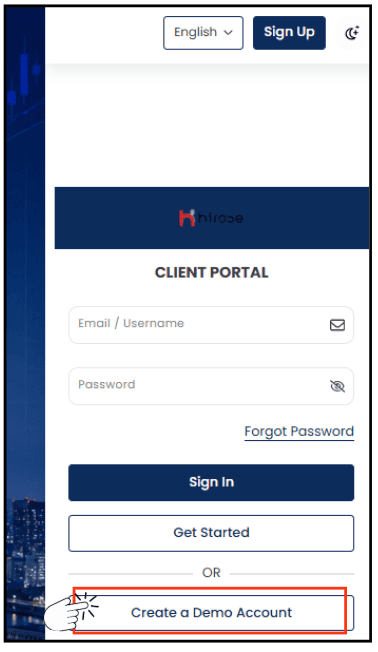
Create a Demo account from this link: https://client.hiroseag.com/Home/Login
Click [Create a Demo Account]
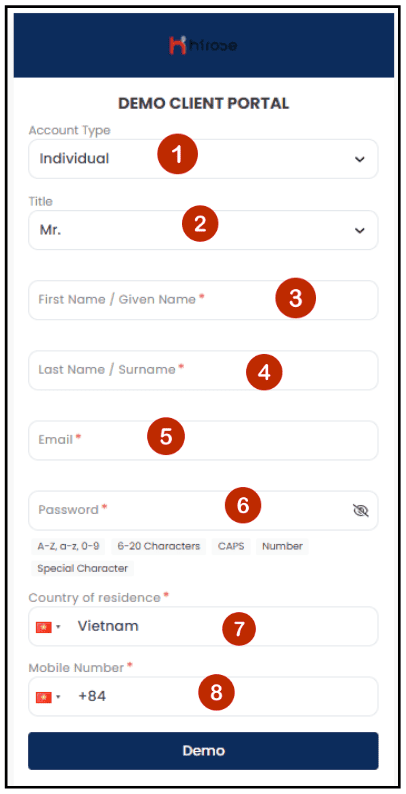
Step 2: Create your Demo Account by entering your details below. Please complete all required fields to proceed with the registration.
1 Select Account Type: Choose the account type that matches your profile:
- Individual Account: Personal account
- Corporate Account: Company account
2 Title (Salutation): Choose your salutation (Mr., Mrs., Ms., Dr.).
3 First Name: Enter your given name as shown on your official ID.
4 Last Name: Enter your family name/ surname as shown on your official ID.
5 Email: Provide a valid email address, which will be used for account verification & communication.
6 Password: Create a strong password (at least 8 characters, including letters, numbers, and special characters).
7 Country: Select your country of residence from the dropdown list.
8 Mobile Number: Provide your active mobile phone number (include country code).
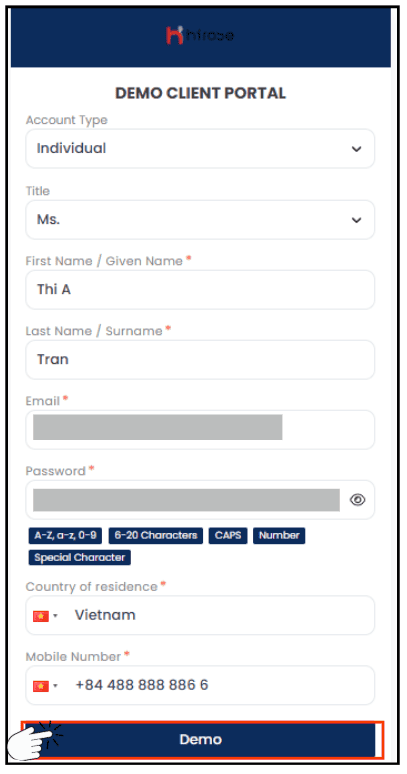
Step 3: After completing all required information, click [Demo].
Your application form has been submitted successfully. The notification below will appear.
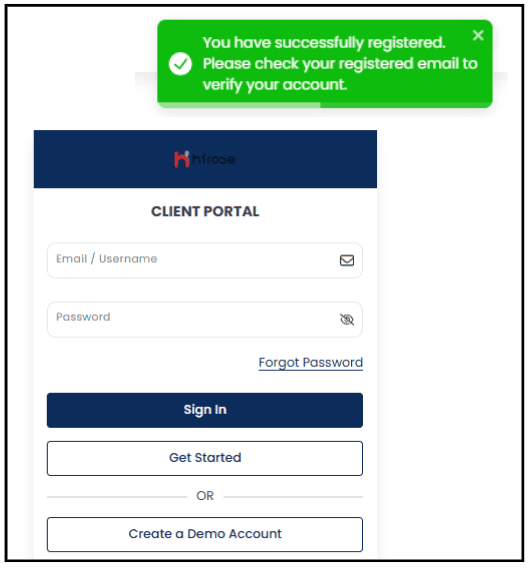
An automatic email will be sent to your email address. Please proceed to Part 2: Verify Your Email.
Part 2: Verify your Email
Step 1: Please check and confirm whether you received 2 emails from Hirose. If you don’t see them in your Inbox, please check the Spam/Junk folder and mark them as Not Spam if found.
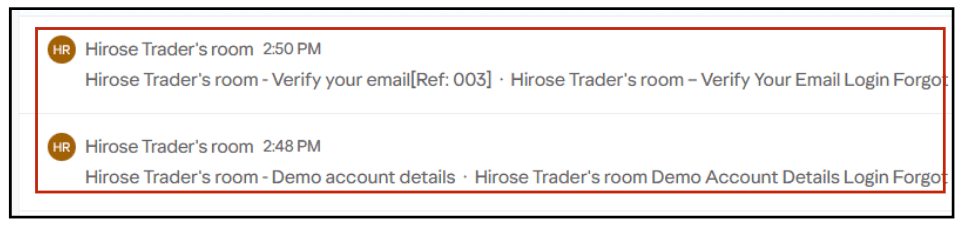
If you have not received any emails, please contact our Customer Support team for assistance.
Step 2: Open the email titled “Hirose Trader’s room – Verify your Email[Ref: 003]”
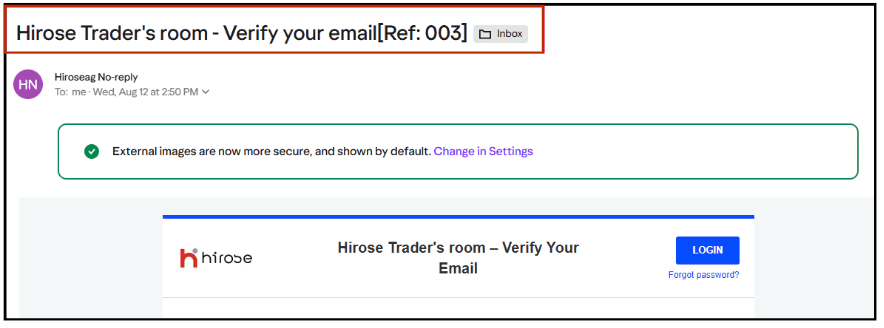
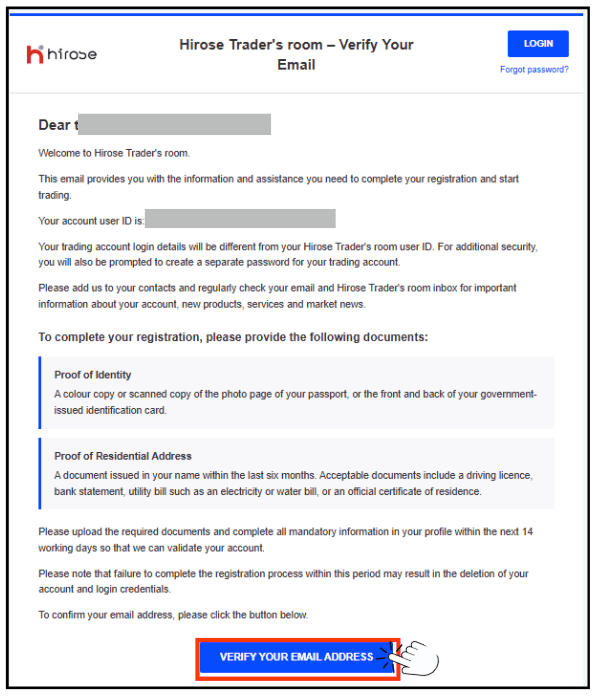
Step 3: Click [Verify Your Email Address] button to verify your email address.
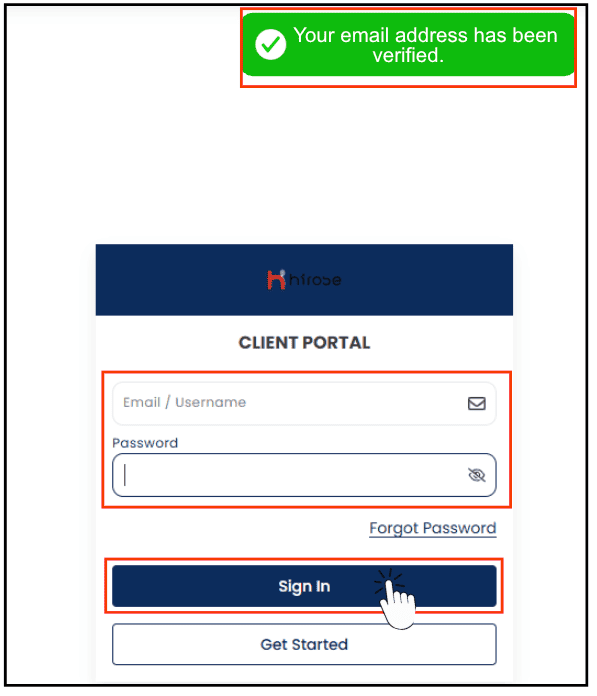
Step 4: Log in by entering your Email/Username and Password, then click the [Sign In] button.
Access the Client Portal using the following link:https://client.hiroseag.com/Home/Login
Check Your Email
- A. To start trading, log in to MT5 using your MetaTrader login credentials.
- B. To open a Live Account, log in to the Client Portal and proceed to Part 3 to complete the onboarding process.
A. Log in to MetaTrader 5 (MT5)
Step 1: Open the email titled “Hirose Trader’s room Demo Account Details”

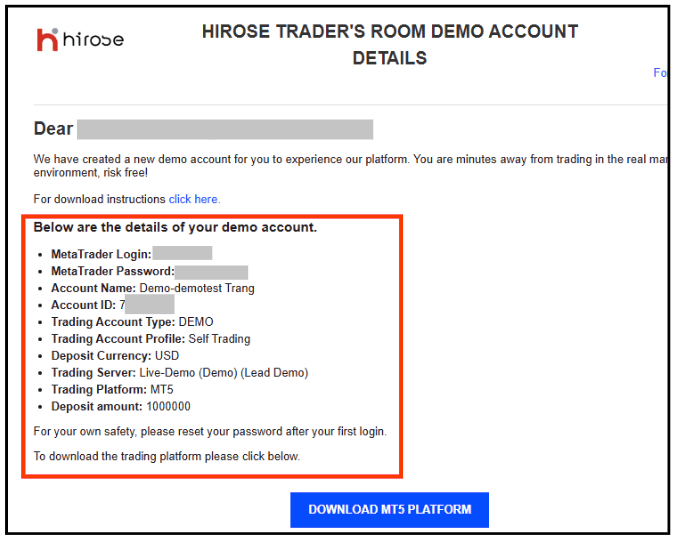
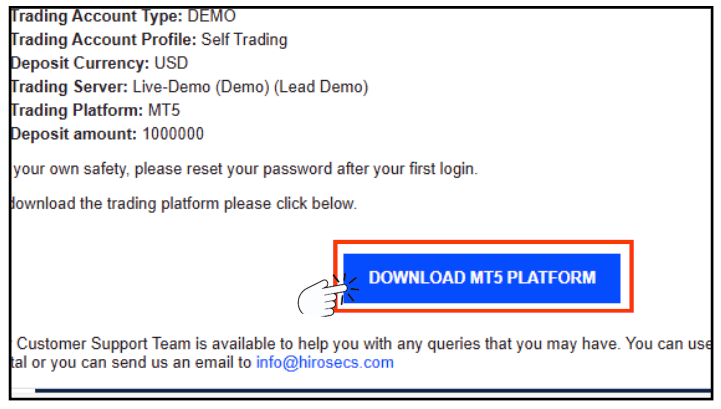
For Desktop version, click ‘Download MT5 Platform’.
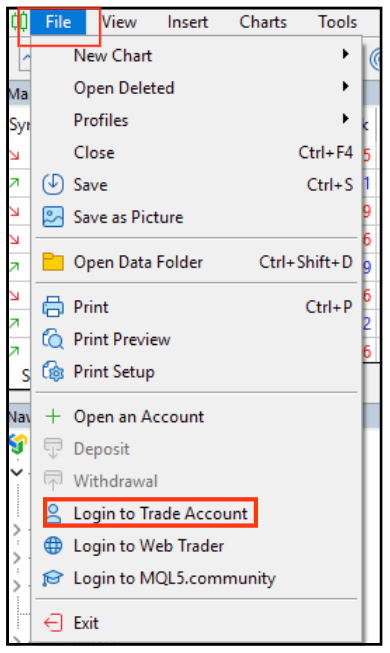
Step 2: Launch the MT5 platform and go to File ⟶ Login to Trade Account.
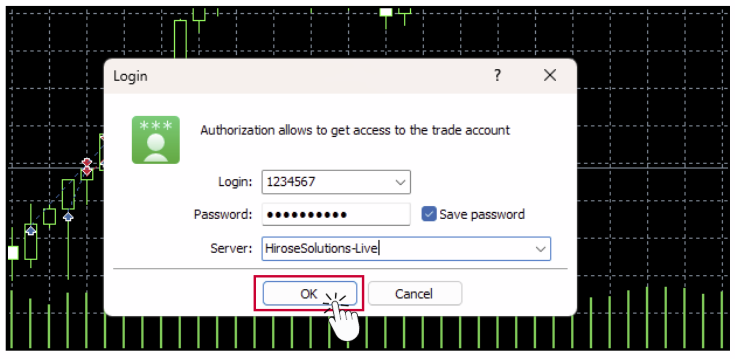
Step 3: Enter your login details and click OK.
Part 3: Complete the Onboarding Process
To complete your Live Trading Account application, please follow the steps below and provide all required information and documents.
Part 3.1: Account Information
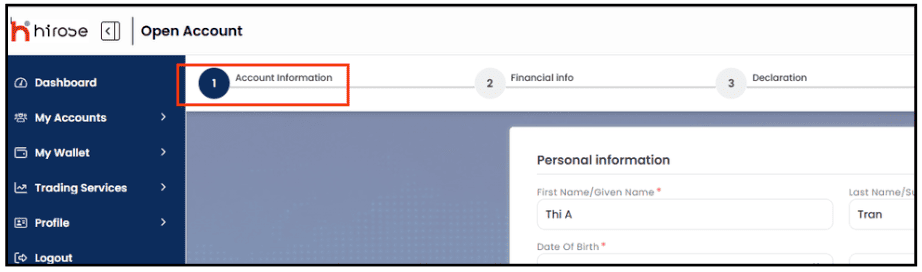
Step 1: Complete Your Personal Information
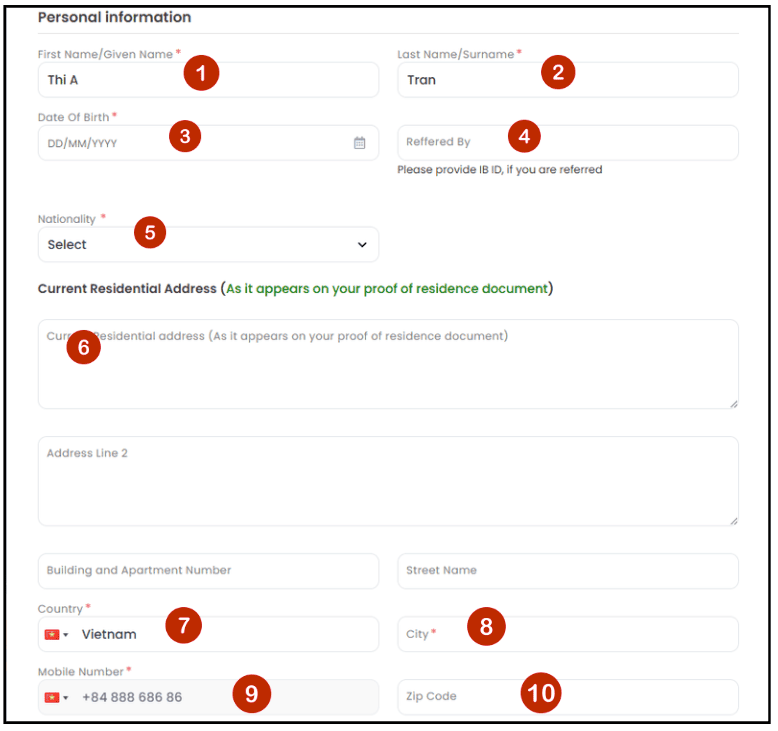
1First Name*: Enter your given name as shown on your official ID.
2Last Name*: Enter your family name / surname as shown on your official ID.
3Date Of Birth*: Select your date of birth (DD/MM/YYYY).
4Referred By: Enter the IB ID if you were referred by an IB.
5Nationality*: Select your nationality as shown on your passport or national ID card.
6Current Residential Address: Please enter your current residential address exactly as it appears on your proof of residence document.
7Country*: Select your country of residence.
8City*: Enter the city where you currently reside.
9Mobile Number*: Enter your mobile phone number, including the country code.
10Zip code: Enter the ZIP Code or Postal Code for your current residential address.
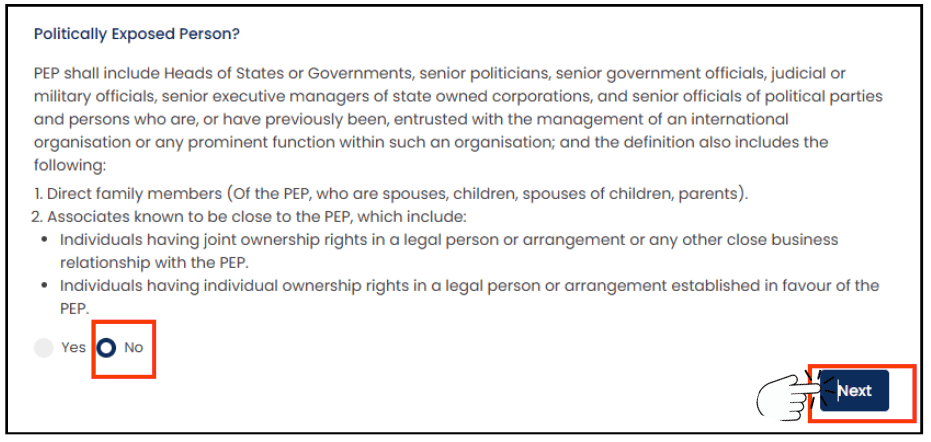
Step 2: Politically Exposed Person (PEP):
Select [Yes] or [No] as applicable to your circumstances, then click [Next].
Part 3.2: Financial information
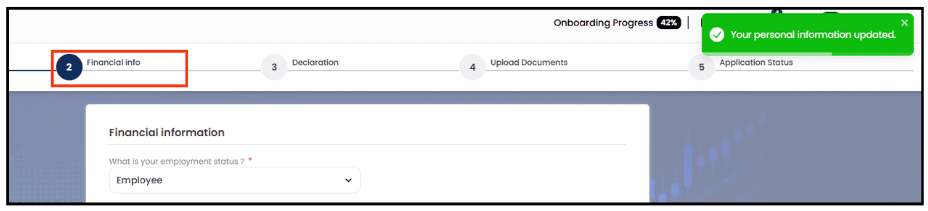
Step 1: Please complete the questionnaire by providing your financial and employment details.
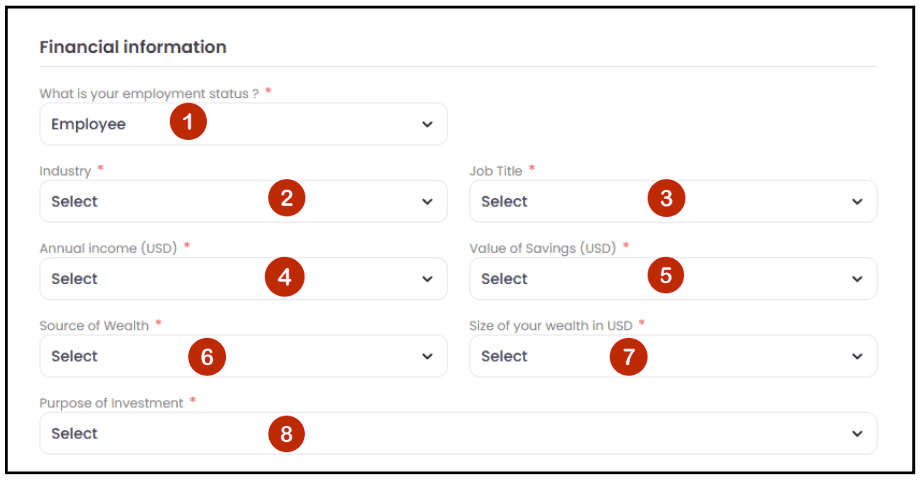
1 Employment Status *: Select your current employment status.
2 Industry *: Select the industry you work in.
3 Job Title *: Select your job title.
4 Annual Income (USD) *: Select your annual income range.
5 Value of Savings (USD) *: Select the total value of your savings.
6 Source of Wealth *: Select the primary source of your wealth.
7 Size of Your Wealth (USD) *: Select your estimated net worth range.
8 Purpose of Investment *: Select your main investment objective.
Step 2: For products 1-3 below, please select both your trading experience (how many times you have traded) and (your level of understanding).
1Spot & Forward Foreign Exchange / Bullion
2Shares / Bonds
3CFDs (Contracts for Difference)
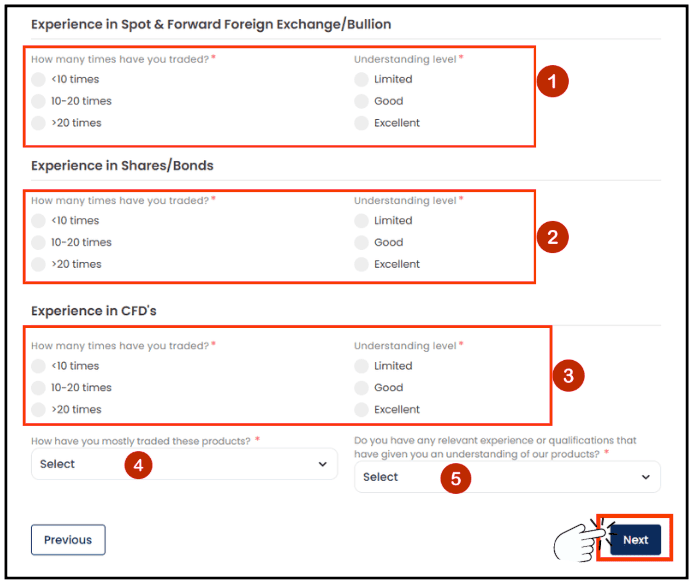
4Select the option that best describes your trading method.
5Experience & Qualifications: Select whether you have any relevant experience or qualifications.
Click [Next] to proceed.
Part 3.3: Declaration information

Step 1: Review the declaration information and disclosure requirements.
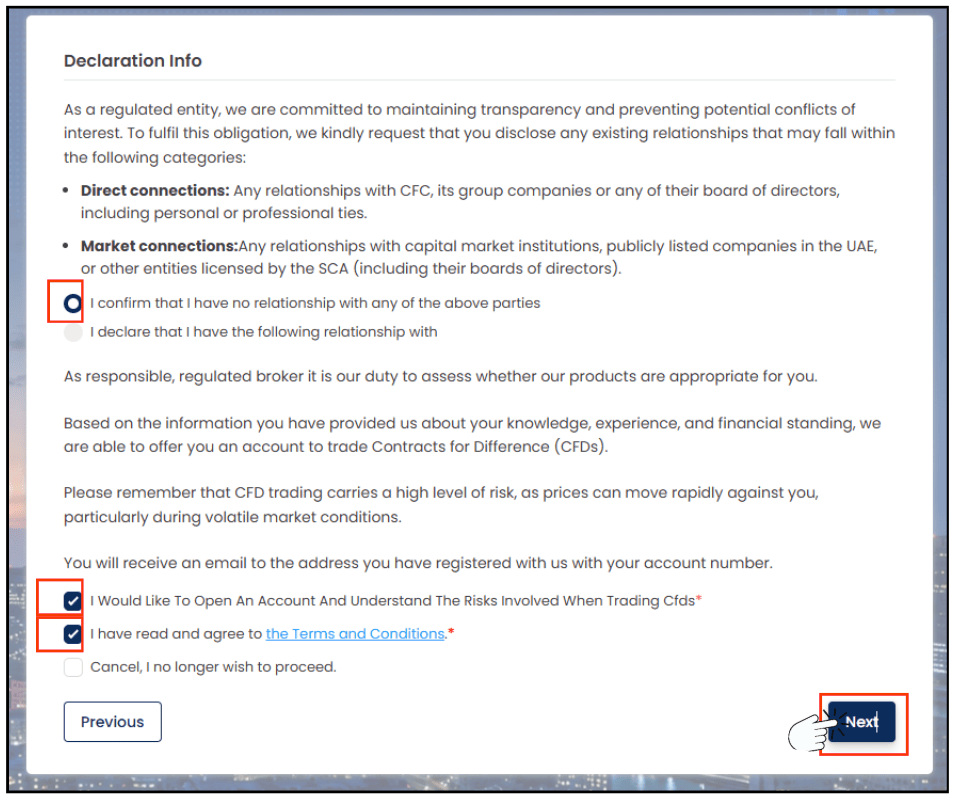
Tick “I confirm that I have no relationship with any of the above parties” if you do not have any relationship with the organizations or individuals mentioned above.
Tick “I Would Like To Open An Account And Understand The Risks Involved When Trading CFDs” to confirm that you wish to open an account and understand the risks associated with CFD trading.
Tick “I have read and agree to the Terms and Conditions*” to confirm that you have read and accepted the Terms and Conditions.
Click [Next] to proceed.
Part 3.4: Upload Documents

To complete compliance, you are required to upload valid identification and Proof of Residence (POR)
- National ID card (front and back)
- Passport (photo page)
- Driver’s License (front and back)
2. Proof of Residence (POR)* (choose one)
- Utility bill (electricity, water, gas, internet, etc.)
- Bank statement
- Government-issued residence certificate
Step 1: Upload Your Proof of Identity ( POI )
- Select the document type.
- Click [Browse] to upload your document.
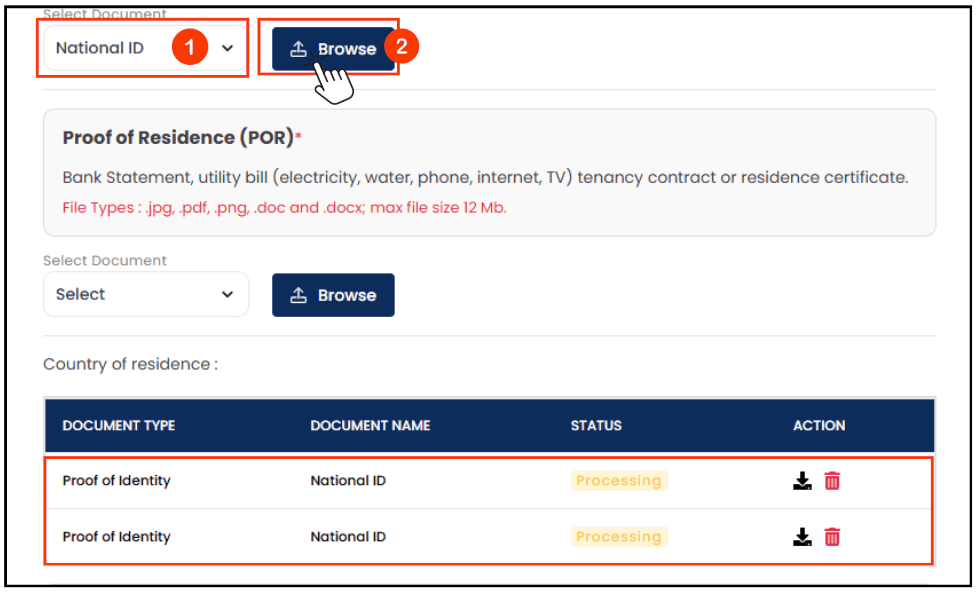
Step 2: Upload Your Proof of Residence (POR)
- Select the document type.
- Click [Browse] to upload your document.
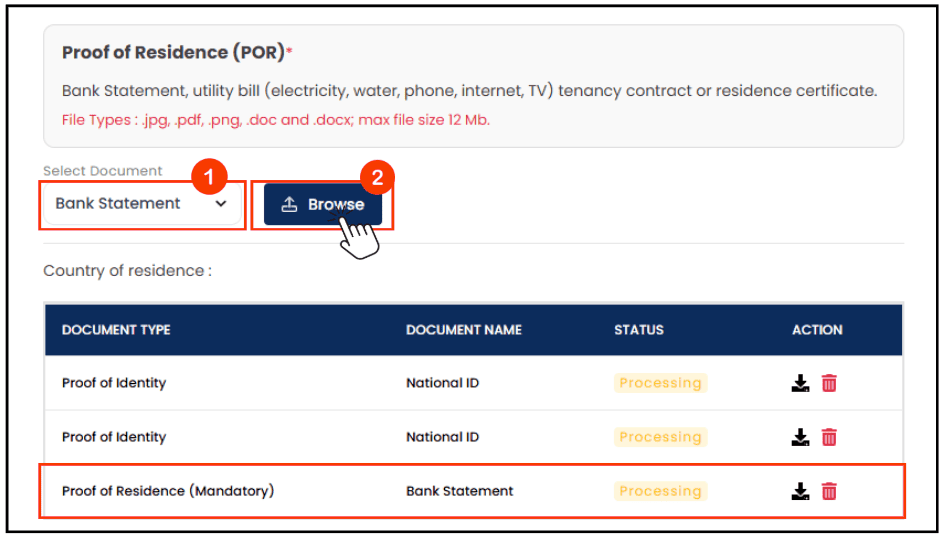
Your uploaded document will appear here.
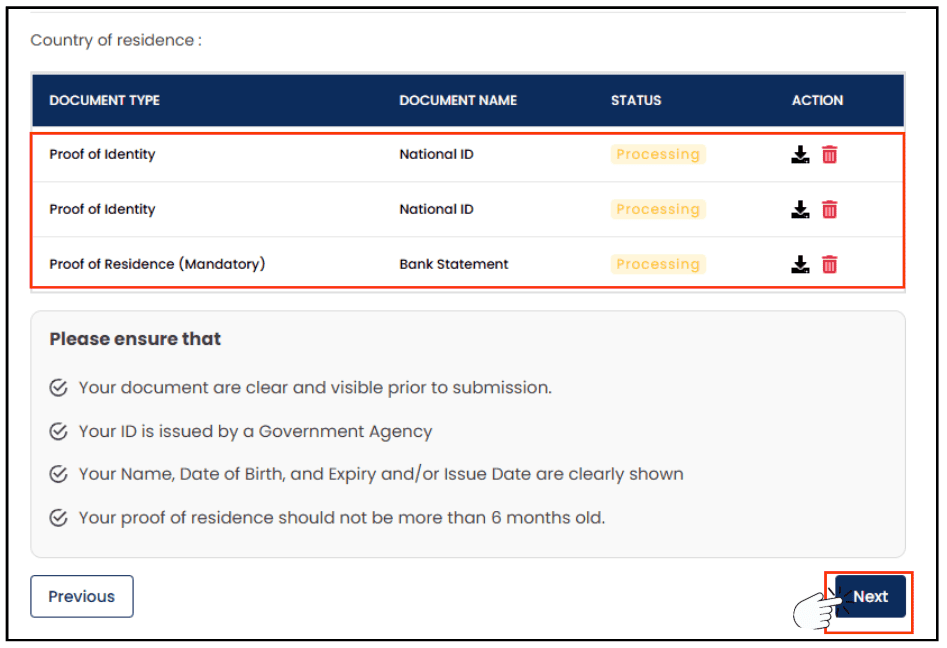
Click [Next] to proceed.
Part 3.5: Application Status
Your Live Trading Account application will be reviewed by us, and this normally takes 1-2 business days.
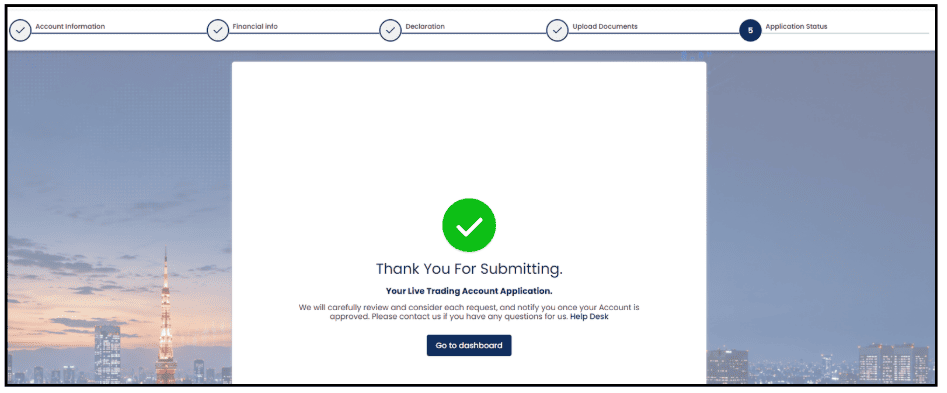
After approval, you will receive a confirmation email.