How to Make Deposit Using Vietnam/Indonesia/Malaysia Local Bank (Xenith Pay)

Note:
 Currency conversion
- Deposits made in VND, IDR or MYR will be automatically converted to the base currency of your trading account.
- Withdrawal limitation
No third-party deposits
- Deposits must come from a bank account under your own name.
- Deposits made by a third party will be returned to the original sender, and you will be responsible for any related fees.
- Hirose will not be liable for any negative impact on your trading account caused by the return of such funds (for example, automatic closure of open positions).
Proof of deposit
- Hirose may request a bank statement to confirm your deposit.
- Please keep your deposit slip or bank statement until the funds are fully credited to your trading account.
Step 2
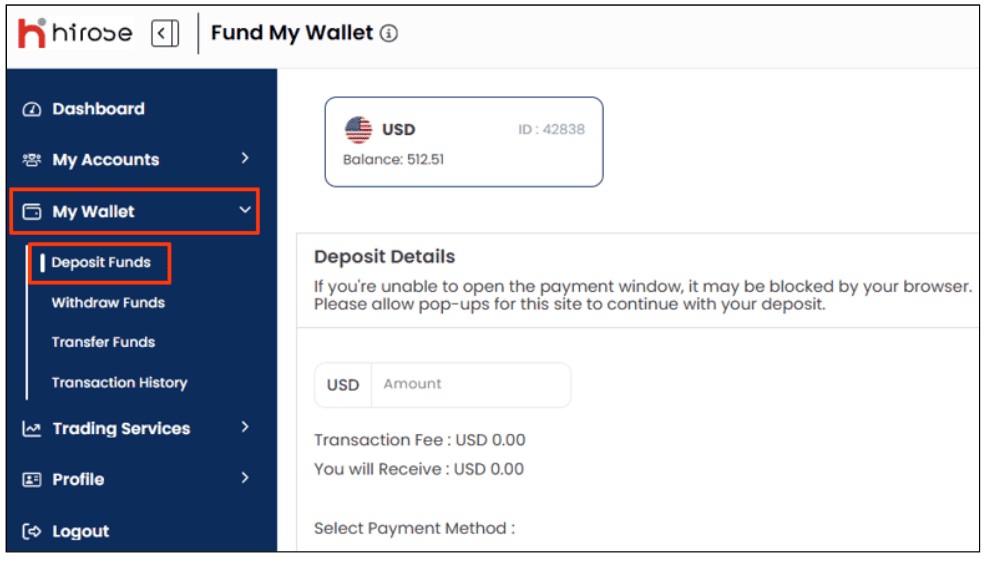
From the left-hand menu, click My Wallet, then choose Deposit Funds
From the left-hand menu, click My Wallet, then choose Deposit Funds
Step 3
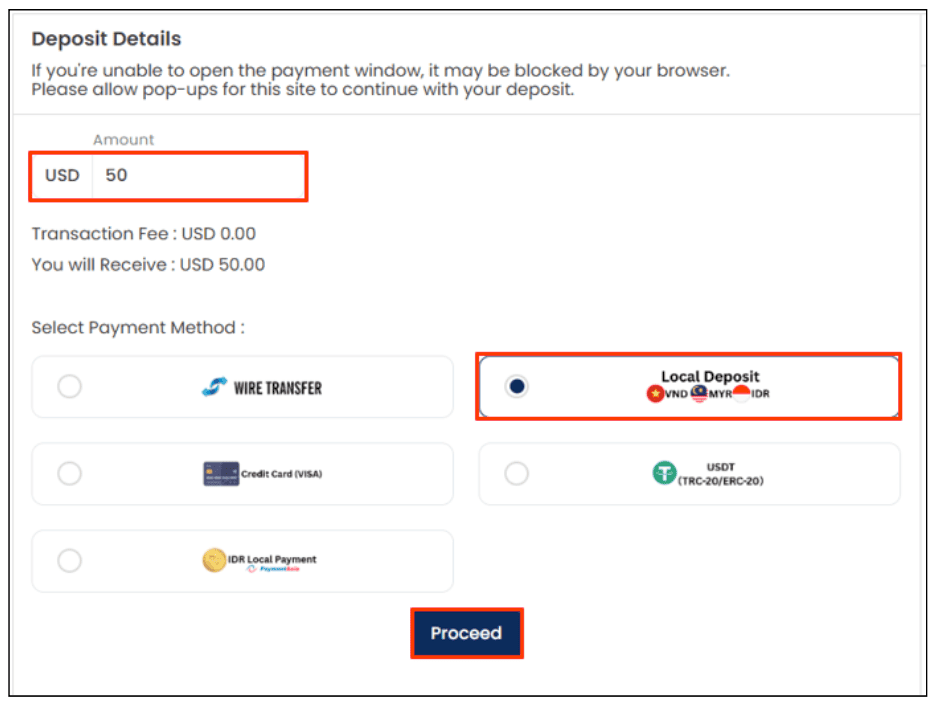
Under Deposit Details, enter the deposit amount and select Local Deposit, then click Proceed
Under Deposit Details, enter the deposit amount and select Local Deposit, then click Proceed
Step 4
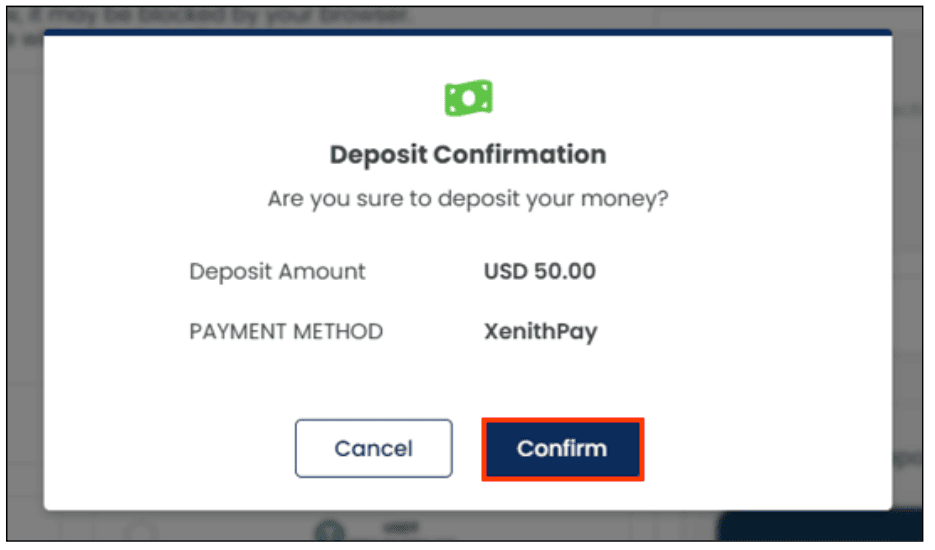
Confirm Your Deposit
Review the deposit amount and payment method, then click Confirm
Confirm Your Deposit
Review the deposit amount and payment method, then click Confirm
Step 5
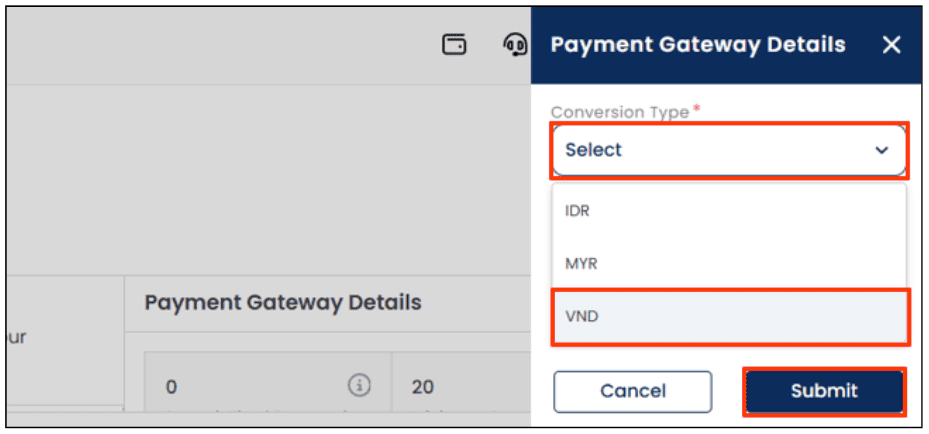
On the right side, click Select to choose the currency you want to use to deposit funds (EX: VND), then click Submit
On the right side, click Select to choose the currency you want to use to deposit funds (EX: VND), then click Submit
Step 6
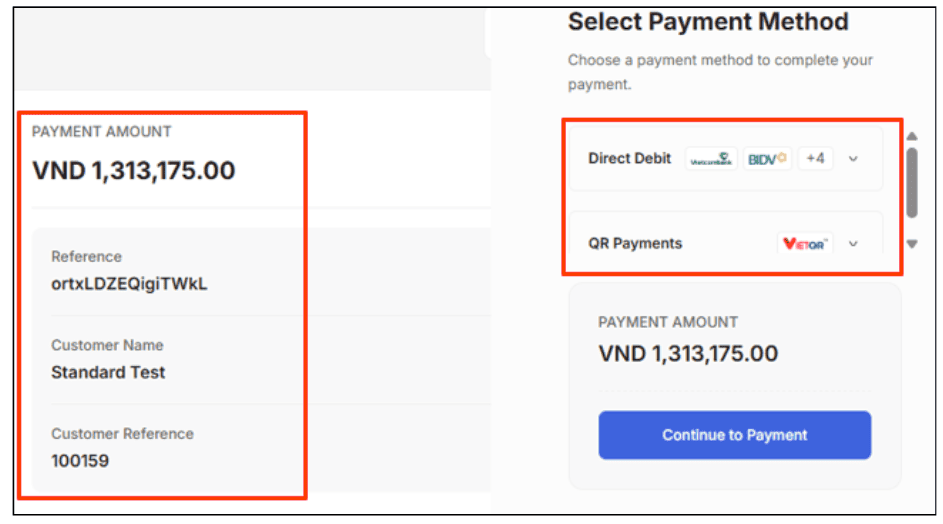
The deposit amount in Vietnamese Dong (VND) — converted automatically from USD — will be displayed. Please review the amount carefully.
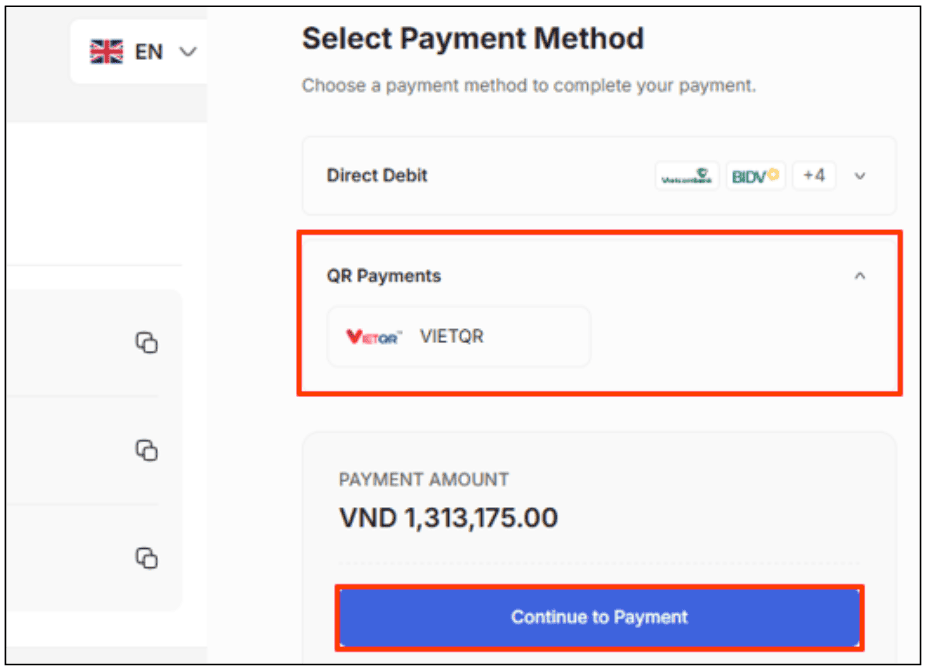
If everything is correct, choose your preferred Vietnam bank deposit method:
- Direct Debit: Make a payment directly from your linked bank account.
- QR Payments: Make a payment by scanning the QR code using your banking app or a supported e-wallet.
Step 7
If you selected Direct Debit, choose your bank and click Continue to Payment
If you selected Direct Debit, choose your bank and click Continue to Payment
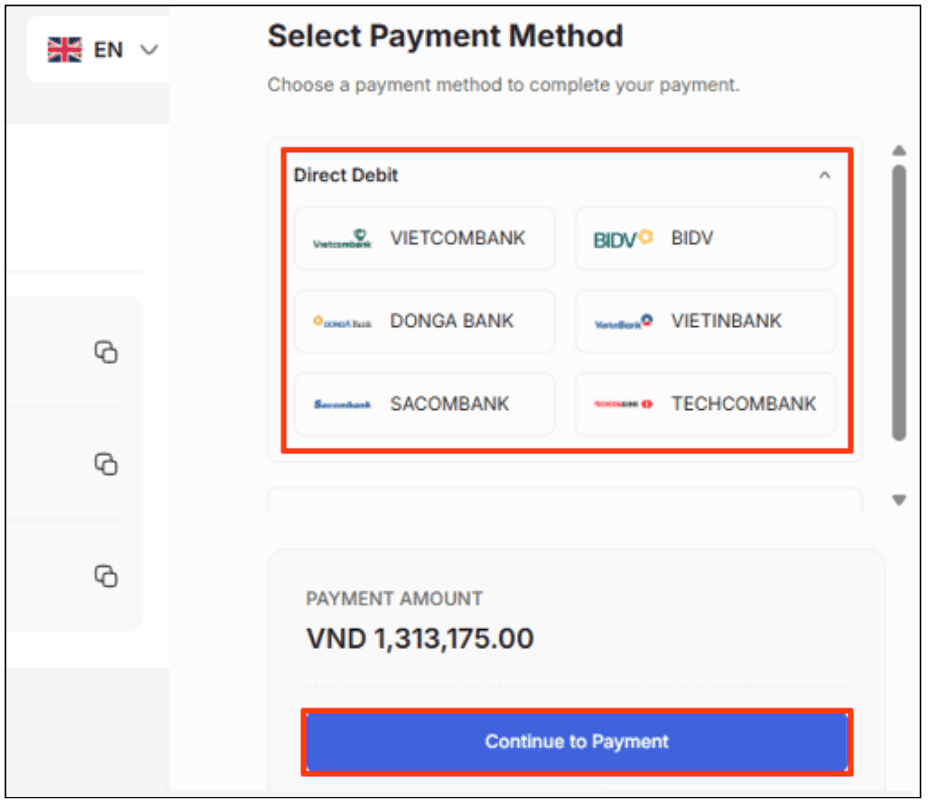
If you selected QR Payments, choose VietQR and click Continue to Payment
Step 8
If you selected Direct Debit, please authorize the payment through your bank’s authentication process.
If you selected Direct Debit, please authorize the payment through your bank’s authentication process.
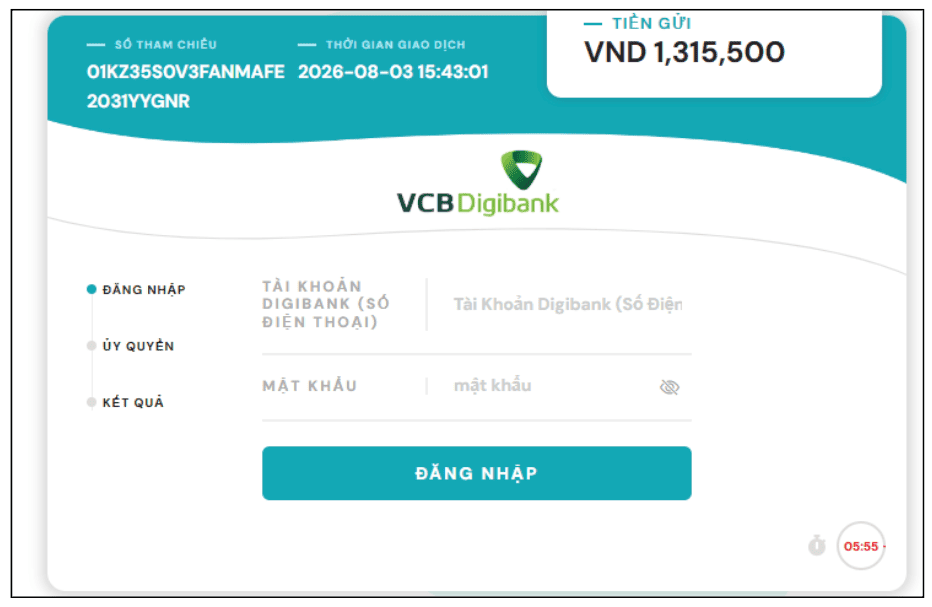
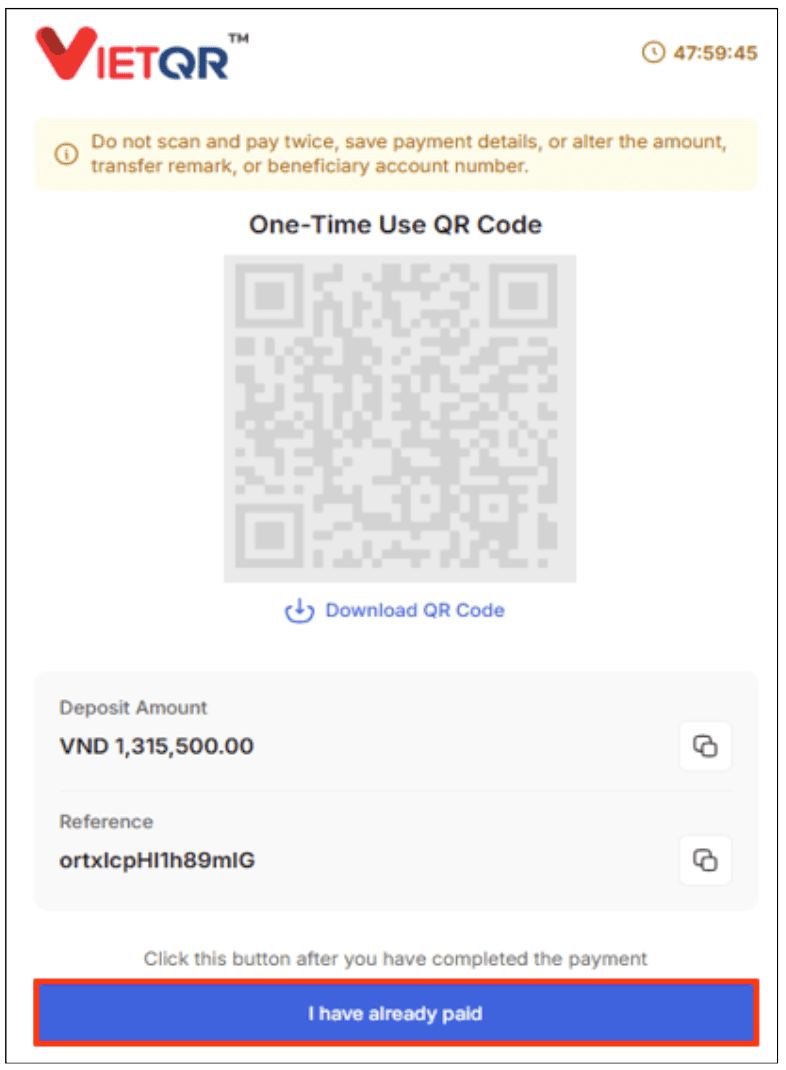
If you selected QR Payments, open your preferred banking application, such as your bank app, MoMo, or ZaloPay, and scan the QR code displayed on the screen.
Follow the instructions in your selected app to complete the payment.
Once your payment is successfully made, click I have already paid
Follow the instructions in your selected app to complete the payment.
Once your payment is successfully made, click I have already paid
Step 9
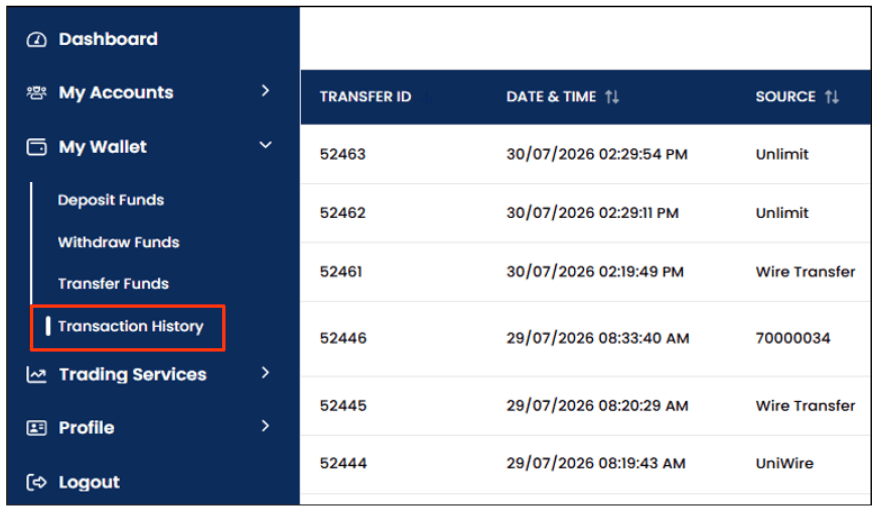
You can check the result of your deposit from the Transaction History section.
A notification will also be sent to your registered email address.
You can check the result of your deposit from the Transaction History section.
A notification will also be sent to your registered email address.