How to Make Deposit Using Indonesia Local Payment (Payment Asia)
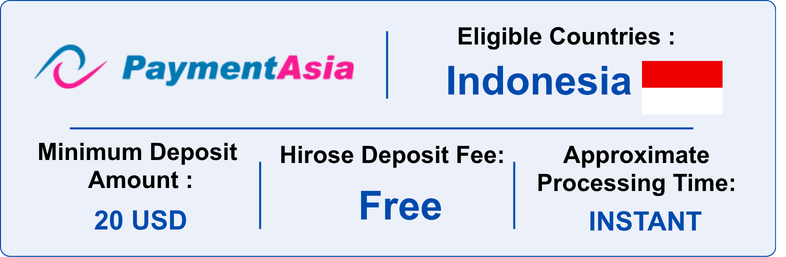
Deposit Policy
1.No Third-Party Deposits
- Hirose does not accept third-party deposits.
- All deposits must be made from a bank account under the same name as your Hirose trading account.
- If a third-party deposit is received, the funds will be returned to the original sender, and all related fees will be borne by the customer.
2.Deposit Fees
- Hirose does not charge any deposit fees.
- Your bank may apply additional charges. Please check directly with your bank for fee details.
3.Currency Conversion
- Deposits made in IDR will be automatically converted to USD and credited to your Wallet.
4.Proof of Deposit
- You may be asked to provide a bank statement during processing.
- Please keep your bank statement until the funds are fully credited to your wallet balance.
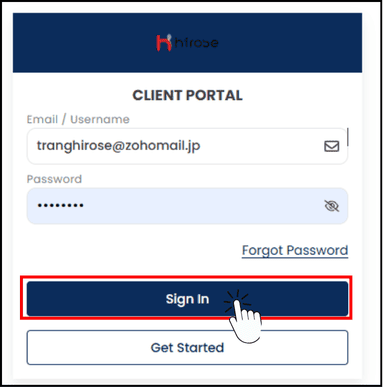
Step 1: Login to the Client Portal
Enter your Email and Password (the same ones you used during registration).
Click 
Step 2
Click the icon button to open the left-hand menu.
Click the
icon button to open the left-hand menu.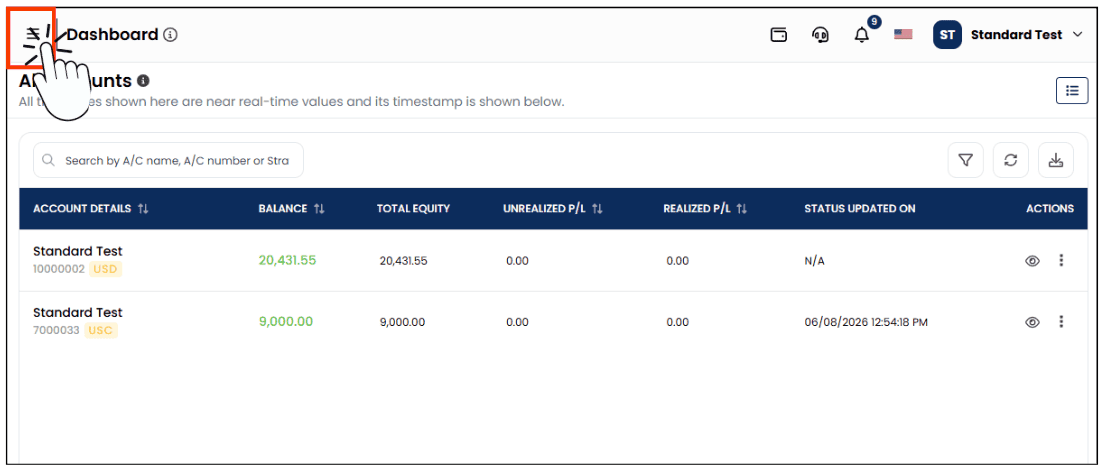
Step 3
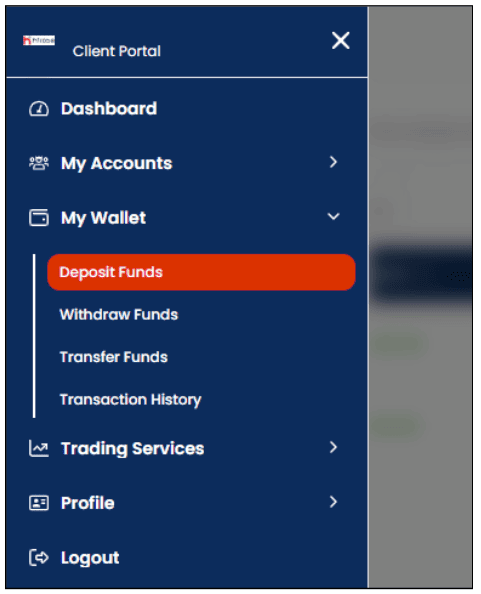
From the left-hand menu, click [My Wallet], then click the [Deposit Funds].
From the left-hand menu, click [My Wallet], then click the [Deposit Funds].
Step 4
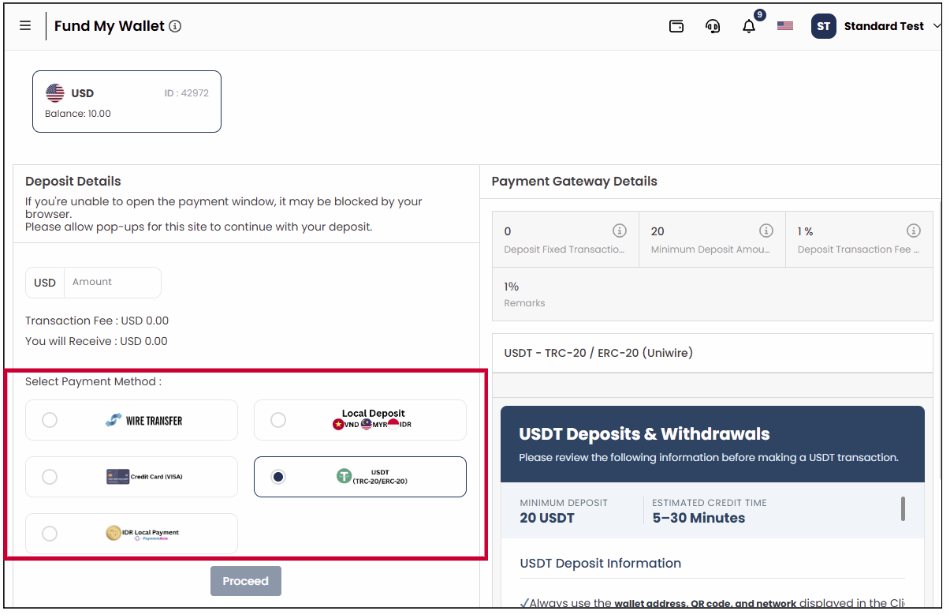
You will be redirected to the Fund My Wallet page. On this page, you can access all available deposit payment methods.
You will be redirected to the Fund My Wallet page. On this page, you can access all available deposit payment methods.
Step 5: Start the Deposit Process
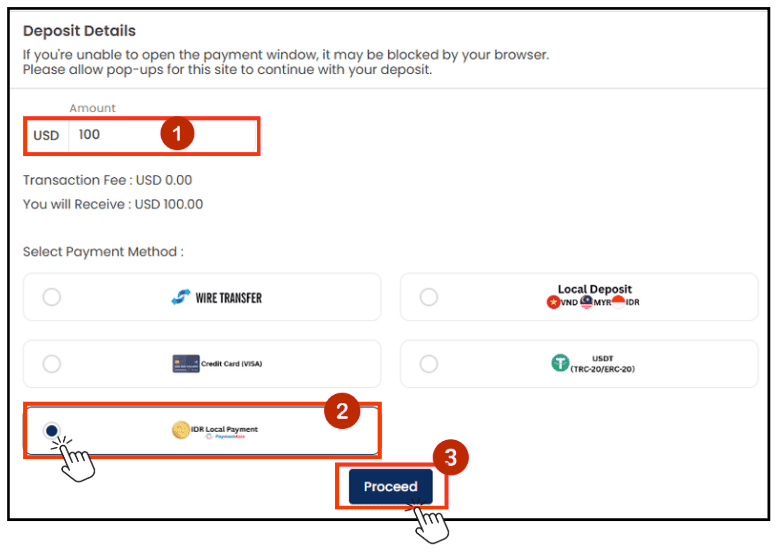
- Enter your deposit amount
- Select the payment method: IDR Local Payment
- Click [Proceed] button
Step 6: Review and Confirm Your Deposit
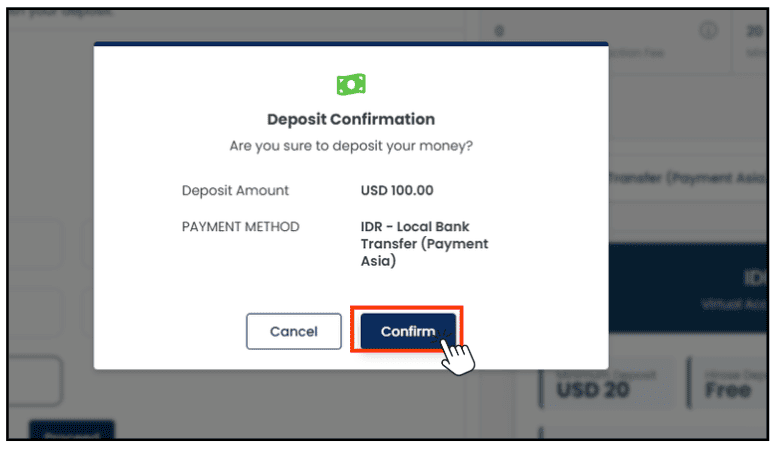
The Deposit Confirmation window will pop up. Please review your deposit details carefully.
- If the details are correct, click the [Confirm] button.
- If the details are incorrect, click the [Cancel] button to return to Step 5.
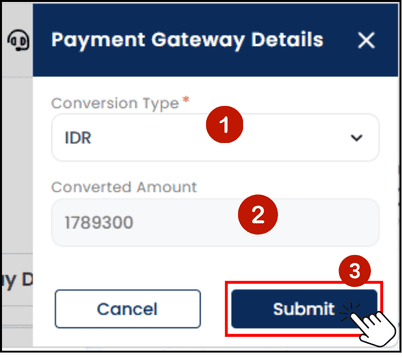
Step 7: Fill Out the Payment Gateway Details
The Payment Gateway Details panel will slide in from the right. Please fill in the required information to proceed with your deposit.
- Conversion Type: Select IDR.
- Converted Amount: The deposit amount in Indonesian Rupiah (IDR) — converted automatically from USD — will be displayed.
- Click the [Submit] button.
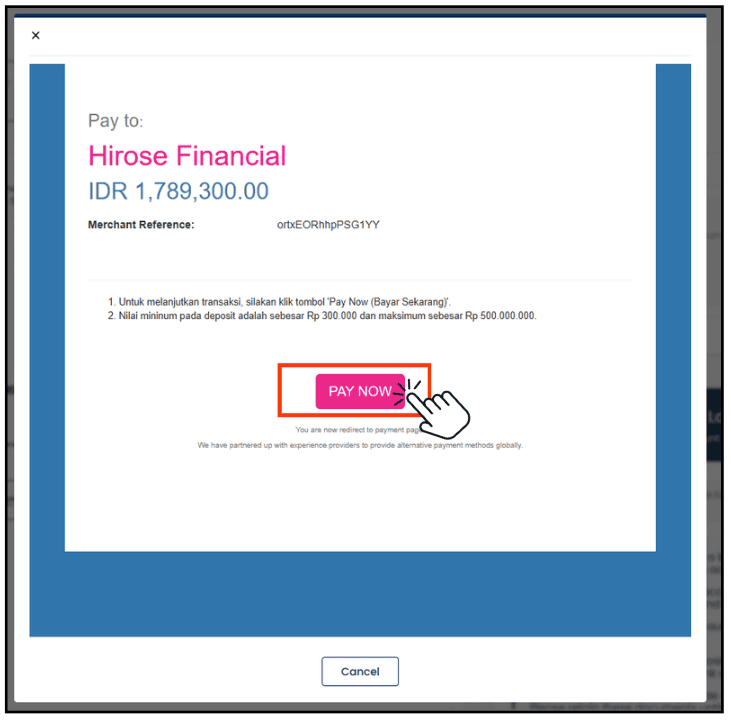
Step 8: Please review the amount carefully, and if everything is correct, click [PAY NOW].
Step 9:
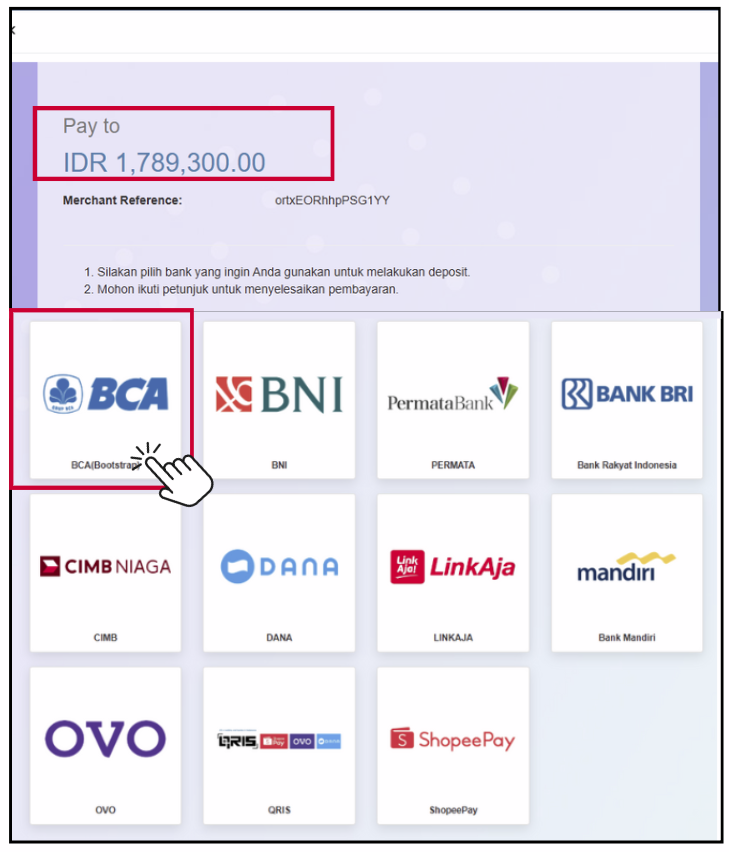
Please select your preferred deposit method from the available payment options displayed.
Please select your preferred deposit method from the available payment options displayed.
Step 10:
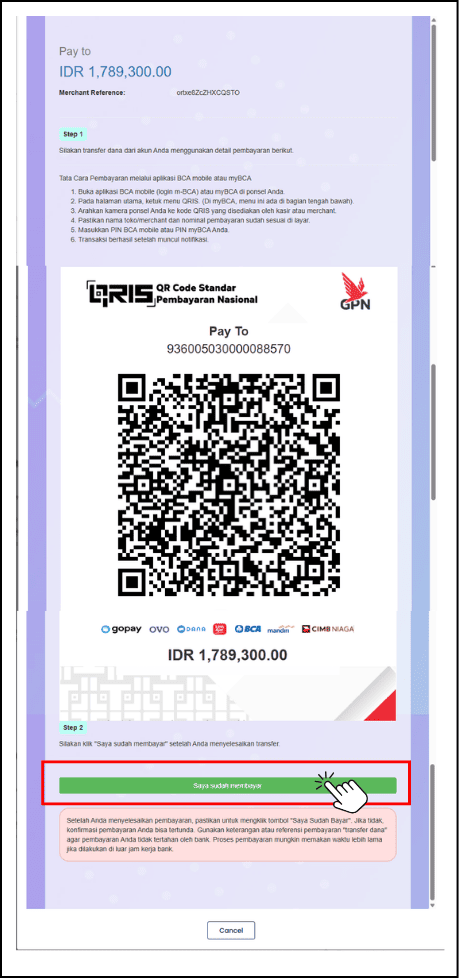
Follow the instructions shown for your selected payment method to complete the transfer.
After the payment is completed, click [Saya sudah membayar]
Follow the instructions shown for your selected payment method to complete the transfer.
After the payment is completed, click [Saya sudah membayar]
Step 11: Payment Processing Details
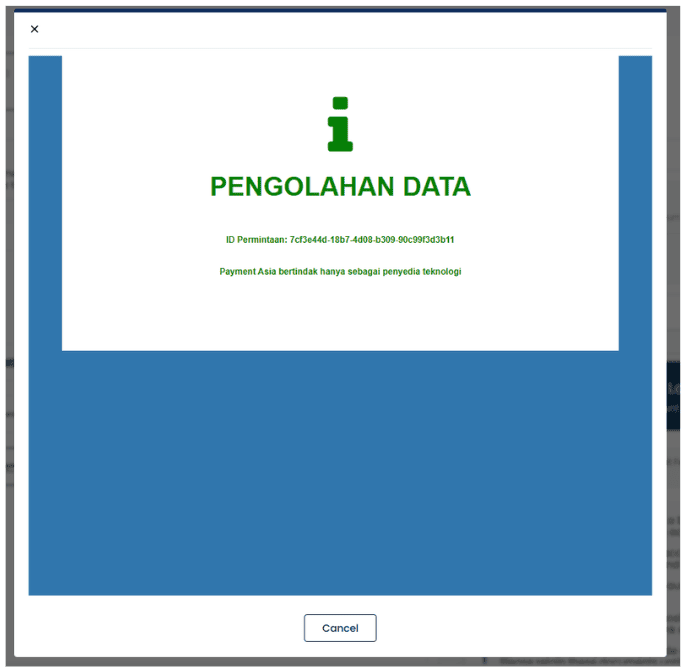
The screen below will display the payment processing information (Pengolahan Data).
The screen below will display the payment processing information (Pengolahan Data).
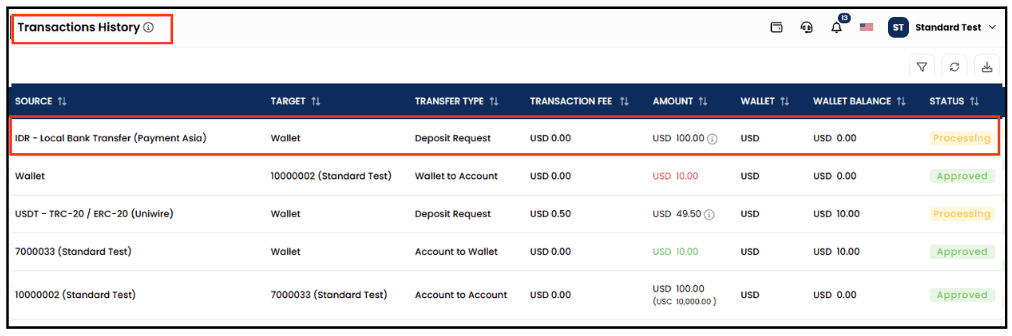
Step 12: You can check the result of your deposit from the [My Wallet] > [Transaction History] section.
A notification will also be sent to your registered email address.
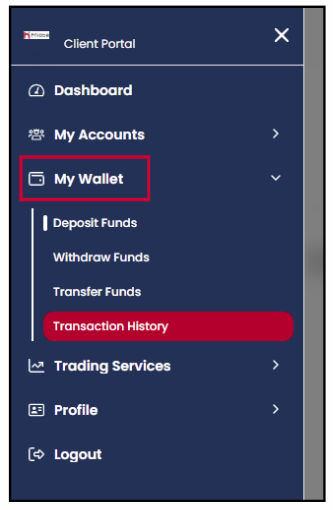
Once the transaction status changes from Processing to Approved, your funds have been successfully transferred to your Wallet.